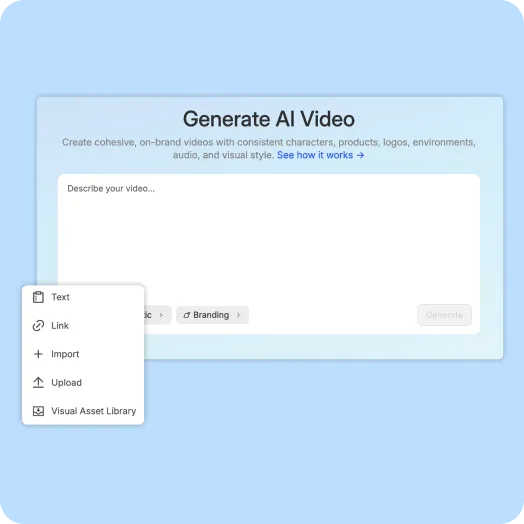
1. Input
Start with an idea, script, webpage, PDF, or uploaded assets. Visla uses them to start planning your video.


Create cohesive AI videos with consistent characters, objects, environments, and visual style.
Experience AI Director Mode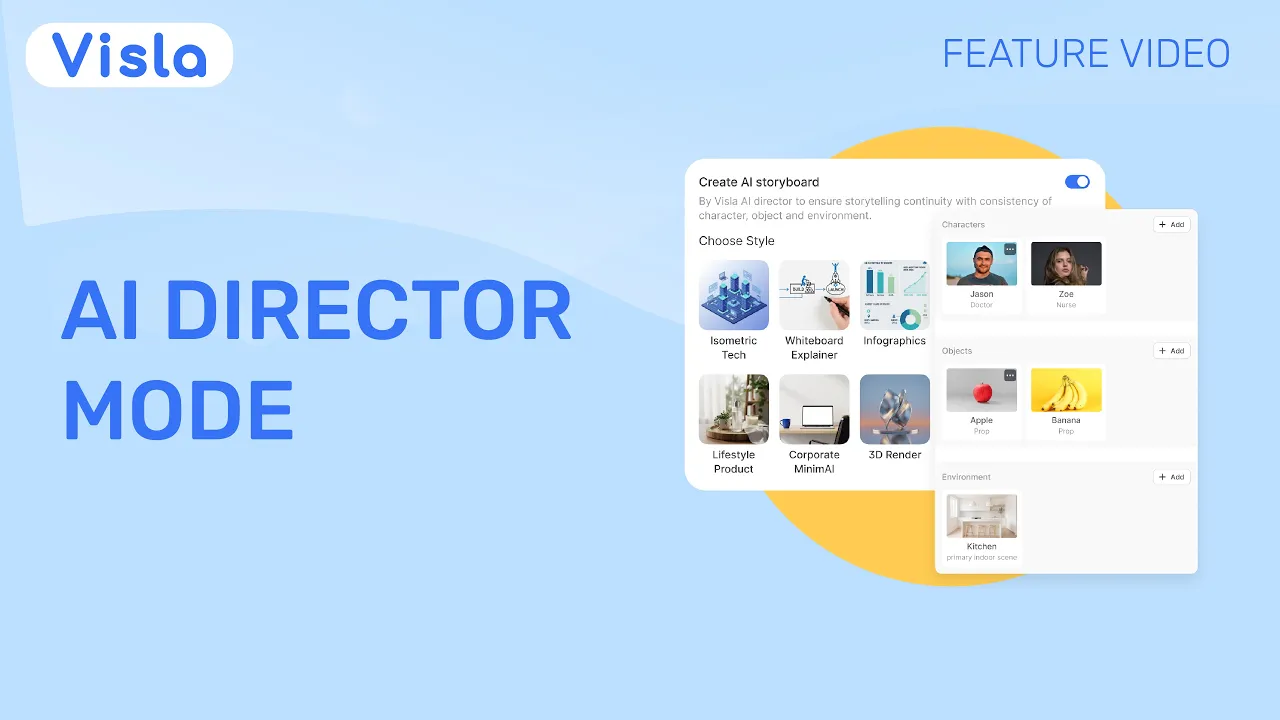

AI Director Mode is Visla’s workflow for creating cohesive AI-generated videos while maintaining continuity across characters, products, logos, environments, visual style, and audio. Start with an idea, script, webpage, PDF, or other uploaded assets, then control the direction while AI Director Mode handles the difficult, repetitive tasks. It’s a faster, easier way to create on-brand marketing, sales, training, and product videos.
Start with an idea, script, webpage, PDF, or uploaded assets. Visla uses them to start planning your video.
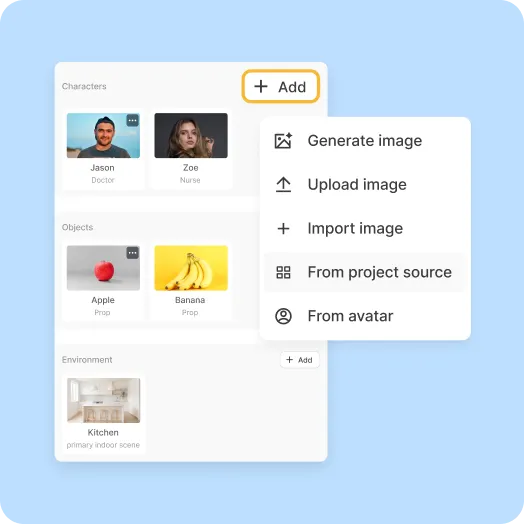
Review the characters, objects, and environments generated for your project, or choose saved assets from your Visual Asset Library.
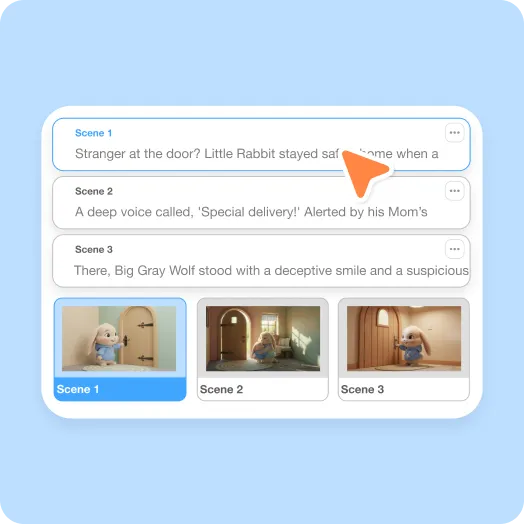
Before you commit to generating the video, review the storyboard. Tweak the prompts and scene references, then choose which scenes you want to turn into full AI video clips.
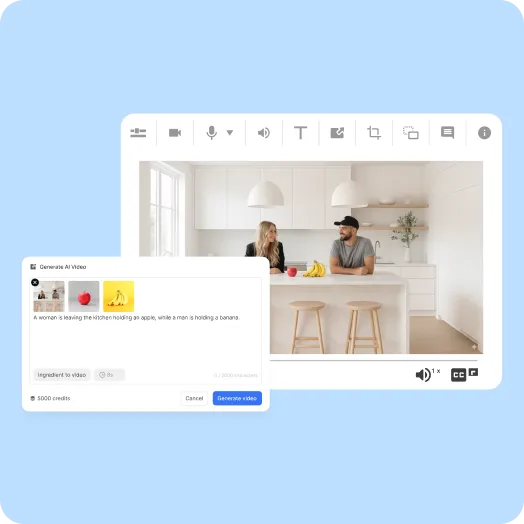
AI Director Mode uses your approved plan and visual references to help keep the generated scenes consistent and cohesive.
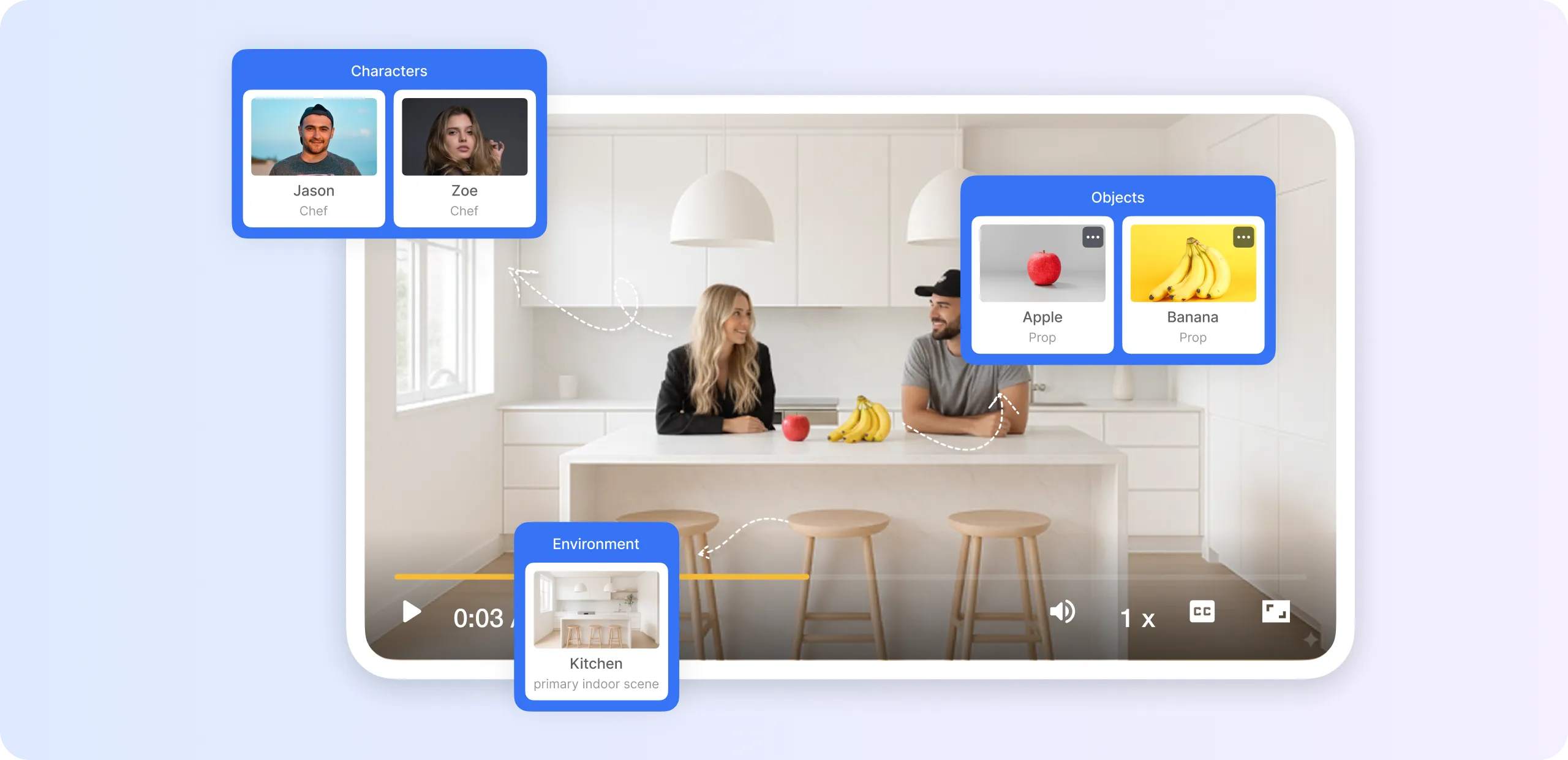
Visla’s Visual Asset Library saves characters, objects, and environments from AI Director Mode and lets you reuse them in new AI video projects. Save an asset from an existing project, create one from scratch, or create one from an existing image. Reusing assets makes it easier to build recurring characters, maintain consistent products and settings, and create new videos around an established visual world.
Traditional video production can eat up budget fast and take weeks of planning, filming, and editing.
Average for a 1-minute AI Director Mode video with about 10 scenes.
Approximate flexible-credit equivalent on Pro or Business plans.
A polished 2-minute AI Director Mode video can often be created in less than one business day, depending on scene complexity and editing needs.
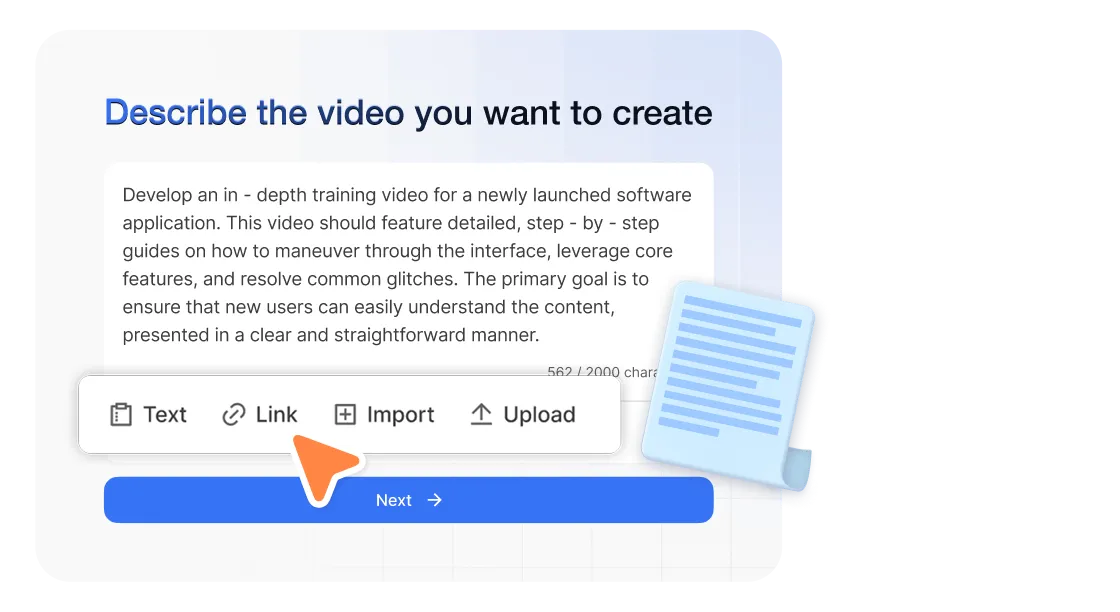
Start with an idea, script, URL, PDF, or uploaded assets, then refine your video’s direction and generate approved scenes, rather than waiting through an entire traditional production cycle.
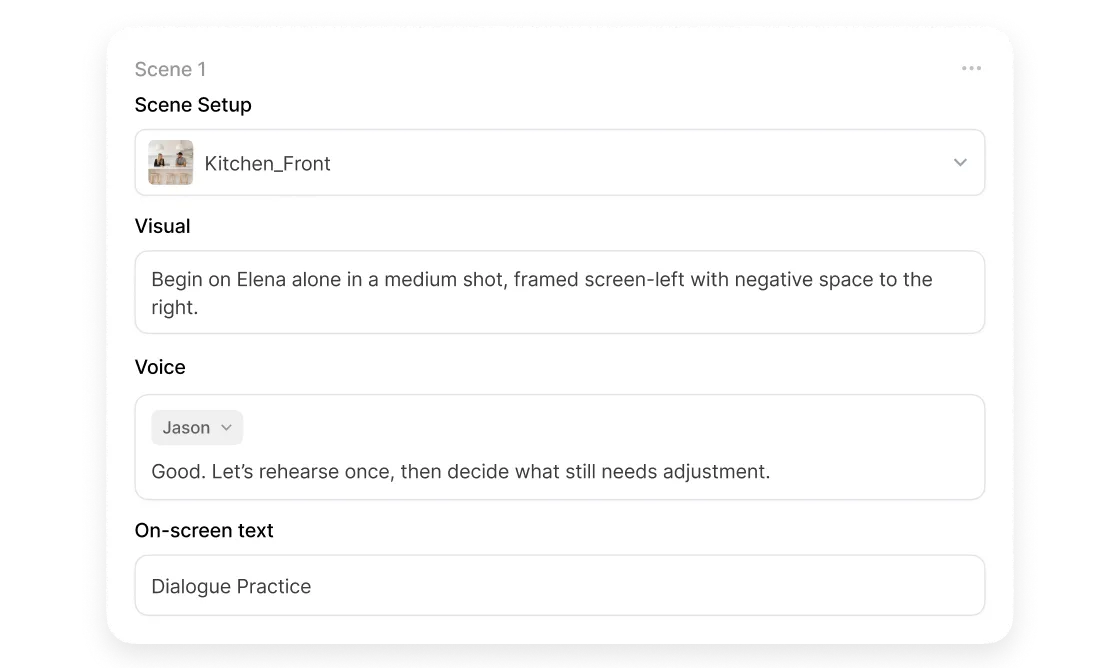
Approve the direction before generating AI video clips, so you don’t waste budget on clips that miss the mark.
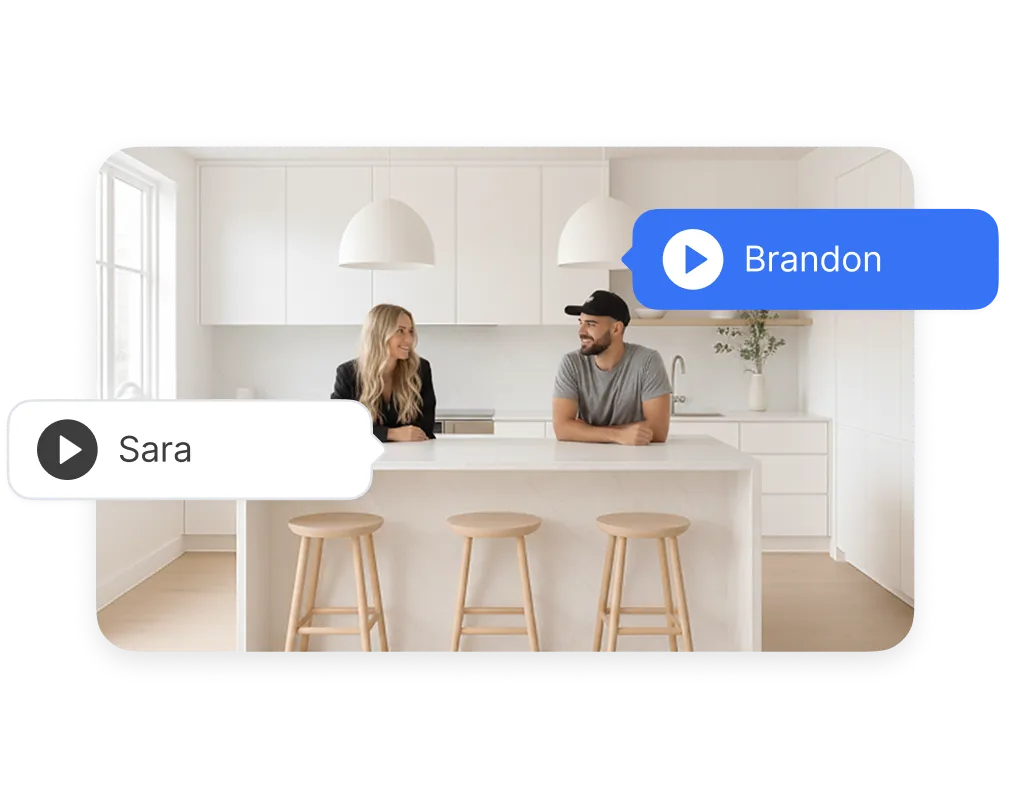
Characters, products, logos, environments, and visual style stay consistent from scene to scene. Save key characters, objects, and environments to your Visual Asset Library and reuse them in future AI Director Mode projects.
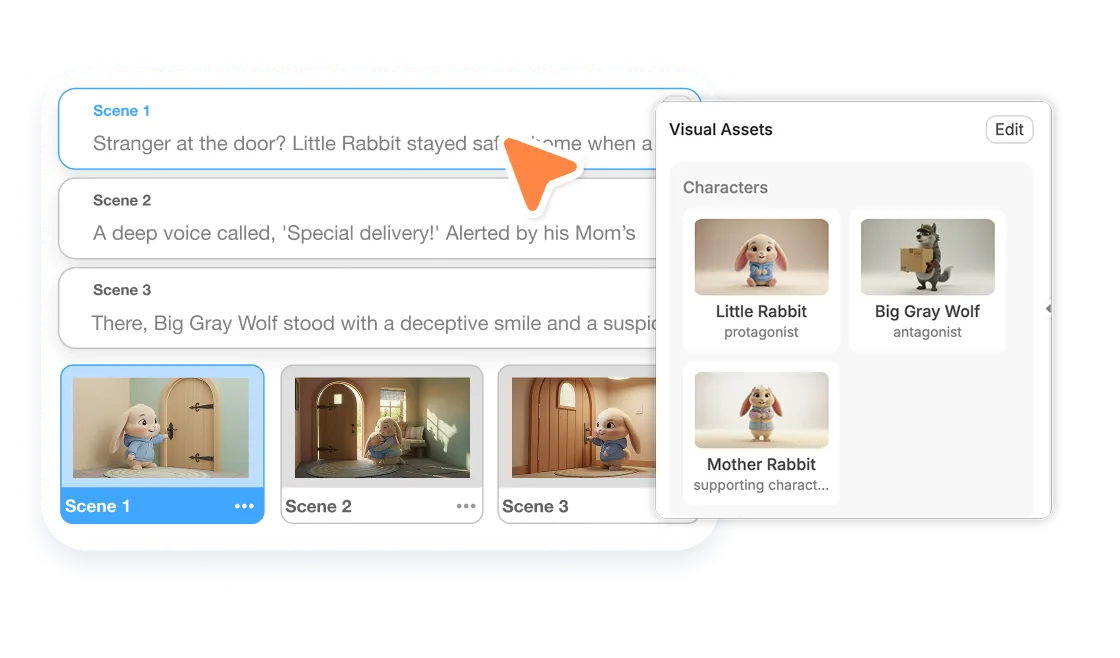
Reuse saved characters, objects, and environments instead of recreating them for every video. Build campaigns, training series, product explainers, and recurring content around the same visual assets.
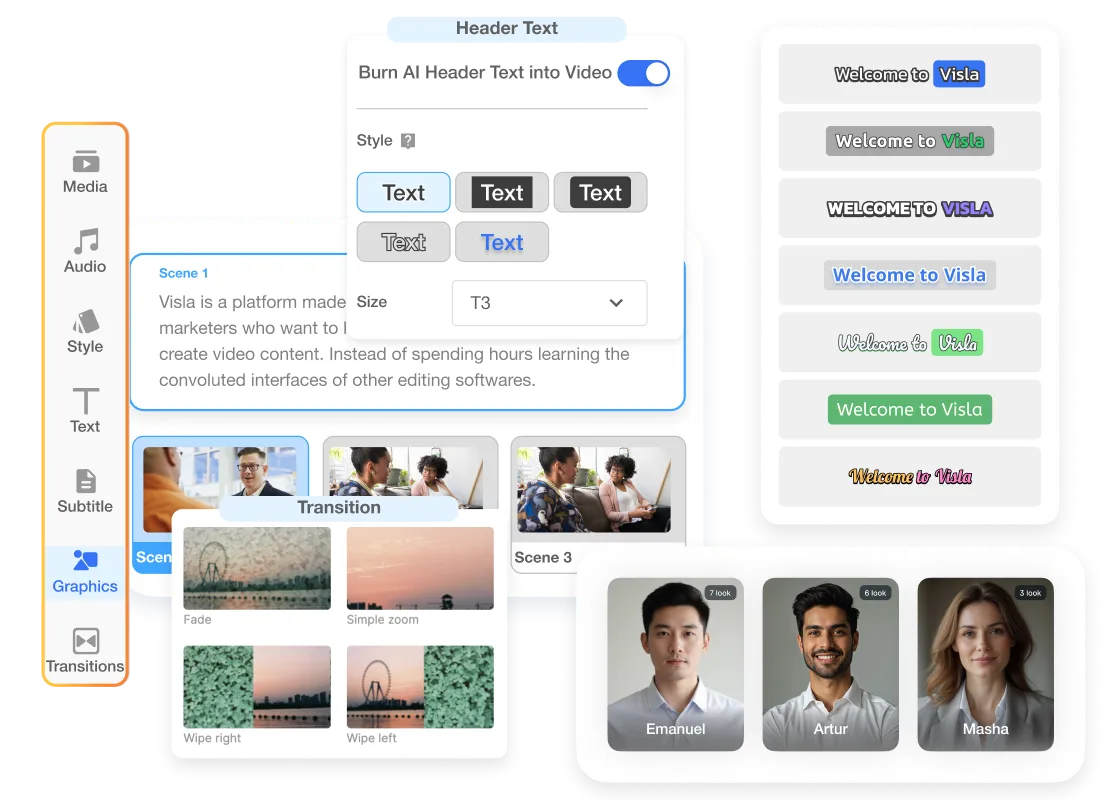
Review the direction, refine individual scenes, and choose which scenes become AI-generated video clips.
Plenty of AI video tools create clips. AI Director Mode helps you create a complete video.
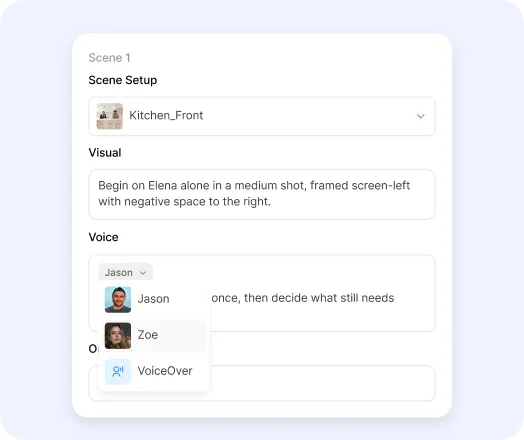
AI Director Mode helps you create a video that delivers a cohesive message. Plan the full video before generation so individual scenes support the same message and visual direction.
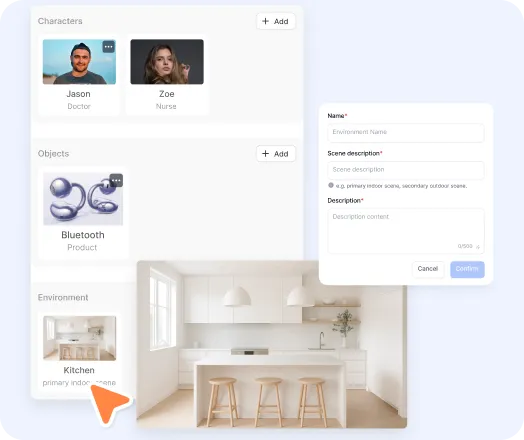
Keep characters, products, logos, environments, and visual style steady from scene to scene. That makes the final video feel cohesive rather than stitched together.
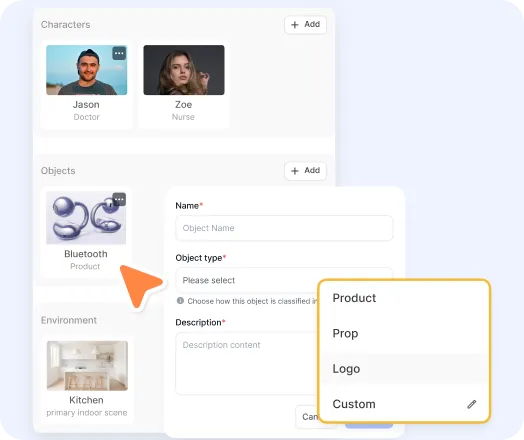
Create or add the characters, objects, and environments your video needs, then save the ones you want to use again. Your Visual Asset Library makes those elements available for future AI Director Mode projects.
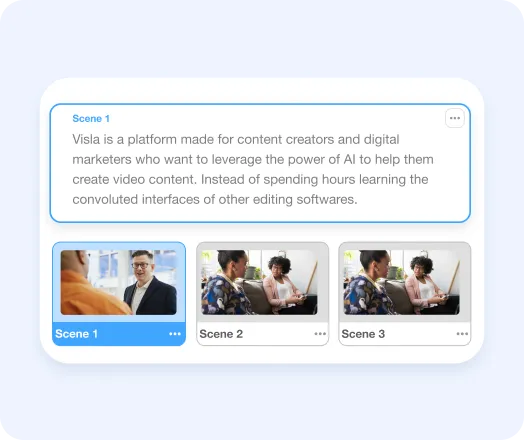
Refine individual scenes, choose which scenes become AI-generated video clips, and review the video as a whole. You can adjust the message or visuals without rebuilding the entire project.
Launch campaign videos faster with AI Director Mode. Turn campaign briefs, landing pages, product images, and brand assets into cohesive, on-brand videos for launches, promotions, and demand generation.
Create outreach videos that feel clear and personal without starting from scratch. Turn a prospect’s pain point, a follow-up message, or a campaign idea into a visual story, then add a presenter or custom voiceover when it helps guide the viewer.
Build training videos that stay consistent across lessons. Reuse familiar characters and environments so an entire training series can share the same visual world and optional AI presenters.
Make company updates easier to watch and understand. Turn announcements, leadership notes, and internal documents into clear visual updates with consistent branding, optional presenters, and a strong call to action.
Turn product notes, help docs, screenshots, and feature descriptions into videos that walk viewers through what changed and why it matters.
Make more videos without starting from scratch. Reuse campaign characters, objects, and environments across a series of social videos, then adapt scenes, hooks, and visual styles for different channels and audiences.
AI Director Mode is Visla’s workflow for creating complete, multi-scene AI videos with consistent characters, objects, environments, visual style, and other recurring elements. You can start with an idea, script, webpage, PDF, or uploaded assets, review the planned storyboard and visual direction, then generate the scenes you approve.
A standard AI video generator typically creates individual video clips from prompts. AI Director Mode helps you plan an entire video before generation, giving you control over the story, storyboard, visual references, and recurring assets so the finished scenes work together as one cohesive video.
Yes. Visla’s Visual Asset Library lets you save characters from AI Director Mode and reuse them in future AI video projects. You can also save and reuse objects and environments, making it easier to build recurring characters, settings, products, and connected video series without recreating the same assets every time.
AI Director Mode plans recurring visual elements before generating the final video clips and uses approved assets and visual references to guide each scene. This helps maintain continuity in characters, products, logos, environments, and visual style throughout a multi-scene video.
Yes. AI Director Mode lets you review the storyboard before full video generation, adjust prompts and scene references, and choose which scenes you want to generate as AI video clips. This gives you more control over the direction of the video before committing to final generation.


