
Quick Answer
AI Director Mode is Visla’s game-changing new way to create AI video with a storyboard you can edit before you generate full AI video clips. You set the direction up front and control what appears on screen, like characters, objects, and environments. Then Visla builds a scene-by-scene storyboard you can review and edit. Finally, you can turn the scenes you choose into AI-generated video clips that stay consistent across the full video.
A new way to make video in Visla
If you’ve used Visla before, you know what to expect. You bring something to start with, like an idea, script, footage, and more, and Visla quickly generates a complete video for you.
AI Director Mode keeps that overall workflow. However, it also adds something completely new: a way to get custom AI video clips that match your story, without losing continuity from scene to scene.
Here’s the simplest way to think about it.
- You handle the “pre-production”.
- Visla helps “direct” the shoot.
- You act like the executive producer and approve what goes out.
That means you get an AI-generated video that looks intentional, not stitched together.
What makes AI Director Mode different
Visla’s AI Video Agent can already turn almost any input into a video. It can also match scenes with stock footage, which stays incredibly useful when you need real-world b-roll fast.
Sometimes, though, stock clips can’t do the job.
You might want a product shot that doesn’t exist yet. You might want a specific workplace that looks like your audience’s world. Or you might want a character who shows up in scene one and still looks like the same person in scene six.
AI Director Mode focuses on that problem. It helps you plan and generate a cohesive video that fits your ideas, with consistency across multiple AI-generated clips.
Why we built AI Director Mode
A lot of current AI video workflows are unrefined. You generate a clip, then you generate another clip, and you hope the pieces line up.
That often creates three headaches.
- Visual drift: the look changes from scene to scene.
- Story drift: the narrative loses momentum.
- Brand drift: logos, products, and key elements don’t stay consistent.
AI Director Mode changes all of that.
You start with a storyboard. You edit it until it reads clearly. Then you generate clips from the scenes you choose.In other words, you plan first, then you produce.
What you control in AI Director Mode
“Control” can sound abstract, so let’s make it concrete.
In AI Director Mode, you have complete control over:
- Characters: your main model, your customer persona, your mascot, or a consistent cast of people
- Objects: products, packaging, props, devices, UI elements, logos, icons
- Environments: offices, classrooms, studios, homes, outdoor settings, abstract branded spaces
- Style: photorealistic, cinematic, 3D render, infographic, flat vector, UGC or social, stylized cartoon, etc.
You don’t need perfect footage anymore. You need a good idea and a clear message.
Here’s an example of what we mean by that. Below are the “ingredients” I used to create the video.

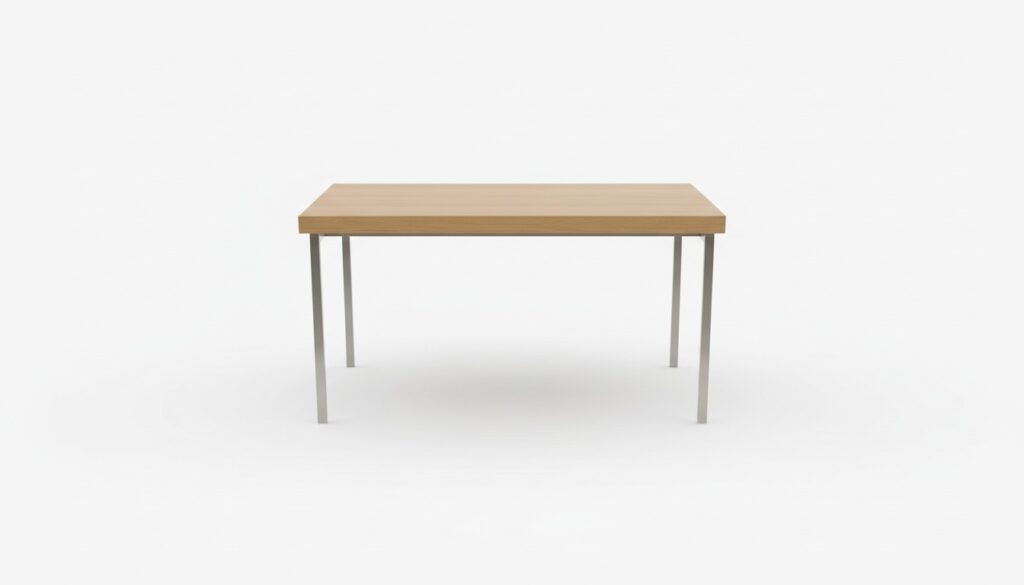




Now, look at how these simple ingredients came together to make a fun, creative ad for AI Director Mode. This took me (just one person and, admittedly, no video editing expert) about an hour to put together from start to finish.
How the storyboard-first workflow works
AI Director Mode follows a simple workflow.
1. Create a video project

Start with a script, a PDF, a webpage, a deck, raw footage, images, or audio. Visla uses your input to form the structure and backbone of your video.
2. Set up your video like a director

Next, you set the “rules” for your project.
You choose the style. You set the pace. You pick your voiceover direction.
Then you decide what should appear in the video. Add characters, objects, and environments so your scenes share the same world.
3. Generate your storyboard

Then Visla builds a scene-by-scene storyboard with images for each scene.
Now you can see the whole video before you spend credits on motion.
4. Edit the storyboard until it lands

This step keeps things fast.
Tighten the story. Rewrite a scene. Swap a visual. Change a character. Adjust an environment.
You don’t guess. You review.
5. Turn selected scenes into AI video clips

Once your storyboard looks right, you choose which scenes become full AI video clips.
Motion matters most in a few places, like a reveal, a transition, or a key moment. You can keep other scenes as storyboard images when that works better.
6. Edit your video at the scene level
After generation, you can still refine.
Regenerate a single scene. Swap a prop. Adjust pacing. Tighten transitions.
You keep control without restarting from scratch.
What you can make with AI Director Mode
Let’s talk about what you can ship, not just what the feature does.
Marketing launches that look designed, not assembled
You can storyboard a launch narrative, then generate a few standout scenes that show your product in a consistent world. Next, you can cut variations for different channels without losing your core look.
Product demos with consistent visuals
Turn a help doc into a storyboard, then generate clips for the moments that need motion. Keep your product shots, UI visuals, and brand elements steady across the video.
Training and onboarding that stays clear
Build a storyboard that follows your process step by step. When a process changes, update one scene and keep the rest.
Social content with repeatable characters and locations
Create a character your audience recognizes. Keep the same “set” for multiple posts. Then swap the message and keep the format.
Internal updates that people will actually watch
Turn a weekly update into a short storyboard with a clear structure. Add a consistent look and narrator so the format feels familiar.
A simple direction checklist for better results
If you want a quick way to guide the AI, use this checklist when you set up a project.
- What’s the one thing you want viewers to remember?
- Who appears on screen, and what role do they play?
- What product or object must show up, and where?
- What environment fits the audience’s world?
- What style matches your brand and channel?
- Where does motion matter most?
If you can answer those, you can make a strong video without perfect footage.
Try AI Director Mode
AI Director Mode gives you a storyboard-first way to create custom AI video that stays consistent across scenes. You bring the idea. Visla helps direct the scenes. Then you approve the final cut.
If you want to make videos that look tailored to your story, this is the most direct way to do it.
FAQ
AI Director Mode lets you create an AI video from any input, then guide the visuals scene by scene with an AI storyboard. You choose the style, pacing, and voiceover direction, and you specify what appears on screen, like characters, objects, products, and environments. Visla turns those choices into a storyboard you can review and edit before you spend credits on full-motion clips. Then you convert only the scenes you choose into AI video clips that stay consistent across the whole video.
A storyboard maps the important changes of scene and action in order, so you can see the plan before you produce the video. In AI Director Mode, you review the storyboard, fix weak beats, and confirm that your characters, objects, and environments stay consistent from scene to scene. That review step reduces visual drift and helps your narrative flow stay clear. It also matches a practical AI risk principle: keep humans in the loop with review and oversight before you publish.
Use stock footage when you want fast, real-world b-roll, like offices, cities, nature, or events, and you don’t need a bespoke shot. Use AI Director Mode when you need a unique scene, a consistent character, or a branded environment that stock libraries can’t match. You can also mix both approaches by keeping some storyboard scenes as images and turning only key moments into AI clips. That hybrid workflow lets you balance speed, realism, and creative control in one project.
Yes, you can edit the AI storyboard after Visla creates it, and you should treat it like the draft you refine before production. Update scene text, swap visuals, change characters or environments, and regenerate a single scene when you want another option. When the storyboard reads cleanly, convert the scenes that need motion into AI video clips. You keep control over the final cut because you decide what to generate and what to export.

May Horiuchi
May is a Content Specialist and AI Expert for Visla. She is an in-house expert on anything Visla and loves testing out different AI tools to figure out which ones are actually helpful and useful for content creators, businesses, and organizations.