

Quick answer: Want to cast Santa in your videos?
Ho, ho, ho! Santa is here to star in your next video. To make a holiday video with Visla’s Santa AI Avatar, start a new project with any input (text, a script, a link, clips, images, or a PDF), then make sure to select our brand new, custom Santa Avatar. Let Visla’s AI generate a first draft with scenes, narration, and visuals, then polish the pacing and wording in the Scene-Based Editor. Export your final cut and share it as a download, link, or embed.
Santa AI Avatar for Holiday Videos: What It Is and When to Use It
Visla’s holiday promo Santa Avatar works like any other AI Avatar in Visla, just with a little more of that classic Kris Kringle energy. You pick it as the “presenter” for your video, and our AI handles things like lip sync, hand movements, the voiceover, and more.
Here’s the quick rundown of how it works:
- You bring the message (what you want to say and who it’s for).
- Visla builds the draft (scenes, voiceover, visuals, timing).
- The Santa Avatar delivers your message (as an on-screen presenter).
- You refine the final cut (so it’s polished to your standards)
This kind of holiday avatar fits best when you want a video that feels personal, but you don’t want to film yourself or wrangle a full production setup. It also helps when you need to make several versions, like one for your customers, one for your team, and one for the group chat that still argues about whether Die Hard counts as a Christmas movie.
What you can control (without turning into a full-time editor)
You don’t need to micromanage every frame, but you do get real control over the final result. Here are the levers you can pull before you even start editing:
- Length and pacing: short and punchy, or a little more story-driven.
- Aspect ratio: landscape (16:9), portrait (9:16), or square (1:1).
- Voiceover: pick an AI voice, or use a voice option that matches your brand vibe. Our Santa Avatar is paired by default with a particularly jolly voice.
- Footage and music libraries: choose where our AI pulls b-roll footage and background music from.
If you’re trying to keep things tasteful, here’s a good rule: Santa can be fun, but your message still needs a point. A 25-second “thanks for an awesome year” beats a 2-minute inside joke that only the finance team understands.
How to Use Visla’s Santa Avatar in 5 Steps
You’ll follow the same workflow you’d use for any Visla video project. Keep it simple, then iterate.
1. Start with anything
Kick things off with anything: an idea, script, text, link, clip, image, audio, or PDF/PPT. Visla’s AI reads, listens, watches, and then analyzes whatever you gave it.
Quick tip: If you start with text, paste the version you’d feel comfortable sending in an email. That gives the AI a clean foundation. Otherwise, you can have our AI re-write it.
2. Guide our AI Video Agent
Set your basics: video length, pace, aspect ratio, and which libraries the Agent can use for stock footage and music. Then select the holiday promo Santa Avatar and the voiceover option that fits your audience.
Quick tip: For customer-facing videos, aim for 20–45 seconds. For internal team videos, 45–90 seconds usually lands well.
3. Let our AI Video Agent build your first draft
Based on your inputs and settings, Visla generates a structured draft with narration, visuals, scenes, transitions, and subtitles.
Quick tip: Treat this as your rough cut. You’ll improve it fast in the next step.
4. Refine the draft in our Scene-Based Editor
Now you’ll polish. You can cut or move scenes, rewrite lines, add text overlays, adjust branding, and swap visuals until it feels right.
If you only do three edits, do these:
- Tweak the opening so it starts strong.
- Fix the script so it sounds like a human wrote it.
- Refine captions so they’re always readable.
5. Export and share
When it looks good, share it with a click. Download it, copy a share link, or grab an embed code if you want it on a page.
Quick tip: Share it while the moment still feels fresh. Holiday videos age faster than leftover eggnog.
Holiday Santa Avatar Video Ideas: 15 Use Cases for Work, Family, and Everything Between
This section’s the real fun part. You can use the Santa Avatar for serious, sweet, and slightly ridiculous messages, as long as you keep the message clear and the runtime reasonable.
For teams and internal comms

- Leadership thank-you video (without a giant production lift)
Have Santa deliver a simple message: what went well, what you’re proud of, and what you’re excited about in January. Keep it under 60 seconds and add names or team wins as on-screen text. - Year-in-review highlights reel
Use a bulleted script and let the AI turn each bullet into a scene. Drop in a few screenshots, customer quotes, or internal photos so it feels real. - Holiday office hours reminder
Santa can cover closures, on-call schedules, and key dates in a way that people actually watch. Keep it factual, and put the dates on screen so nobody has to rewatch. - “You made the nice list” shout-outs
Make five micro-videos instead of one long video. Each person gets a short clip, and it feels more personal. - New hire welcome for January starts
Record a quick voice note or paste a short script, then let Santa cover the basics: who’s who, where to find docs, and what week one looks like.
For customers and prospects

- Holiday thank-you message to customers
Santa works well as a friendly host, but keep the credit where it belongs: the customer. Try a simple structure: gratitude, one helpful tip or resource, and a warm sign-off. - End-of-year feature recap
If you shipped a lot, Santa can “wrap” the highlights into three scenes: biggest update, most-requested fix, and what’s next. Add short screen captures for credibility. - Holiday promo announcement
Keep this one tight. Lead with the offer, follow with one benefit, and end with a clear call to action. - Customer success check-in
Make a Santa-themed version of a classic check-in: what to review, what to try next, and how to get help. Keep it helpful first, festive second.
For marketing, social, and community
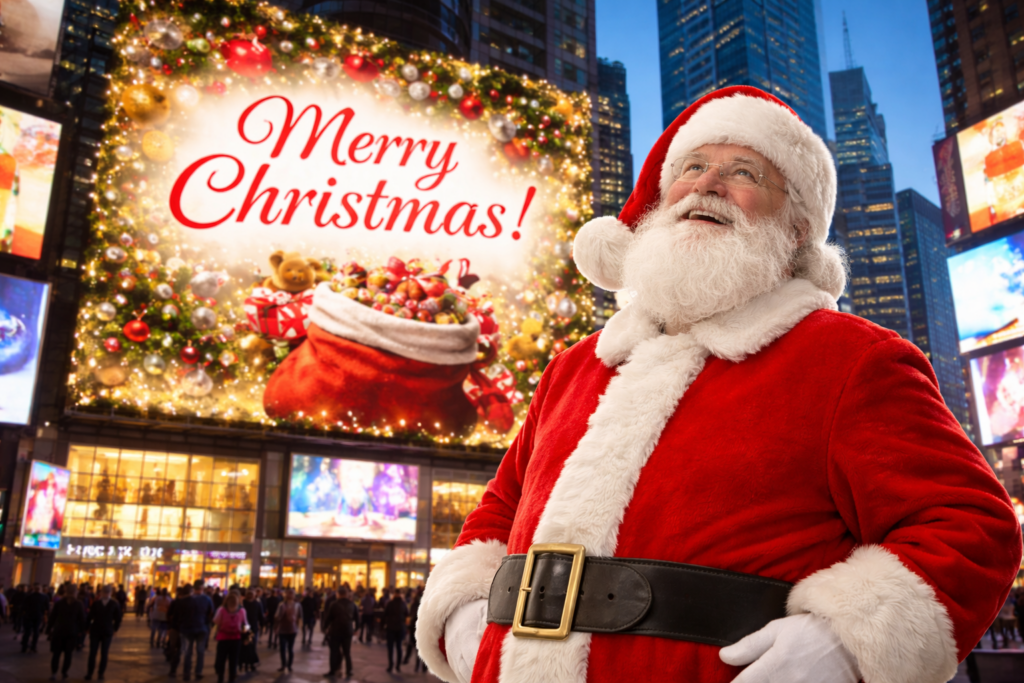
- Talking virtual holiday card
This one’s a classic for a reason. Write a 3–4 sentence script, add your logo and brand colors, and export square or portrait for social. - “12 tips of Christmas” mini-series
Do a short series of 10–15 second videos. Each video covers one quick tip, one feature, or one customer win. - Event invite or webinar reminder
Santa invites people to your holiday webinar, customer meetup, or end-of-year AMA. Put the date and time on screen, then keep the rest minimal.
For personal and “why not?” moments

- Message to your kids
Santa can deliver a bedtime message, a “good job this year” note, or a quick reminder about kindness. Keep it short, and don’t overdo the realism if that might freak them out. - Family update video for relatives
Use a simple script: three highlights, one funny moment, and one hopeful note for next year. Add photos, then let the AI build a clean story. - Secret Santa reveal video
Santa announces the match-up, sets the budget, and gives one playful rule. Export it and drop it in your group chat for instant chaos.
A quick planning table (so your Santa video doesn’t run long)
| Use case | Best length | Suggested format | What to include | What to skip |
|---|---|---|---|---|
| Customer thank-you | 20–45 sec | Landscape or square | gratitude, 1 helpful resource, sign-off | long backstory |
| Team year-end update | 45–90 sec | Landscape | 3 wins, 1 lesson, next step | 20 bullet points |
| Promo announcement | 15–30 sec | Portrait or square | offer, benefit, clear CTA | extra disclaimers in voice |
| Holiday card | 15–25 sec | Square | warm message, branding, captions | inside jokes |
| Office hours reminder | 20–40 sec | Landscape | dates, coverage plan, link to details | vague “check Slack” |
| Kids’ message | 10–20 sec | Landscape | warmth, one clear point | anything too “real” |
Tips to keep your Santa Avatar video charming, not cringey
A Santa Avatar can absolutely land with a professional audience, but it needs guardrails.
- Make the first line useful. If you open with a joke, tie it to the message quickly.
- Write like you talk. If you wouldn’t say it out loud, don’t make Santa say it either.
- Choose one joke, not ten. A single candy-cane pun beats a blizzard of wordplay.
- Let visuals do some work. Use a logo overlay, a quick screenshot, or a photo, so it doesn’t feel like a talking head for 60 seconds.
- Add captions. People watch holiday content in weird places, usually on mute.
A simple script template you can copy
If you want a fast start, use this and tweak it:
- Warm opener: “Hi [name or team], Santa here with a quick message.”
- The point: “Thanks for [specific thing]. It meant a lot this year.”
- One highlight: “My favorite moment was [specific win or memory].”
- Next step: “If you want to [do the thing], here’s what to do next: [one clear action].”
- Sign-off: “Happy holidays, and I’ll see you in the new year.”
If you keep it clear, short, and human, your Santa Avatar video will feel like a fun holiday moment, not an obligation. Also, yes, you can absolutely end with “stay cool” if you want to lean into the bit.

May Horiuchi
May is a Content Specialist and AI Expert for Visla. She is an in-house expert on anything Visla and loves testing out different AI tools to figure out which ones are actually helpful and useful for content creators, businesses, and organizations.