
Quick answer
ChatGPT Images is OpenAI’s latest image creation and editing experience inside ChatGPT, and it feels like a real shift from “fun demo” to “useful tool.” It generates fast, edits surprisingly cleanly, and follows instructions better than most earlier text-to-image models. While I won’t be dropping Photoshop for precision work or brand-heavy assets, I absolutely would use ChatGPT Images to speed up ideation, lightweight production, and messy edits that used to eat my afternoon.
I’ve liked text-to-image models for a while, even back when they barely worked at all. I used WOMBO Dream (remember them?) very early on, and honestly, the weirdness charmed me. You would type in a prompt and get back strange blobs of color. Yes, it wasn’t “useful” for, say, my job, but it always gave me something unexpected, surreal, and sometimes genuinely inspiring.

Then came Midjourney. Once it reached V4, it became genuinely usable. To an extent. No, I still wouldn’t have used its output for my actual job or any real marketing work, unless I was doing something that specifically required something off-kilter or strange, but that model could mostly parse your prompts and could mostly produce something that resembled your prompt.
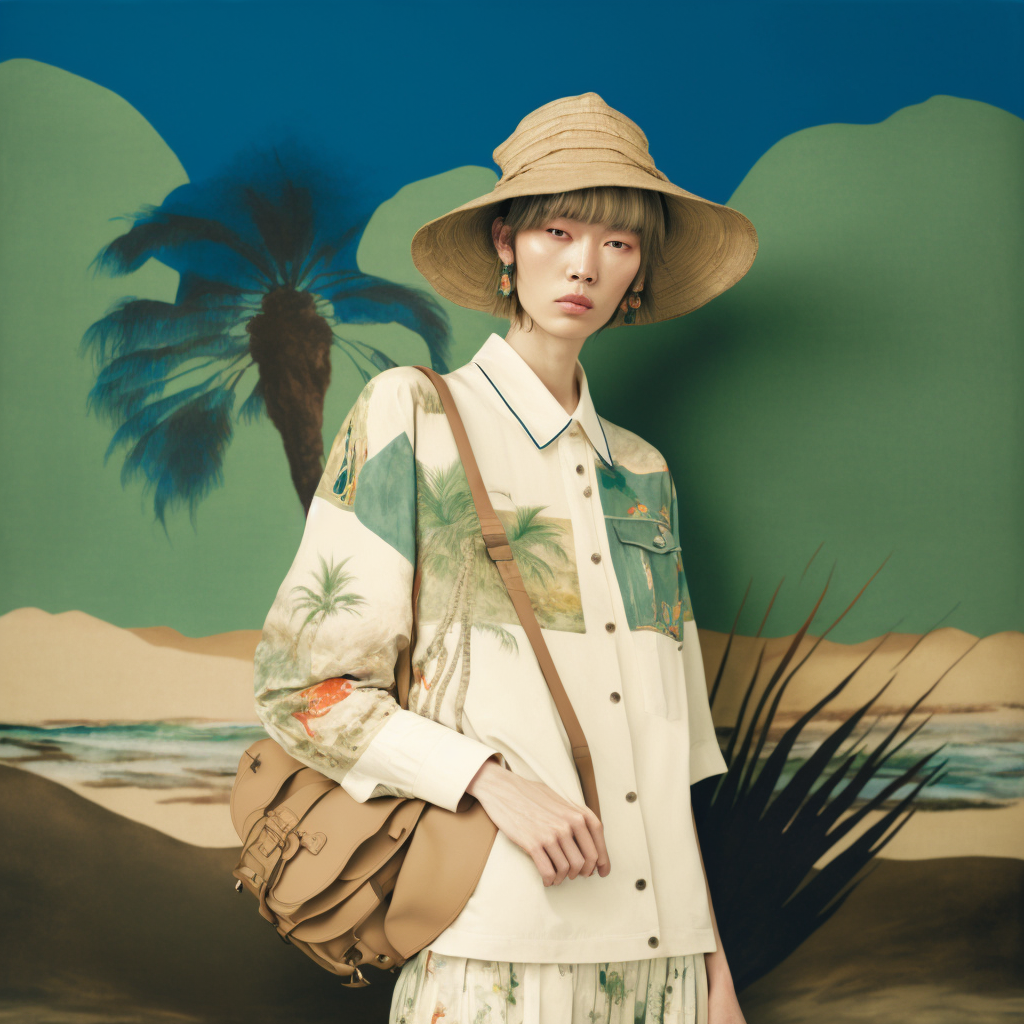
However, you’re probably noticing a recurring message. For a long time, I didn’t trust these tools in a professional context, even as Midjourney and Dall-E and Imagen got more advanced. They struggled with realism. They struggled with small details. They struggled with lighting consistency. They struggled with instruction following. And text, especially, looked like a it had been written by a person who was blindfolded and using their off-hand.
Only recently, in roughly the last six months or so, I started treating text-to-image models as truly usable for work. That’s the context that makes the ChatGPT Images update feel meaningful. It doesn’t just add another shiny button. It changes what I’m willing to do with AI images inside real workflows.
What is ChatGPT Images?

ChatGPT Images is the updated image generation and editing experience inside ChatGPT. In plain terms, it gives you a more dedicated way to:
- Generate images from a text prompt.
- Edit an existing image using natural language.
- Iterate quickly on variations without redoing your whole setup.
- Organize images in a central library so you can find past work.
If you open the Images landing page, you’ll notice the vibe right away. It clearly aims at casual users too, not just designers or marketers. Some of the suggested styles feel delightfully silly. I saw prompts like “3D glam doll” and had the exact reaction you probably had: who comes up with this stuff, and why do I want to try it immediately?
At the same time, the tool doesn’t stay in “toy” territory. The speed and editing quality push it into “this could ship” territory.
What’s the difference between ChatGPT Images and ChatGPT 5.2?
Think of it like this:
- ChatGPT 5.2 acts like the planner and the conversation brain.
- The image model acts like the specialized engine that actually produces the pixels.
In practice, you write what you want in plain English, and ChatGPT routes the request to the right image generation tool. That means you can stay in a single thread for brainstorming copy, generating visuals, and doing revisions.
One important practical note: not every ChatGPT mode supports every tool equally. For example, “Pro” variants can have restrictions on image generation. So if image creation matters for your workflow, you should double check which ChatGPT mode you run.
How does ChatGPT Images work?
If you’ve used any text-to-image tool, you know the core loop. ChatGPT Images basically makes that loop faster and more forgiving.
Here’s the workflow I actually use:
- Start with intent, not a perfect prompt. I write what I want in normal language.
- Generate a draft. I treat the first output like a sketch.
- Do targeted edits by describing changes. I say things like “change the background to a bright office,” “swap the outfit to business casual,” or “make the lighting warmer.”
- Iterate quickly. I don’t fight the tool for an hour. I run two or three fast iterations and pick the best.
- Finish where it makes sense. If I need pixel-level control, I jump to Photoshop.
The part that surprised me most: ChatGPT Images edits feel relatively seamless. Background swaps work well. Outfit changes work well. Object swaps work well. Color changes work well. Lighting changes often work well enough that I don’t want to go back and do it manually.
And speed matters here. As someone who used to wait what felt like hours for a single Midjourney run that didn’t even look that good, modern image generation speed feels kind of magical.
What’s the difference between ChatGPT Images and DALL·E?
If you’ve followed OpenAI’s image models at all, you’ve probably heard of DALL·E first. For a while, DALL·E 3 served as the obvious option for high-quality text-to-image output.
Now, ChatGPT Images reflects a shift toward OpenAI’s newer GPT Image family. The simplest way to think about it:
- DALL·E helped popularize text-to-image for many people.
- GPT Image models focus more on instruction following, text rendering, and editing workflows.
In other words, ChatGPT Images aims to behave like a better collaborator. It tries to respect your intent across edits, not just spit out a single cool-looking frame.
ChatGPT Images vs. Nano Banana
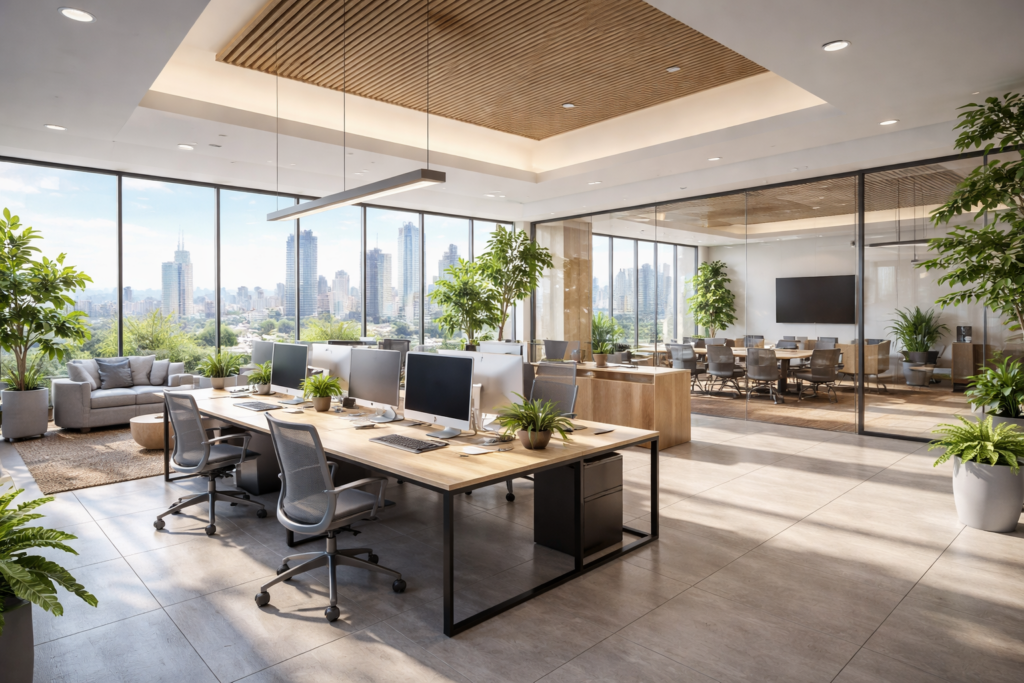
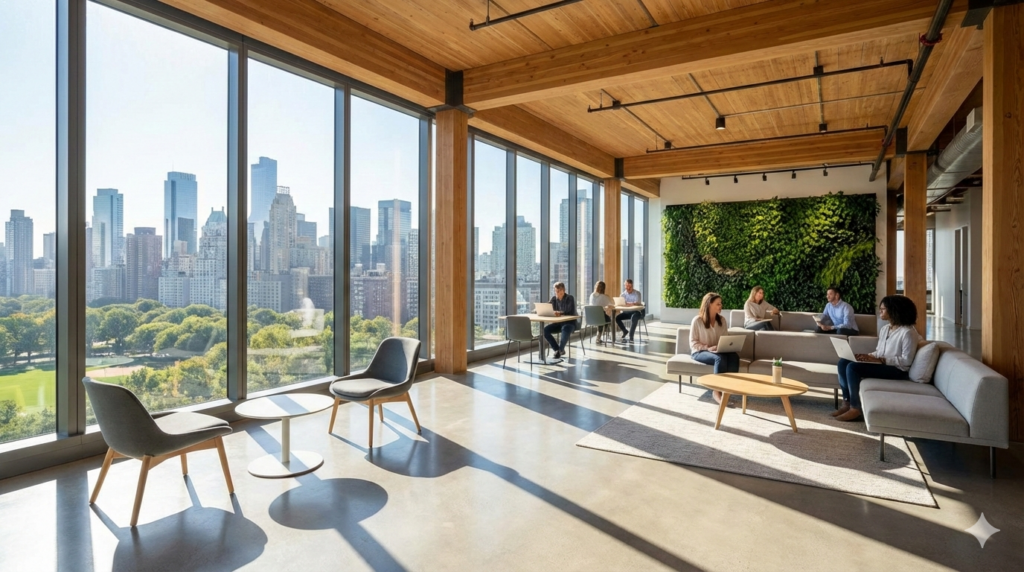
If you’ve tried Nano Banana (and especially Nano Banana Pro), you already know the feeling: “Wait, this is really good.”
For me, Nano Banana and ChatGPT Images land in the same category right now: modern, high-quality models that you can use for real tasks.
I don’t think it makes sense to crown a universal winner. Each one has moments where it feels like the obvious choice.
A practical comparison table
| Category | ChatGPT Images | Nano Banana | What I do in practice |
|---|---|---|---|
| Speed and iteration | Very fast loop inside chat | Very fast, strong output | I pick whichever fits the project context |
| Editing workflow | Conversational edits feel natural | Strong edits, strong results | I use both for “good enough” edits |
| Realism and lighting | Often strong | Often strong | I test both when realism matters |
| Text in images | Much better than older models | Much better than older models | I still prefer Photoshop for final typography |
| Brand precision | Needs iteration | Needs iteration | I move to Photoshop if brand rules matter |
Benchmarks can help, but I trust real-world workflow more.
If I need a single image for a blog and I don’t want to fight with it, I’ll test one or two prompts in each and keep the best result. That sounds obvious, but it’s also the right strategy in a world where the tools improve every month.
How does ChatGPT Images compare to local models like Z-Image-Turbo or Qwen-Image-Edit?
I still like keeping local models around as a backup and a playground. You don’t need them, especially now, but they can still matter if you enjoy tinkering or you have special constraints.
My experience:
- Z-Image-Turbo: shockingly fast on a decent rig. It can produce fairly realistic images quickly.
- Qwen-Image-Edit: consistently does the kinds of edits I want when it understands my request.
The big difference comes down to prompt parsing and intent understanding. I trust the top cloud models to understand what I want more reliably than most local options, even when the local options rank among the better ones.
Still, local models can make sense in a few business scenarios:
- You need strict privacy controls.
- You want to fine-tune on a very specific brand style.
- You want predictable cost at scale.
Just don’t confuse “possible” with “necessary.” For most teams, local fine-tuning adds operational overhead that you don’t want.
My current thoughts on ChatGPT Images
I’ll keep this grounded and practical.
What I love
ChatGPT Images makes a bunch of tasks feel easier than they used to.
- It’s fast. I can iterate without breaking my flow.
- It edits cleanly. It handles background swaps, outfit changes, and object changes with fewer weird artifacts than I expect.
- It saves me from tedious masking work. This one matters a lot.
Here’s my Photoshop pain point in one story.
Say I have a main subject in the foreground and a few people behind them that I want to remove. The main subject has long hair whipping around in the wind. In Photoshop, I have two options:
- I try auto-select, which has improved but still trips up on messy hair.
- I mask manually, which feels like I’m spending my finite life clicking around individual strands.
ChatGPT Images can often solve that whole problem from a text prompt. It keeps the hair. It removes the background people. It keeps the image feeling coherent. That feels like a relief. I want to spend my time doing actual creative work, not pixel-hunting.
What I still don’t love
Even now, I don’t treat ChatGPT Images like a full replacement for professional tools.
- I still rely on Photoshop for precision tasks. Sometimes I need exact edges, exact layout, and exact control.
- I still rely on Photoshop for typography. AI text rendering improved a lot, but I prefer granular control over typefaces, sizing, kerning, effects, and placement.
- I still avoid using AI-only images for high-touch brand work. I can push the model toward a brand style, but at a certain point, a professional photographer or a careful Photoshop workflow becomes easier and faster.
The limitations you should plan around
ChatGPT Images can feel impressive, but it still has boundaries.
- Edits don’t always stay perfectly localized. Sometimes it changes more than you asked.
- Brand consistency takes effort. You’ll still need guardrails if you care about a consistent look.
How can a business use ChatGPT Images?
If you run marketing, content, L&D, comms, or product, you can get value out of ChatGPT Images quickly. You just need to pick use cases where speed matters more than perfection.
High-value business use cases
You can get real leverage from ChatGPT Images in areas like:
- Content marketing: create blog hero images, section visuals, and lightweight “stock photo style” imagery.
- Social media: generate variations for campaigns, seasonal promos, and quick creative tests.
- Product marketing: mock up environments, backgrounds, and use-case scenes.
- Internal communications: create visuals for decks, announcements, and training materials.
- Prototyping: explore creative directions before you book a shoot.
A workflow that keeps you sane
Here’s a simple workflow I’d recommend if you want speed without chaos:
- Define the bar. Decide where “good enough” actually sits for each channel.
- Use ChatGPT Images for drafts and messy edits. Let it handle the heavy lifting quickly.
- Use Photoshop for finishing. Lock layout, typography, and pixel-level details.
- Create a style checklist. Track lighting, composition, color palette, and brand cues.
- Keep a review step. Someone needs to sanity check hands, logos, and weird artifacts.
When to use ChatGPT Images vs. Photoshop vs. local models
| Task | ChatGPT Images | Photoshop | Local models |
|---|---|---|---|
| Quick concept exploration | Great | Fine, but slower | Good if you enjoy tuning |
| Background replacement with lighting match | Often great | Precise, but time-consuming | Mixed, depends on model |
| Pixel-perfect compositing and masking | Good enough sometimes | Best | Not the point |
| Real typography and layout | Not my pick | Best | Not the point |
| Strict brand asset production | Useful for drafts | Best | Possible with fine-tuning |
| Privacy-sensitive generation | Depends on policy | Depends on policy | Best control |
Bottom line
ChatGPT Images feels like a turning point, not because it looks cool, but because it makes image creation and editing feel practical at real speed. I’ll keep using Photoshop for precision and typography, and I’ll keep local models around as a niche backup and a fun playground.
But if you create content for a living, especially in marketing or internal comms, you should at least test ChatGPT Images. It won’t replace your whole workflow, but it can absolutely remove a lot of the slow, annoying parts.
FAQ
Open ChatGPT, click Images in the left sidebar, and you’ll see your ChatGPT Images library in one place. Select any image to reopen it, then choose Edit to change it conversationally or Select to highlight an area you want to modify. Describe the change in plain language, and iterate until the result matches what you need. When you’re happy, hit Save so the updated version stays in your library and your chat history.
ChatGPT Images now runs on GPT Image 1.5, OpenAI’s latest model in the GPT Image family. OpenAI designed it to follow instructions more reliably, preserve details across edits, and render dense text more accurately than earlier versions. It also generates images faster, which makes the edit-and-iterate loop feel more like writing and revising than waiting on renders. If you build tools, you can also access the same model as gpt-image-1.5 in the OpenAI API.
ChatGPT Images focuses on a modern, chat-first workflow powered by GPT Image 1.5, so you can generate and edit images in the same conversation. DALL·E 3 still exists inside ChatGPT through the DALL·E GPT, and ChatGPT can help you refine prompts for it. In practice, I’d pick ChatGPT Images when I expect multiple edit rounds, and I’d try DALL·E 3 when I want a quick alternate look or I already like its style. If you need consistency, treat both like draft engines and plan a final pass in an editor for typography and pixel-level polish.
ChatGPT Images edits can sometimes spill beyond the exact area you intended, especially when you rely only on the selection highlight. To reduce that, name the target region explicitly in your prompt, describe what must not change, and mention key constraints like lighting, pose, and background. For complex scenes, break the work into smaller edits and lock in one change at a time before you ask for the next one. If the model keeps drifting, restart from the closest good version and adjust your instructions to be more specific rather than longer.
Images generated with ChatGPT on the web can include C2PA metadata that signals the image came from ChatGPT, which helps with provenance and verification. You can check that metadata with Content Credentials Verify, but the signal can disappear if a platform strips metadata or someone screenshots the image. On safety, ChatGPT Images follows OpenAI’s usage policies and may refuse requests that violate them, especially around harmful content. If you publish AI images for work, keep your own audit trail, label when appropriate, and treat metadata as a helpful clue rather than a guarantee.

May Horiuchi
May is a Content Specialist and AI Expert for Visla. She is an in-house expert on anything Visla and loves testing out different AI tools to figure out which ones are actually helpful and useful for content creators, businesses, and organizations.