
Quick Answer: to transcribe video to text with Visla, open Clips in your Teamspace and upload a video file or paste a YouTube URL. Once Visla processes the video, open Video Transcription to see the timestamped transcript. You can click any word to jump to that point in the video, correct the transcript if needed, and download it as a TXT, SRT, or VTT file.
How to Transcribe Video to Text With Visla
1. Open Clips in your Teamspace
Open the Teamspace where you want to keep the video, then select Clips.
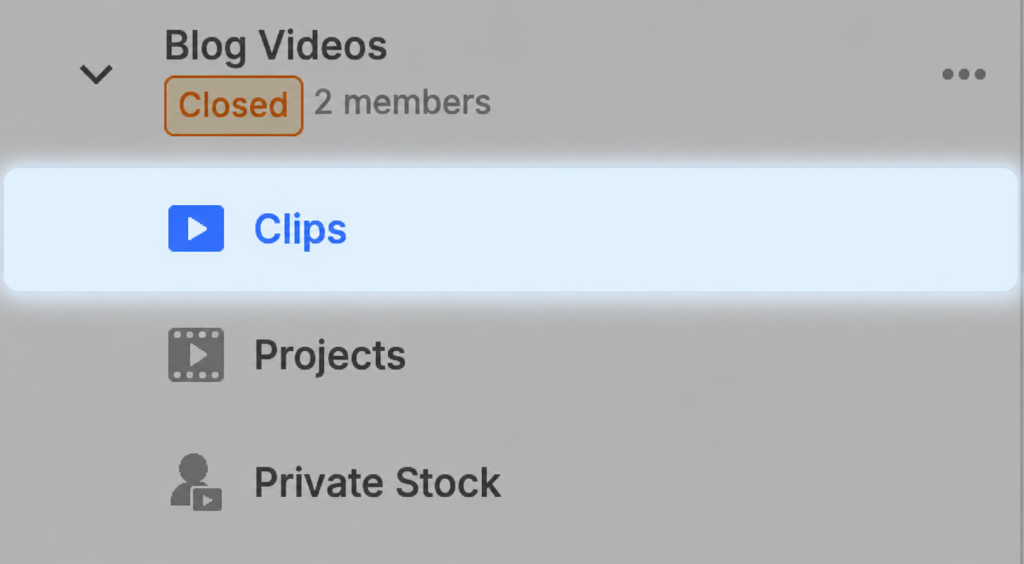
Teamspaces give teams a shared place for clips, projects, and other video assets. Learn more about Visla Workspaces and Teamspaces.
2. Click Upload
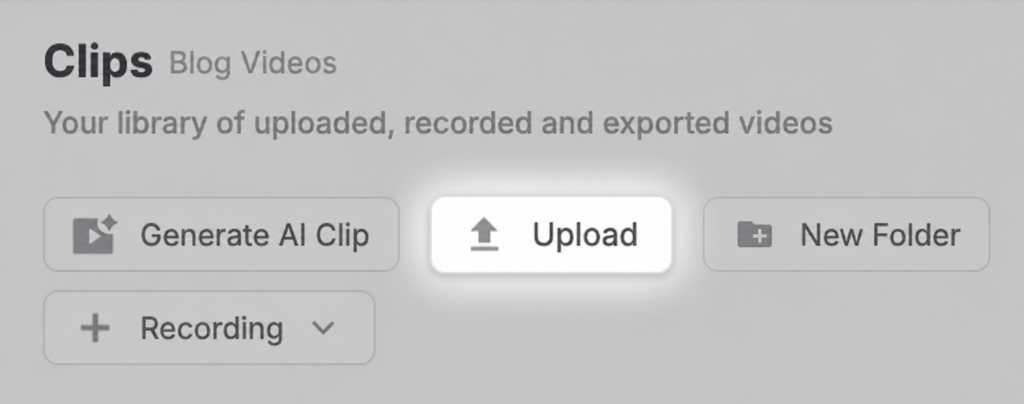
From Clips, click Upload.
3. Add your video
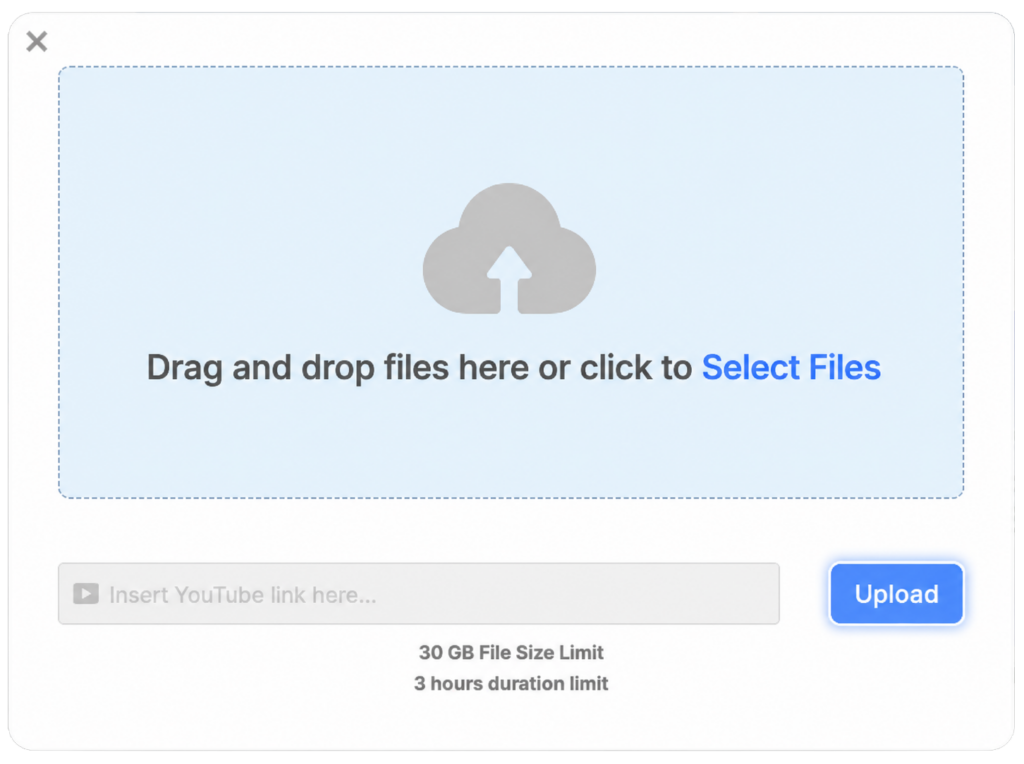
Drag and drop a video file, choose a file from your device, or paste a YouTube URL.
Using a YouTube URL lets you bring an existing YouTube video directly into Visla without first downloading the video to your computer.
4. Upload the video
Click Upload. Visla will process the video before its transcript is available.
5. Open the video
Once processing finishes, open the video from Clips.
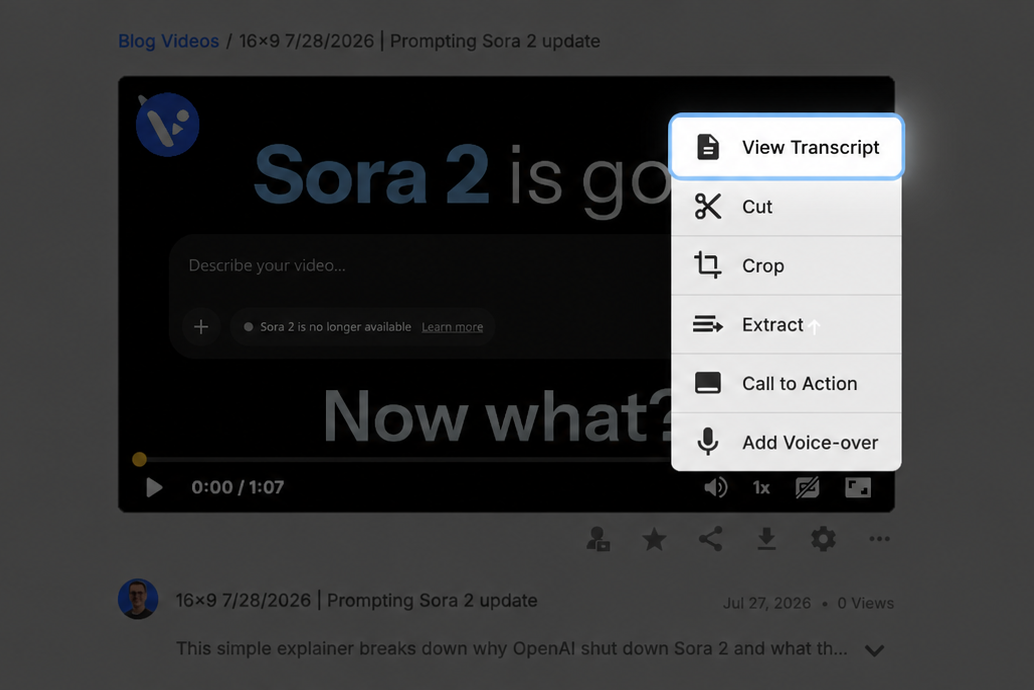
6. Open Video Transcription
Click Video Transcription in the right sidebar.
If transcription is still underway, Visla may display “Transcription is in progress…”. Once it’s finished, the transcript will appear alongside the video.
Work with your finished transcript
The transcript includes timestamps tied to the original recording. From here, you can:
- Click a word to jump to that point in the video.
- Correct transcript text when something needs fixing.
- Download the transcript as TXT, SRT, or VTT.
Check out a real video transcript
Here’s a real-world example of a transcript generated from a video. The video was made using Visla’s AI Video Agent, starting from a simple script, and the transcript was also created by Visla. These were two separate processes: I exported the finished video, downloaded it, and then uploaded it again for transcription, so Visla had no access to the original script or any way to identify the video as one previously created in Visla.
Read the full video script
Modern AI video generators learn from large collections of videos, images, and written descriptions. During training, the model studies patterns connecting words with visual details such as people, objects, environments, camera movements, and actions over time. When a user enters a prompt, the model uses those learned patterns to create a new sequence of images that statistically matches the description. It isn’t searching for one existing video or simply combining stock footage. Instead, it generates the clip based on what it has learned about how scenes tend to look and change.
Many current systems use a process called diffusion. The model begins with something similar to random visual noise, then gradually reshapes it into a recognizable video over a series of steps. To make this manageable, it often works with a compressed representation of the video rather than processing every pixel directly. A transformer-based system helps coordinate what appears in different parts of each frame and how those elements move from one frame to the next. Some newer models can generate matching dialogue, sound effects, or background audio as part of the same process. However, these systems are still predicting plausible appearances and motion rather than calculating the real world precisely, which is why generated videos can contain inconsistent objects, unnatural movement, or incorrect physics.
Read the full transcript
Modern AI video generators learn from large collections of videos, images, and written descriptions.
During training, the model studies patterns connecting words with visual details such as people, objects, environments, camera movements, and actions over time.
When a user enters a prompt, the model uses those learned patterns to create a new sequence of images that statistically matches the description.
It isn’t searching for one existing video or simply combining stock footage.
Instead, it generates the clip based on what it has learned about how scenes tend to look and change.
Many current systems use a process called diffusion.
The model begins with something similar to random visual noise, then gradually reshapes it into a recognizable video over a series of steps.
To make this manageable, it often works with a compressed representation of the video rather than processing every pixel directly.
A transformer-based system helps coordinate what appears in different parts of each frame and how those elements move from one frame to the next.
Some newer models can generate matching dialogue, sound effects, or background audio as part of the same process.
However, these systems are still predicting plausible appearances in motion.
Rather than calculating the real world precisely, which is why generated videos can contain inconsistent objects, unnatural movement, or incorrect physics.
Click on the button below if you want to download the original TXT file that Visla generated.
Which Video Transcript Format Should You Use?
Pick the format based on what you plan to do with the transcript.
| Format | Best for | Keeps timing information? |
|---|---|---|
| TXT | Documentation, notes, quotes, research, content repurposing, and other uses where you mainly need the written text | No |
| SRT | Captions and subtitles across many video platforms and editing tools | Yes |
| VTT | Captions, subtitles, and other timed text for web video | Yes |
For most documentation or content repurposing, TXT is the simplest choice.
Choose SRT when you need a standard timed caption or subtitle file. YouTube includes SRT among its supported subtitle and closed-caption formats.
VTT, or WebVTT, is designed for timed text associated with web media. It can support captions, subtitles, descriptions, chapters, and other text synchronized with audio or video. The W3C WebVTT specification covers the format in detail.
Can You Transcribe a YouTube Video to Text?
Yes. Visla lets you paste a YouTube URL directly into the upload window instead of downloading the video first and then uploading a local copy.
After Visla processes the video, open Video Transcription the same way you would for any other clip.
This gives you a quick route from an existing YouTube video to text you can use for documentation, research, or content repurposing.
What Is Video Transcription?
Video transcription converts spoken audio in a video into written text.
Transcripts can also include timestamps that connect the text to specific moments in a recording. Interactive transcripts let you select the text and return directly to the corresponding point in the video.
A basic transcript covers the speech and relevant non-speech audio needed to understand the content. A descriptive transcript also includes important visual information. The W3C guidance on video transcripts explains the distinction.
AI transcription automates the initial speech-to-text process. You can then review the generated text and correct errors when needed.
Transcript vs. Captions vs. Subtitles
A transcript is a written version of the content that can be read separately from the video.
Captions appear in sync with the video and represent its audio as text. Accessible captions can include speaker identification and relevant sounds as well as dialogue. The W3C captioning guide explains what captions should communicate.
Subtitles also display synchronized text and commonly represent dialogue or translated dialogue. Usage of the terms “captions” and “subtitles” varies between platforms and regions.
What Can You Do With a Video Transcript?
Turn training videos into documentation
A training video can do a great job of showing a process. A transcript makes the same information easier to search, reference, and reorganize.
For example, you could turn a recorded onboarding session into a written reference guide or use a product walkthrough as the source for an internal help article. You already explained the process once on video, so you don’t need to recreate that information from scratch.
This is especially useful for training material that employees need to reference later. Someone looking for one policy, setting, or step can scan the written material instead of rewatching an entire recording.
The video and documentation can also serve different purposes. The video shows the process and preserves the original explanation. The written version gives people something they can search and consult quickly.
Build and update SOPs
Recorded demonstrations often contain most of the information needed for a standard operating procedure.
A transcript gives you a written starting point for documenting the process. You can reorganize the spoken explanation into steps, remove conversational detours, and add details that make more sense in written instructions.
When the process changes, you also have a record of what the original training video actually said.
Repurpose existing video content
Transcription lets you reuse material you’ve already recorded instead of starting each new piece of content from a blank page.
A webinar can become the source for a written guide. An interview can provide quotes and ideas for an article. A presentation can supply material for a recap. An internal training session can become reference documentation.
The transcript is source material, not necessarily finished copy. Spoken explanations often need to be reorganized and tightened before they work well in writing.
Find information in long recordings
For long meetings, interviews, webinars, presentations, and training sessions, scanning text can be faster than navigating by video timeline.
Find the relevant section in the transcript, then return to the corresponding point in the recording when you need the original delivery or surrounding context.
Create caption and subtitle files
Use SRT or VTT when you need timed text for a caption or subtitle workflow. Use TXT when you only need the written content.
Edit a video through its transcript
A transcript can also act as an editing interface.
With Visla’s Text-Based Video Editor, you can edit video by working with its transcript instead of finding every change manually on a traditional timeline.
Review Important Transcripts Before Using Them
Review the transcript when exact wording matters, especially for published quotes, captions, technical instructions, and formal documentation.
Background noise, overlapping speakers, unclear speech, unfamiliar names, and specialized terminology can make automatic transcription harder. If something looks wrong, check it against the original recording and correct the transcript.
FAQ
No. Captions stay synchronized with the video and include dialogue plus relevant non-speech audio, while a transcript can be read separately from playback. The W3C recommends providing both captions and a transcript when possible because they serve different accessibility needs. Transcripts are also useful for people who prefer text, use Braille, or need to review content at their own pace.
Yes. AI can analyze a transcript to identify key topics, extract important sections, and produce a shorter written or video summary. Visla’s AI Video Summary lets you guide the focus and preferred length or choose topics suggested from the transcript. You should still review the result when context, nuance, or exact wording matters.
Businesses should treat a transcript with the same care as the source video because it may contain confidential conversations, personal data, or internal procedures. Store transcripts in a controlled workspace, restrict access by role, and apply your organization’s retention policies. Visla supports encryption at rest and in transit, role-based permissions, and user access logs for team video workflows. Teams with formal security or compliance requirements should also confirm that their configuration meets their own legal and organizational obligations.

May Horiuchi
May is a Content Specialist and AI Expert for Visla. She is an in-house expert on anything Visla and loves testing out different AI tools to figure out which ones are actually helpful and useful for content creators, businesses, and organizations.