
Quick answer: If you already use Zapier, you can automate blog-to-video creation by connecting your site’s RSS feed to Visla. RSS by Zapier detects each newly published post, Formatter isolates the individual article URL, and Visla’s Create Video Project From URL action sends that page into Visla’s webpage-to-video workflow. Visla then turns the article into an editable video project based on the information and visuals on the page. From there, you can review the draft in Visla, make any necessary edits, and publish it wherever you need it.
The Zapier blog-to-video workflow
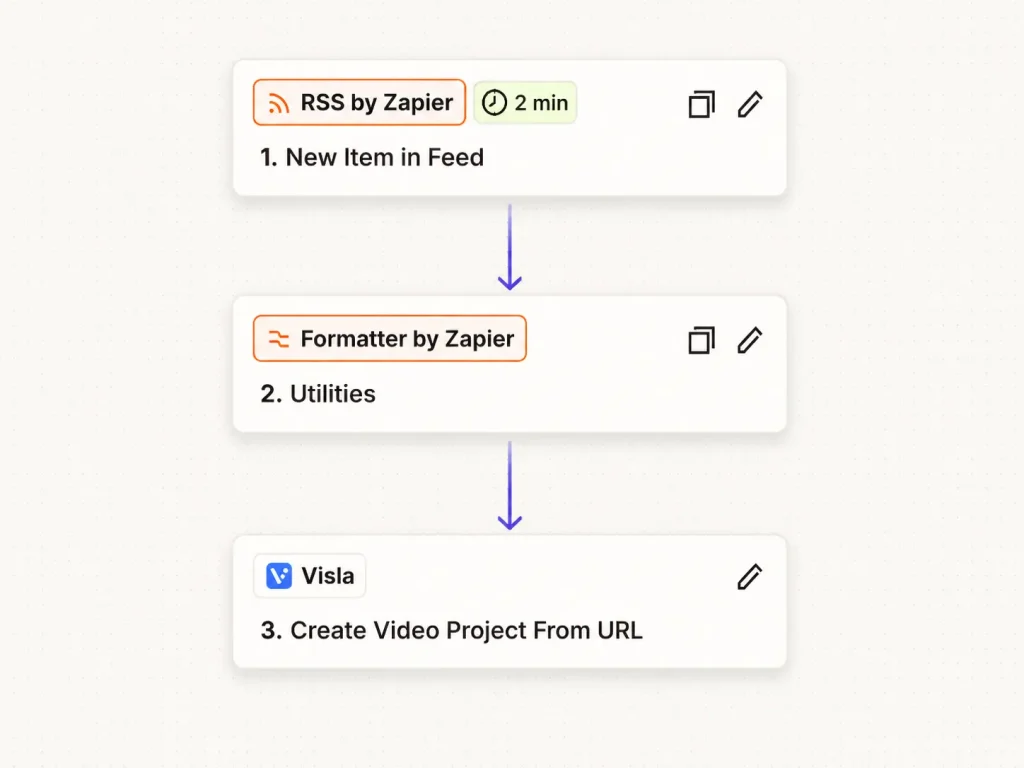
The automation has three steps:
- Trigger with RSS by Zapier. Choose New Item in Feed, enter your blog’s RSS feed, and test it with a recent post. Zapier’s RSS trigger documentation recommends Different Guid/URL for most workflows using this trigger.
- Get the article URL with Formatter. Visla needs the URL of the individual blog post, not the RSS feed itself. Configure Formatter so the output is the newly published article URL, then verify that the URL opens the correct post. The Formatter documentation covers the available transformations if your feed needs additional cleanup.
- Send the URL to Visla. In the Visla integration on Zapier, choose Create Video Project From URL and map the Formatter output to Webpage URL. You can also add a Target Video Description if you want to tell Visla what the video should emphasize. Test the Zap with a real article before turning it on.
Once the test works, publishing a new blog post can automatically create the corresponding video project in Visla.
What happens when the blog reaches Visla?
After Zapier sends the article URL to Visla, Visla’s Webpage to Video workflow uses the webpage as source material for the video. Visla can extract content directly from a webpage URL and use it to generate a video project.
Blogs are a natural match because they usually give Visla plenty of information to compress. A typical article has a defined subject, headings, detailed written material, and often useful images. Instead of rewriting all of that as a separate video script, you can use the published article itself as the source.
That doesn’t mean the video has to reproduce every section. A 2,000-word article might become a short video centered on its main argument, most useful steps, or sections that translate especially well visually.
If you already know what matters most, the Target Video Description in your Zap can give Visla that direction before the project is created.
The result is an editable video draft. For most blog workflows, that’s where I’d stop automating.
Clean up the generated video in the Scene-Based Editor
Open the generated project in Visla’s Scene-Based Editor and focus on the scenes that actually need attention.
For a blog video, I’d check the generated voiceover first. If a scene sounds awkward or compresses an idea too aggressively, edit the text for that scene and update the narration rather than reworking the whole project.
Then check the visuals. You can swap footage that doesn’t fit, use your own media, or generate an AI video clip when a scene needs something more specific. You can also rearrange scenes if the generated structure doesn’t tell the story in the order you want. Visla’s Scene-Based Editor supports scene-level script changes, footage replacement, rearranging scenes, and other individual adjustments.
Subtitles are another useful cleanup point. Change their style if you need them to match your branding or read more clearly against the footage.
You don’t need to redo an otherwise good video because a handful of scenes miss the mark. Fix those scenes and leave the rest alone.
Which blog posts are a good fit for automated video creation?
As a rule of thumb, a post is a stronger candidate when it has a clear subject and can lose some detail without losing its main point.
| Blog content | Fit for automation | Why |
|---|---|---|
| Tutorials and how-to articles | Strong fit | They usually have a clear sequence and a defined outcome. |
| Explainers and educational posts | Strong fit | The central ideas can usually be condensed into a shorter visual explanation. |
| Product guides and feature updates | Strong fit | The subject is specific, so the video can focus on the most useful information. |
| Focused commentary or thought leadership | Usually a good fit | A clear central argument can translate well if the article isn’t too dependent on nuance. |
| Very long articles | Good fit with direction | Tell Visla which ideas or sections the video should emphasize. |
| Large comparison tables or data-heavy posts | Needs more review | Important relationships can disappear when the material is condensed. |
| Highly technical articles | Needs more review | Small wording changes can affect accuracy. |
| Rapidly changing news or data | Needs more review | The video may become outdated soon after the original article changes. |
| Pages built around interactive elements | Needs more review | Important information may not translate cleanly from the webpage into video. |
Length by itself isn’t much of a problem. A long article with one focused argument may be easier to condense than a short article that jumps between several unrelated ideas.
The question I’d use as a rule of thumb is: Can this article become a shorter version of itself without losing what makes it useful?
If it can, it’s probably a good candidate for an automated video draft.
Don’t automatically create more videos than you can review
You can configure the Zap so that every new blog post creates a Visla project. Only do that if your team can realistically review and publish that many videos.
If you publish four substantial posts each month and can review four video drafts, automate all four. If you publish several posts every day, sending every article into your video queue could leave you with a backlog.
Limit the workflow to the amount of video your team can actually handle. If your CMS provides separate RSS feeds for categories or content types, you could monitor only the feed for posts that consistently make good videos. You could also decide internally that only certain article types enter the automated workflow.
The automation should save work. If it creates more drafts than anyone has time to review, narrow the feed.
Automate the handoff, then review the video
RSS by Zapier, Formatter, and the Visla Zapier integration can turn a newly published blog post into an editable video project automatically.
Review the resulting video in Visla, fix what needs attention, and publish it when it’s ready.
FAQ
Yes. If you don’t want every RSS item to become a Visla project, you can add Filter by Zapier and set conditions based on data coming from your feed, such as a category, tag, title, or another available field. Zapier only continues the workflow when the item meets those conditions, so you can keep one broader RSS feed while sending only selected posts to Visla.
That depends on how often your Zap checks for new data. Zapier says polling triggers run at intervals determined by your plan, ranging from 15 minutes on the Free plan to 2 minutes on Professional and 1 minute on Team and Enterprise plans. That means this workflow generally isn’t instant, even though the rest of the Zap can run automatically once Zapier detects the new post.
Yes. After you’ve reviewed and finished the video in Visla, you can download it, share it with a Visla-hosted link, or copy an embed code and place the video directly on a webpage. The current Visla Zapier integration is focused on creating video projects rather than automatically inserting the finished video back into your CMS, so that final publishing step would need to be handled separately.

May Horiuchi
May is a Content Specialist and AI Expert for Visla. She is an in-house expert on anything Visla and loves testing out different AI tools to figure out which ones are actually helpful and useful for content creators, businesses, and organizations.