
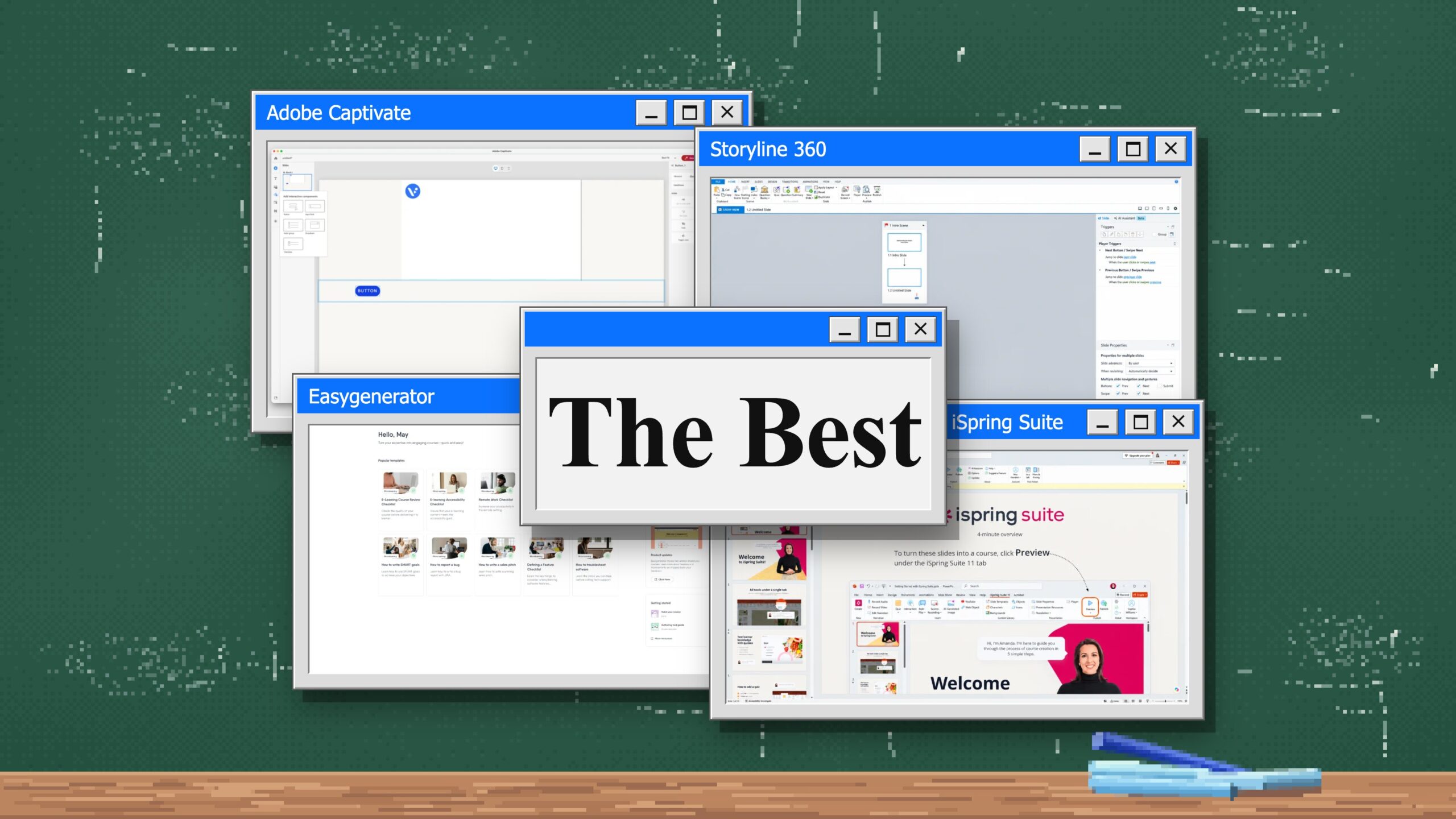
Quick Answer: The best interactive training tools we tested are Articulate 360, Adobe Captivate, iSpring Suite, and Easygenerator. Articulate 360 combines approachable AI-assisted tools with the much deeper Storyline 360 authoring environment, while Adobe Captivate gives authors granular control over branching and interaction logic. iSpring Suite is considerably easier to pick up if you already know PowerPoint, while Easygenerator offers a clean browser-based workflow that should feel familiar to people who use tools like Notion or WordPress. Across our testing, the main tradeoff was consistent: more authoring control usually means more complexity.
| Interactive training tool | Best for | Branching approach | What stood out in our testing |
|---|---|---|---|
| Articulate 360 | Professional L&D teams that need flexibility | AI scenarios plus custom Storyline logic | Several distinct ways to create interactive training |
| Adobe Captivate | Detailed custom interactions | Triggers, conditions, variables, and slide navigation | Precise control over what happens after each learner action |
| iSpring Suite | Teams already comfortable in PowerPoint | Slides, quizzes, and role-play scenarios | Familiar PowerPoint workflow |
| Easygenerator | Browser-based course authoring | Visual Scenario editor and course logic | Clean block-based editor with extensive AI guidance |
Pricing for these interactive training tools
| Tool | Starting price relevant to our test | Team pricing | Free trial | Pricing notes |
|---|---|---|---|---|
| Articulate 360 | $1,449 per seat/year for Articulate 360 AI Personal | $1,749 per seat/year for Articulate 360 AI Teams | 14 days | Storyline and Rise are included. Advanced AI workflows such as avatars and translation can use separately purchased credits. See Articulate 360 pricing. |
| Adobe Captivate | $39.99/month for an individual subscription | Contact Adobe for team and enterprise volume licensing | Available | The individual plan includes the current Captivate app, Captivate Classic, 100 GB of storage, and generative credits. See Adobe Captivate pricing. |
| iSpring Suite | $970 per author/year for iSpring Suite | $1,290 per author/year for iSpring Suite AI; volume pricing available | 14 days | The standard Suite includes quizzes, role-plays, branching scenarios, video, and SCORM/xAPI publishing. The AI plan adds AI course creation and cloud authoring features. See iSpring Suite pricing. |
| Easygenerator | $1,399/year for Pro with one author | $6,995/year for Team, starting with five authors | 14 days | Pro is limited to 10 courses and 100 learners. Team includes unlimited courses and learners plus co-authoring, reviewers, analytics, and branding. See Easygenerator pricing. |
Pricing isn’t directly comparable across these products. Articulate and iSpring generally price professional authoring by seat, Captivate offers a comparatively inexpensive individual subscription, and Easygenerator’s Team plan bundles multiple authors and unlimited learners.
How we tested these interactive training tools
We approached each product as a new user and tried to build the kinds of interactive training an L&D team might actually create. We looked at branching scenarios, quizzes and assessments, support for existing video, AI assistance, and the amount of instructional-design knowledge each product expected from the author.
The workflows weren’t identical because the products aren’t designed the same way. In Articulate 360, we started with its browser-based Scenario and Interactive Video tools before moving into Storyline 360. In Adobe Captivate, we worked directly with slides, buttons, triggers, and navigation. With iSpring Suite, we built inside PowerPoint and imported quiz questions from Excel. In Easygenerator, we tested its AI Course Builder, standard page editor, and dedicated Scenario editor.
We also compared our experience with verified reviews from instructional designers and other L&D professionals.
1. Articulate 360: Best for professional L&D teams that need flexibility
Articulate 360 gives authors several substantially different ways to create training. That range is useful, but figuring out which part of the suite you need can be confusing at first.
We started with Scenario and gave it a deliberately basic prompt: teach a manager how to handle an employee who doesn’t take constructive feedback well. Instead of immediately producing a generic exercise, Articulate asked follow-up questions about the situation and what we wanted the learner to practice. It then generated a five-scene branching conversation with multiple decision points and a visual editor that made the different paths easy to follow.
Interactive Video is a separate tool. We uploaded an existing video, and Articulate analyzed it, split it into chapters, and created review activities and quiz questions around the content. The result required very little initial setup.
Storyline 360 works differently from both. It feels like a heavily expanded version of PowerPoint, with a scene view for organizing the larger course and a timeline for controlling what happens inside individual slides. The relationship between the two views takes some adjustment, but it gives authors control over both course structure and individual interactions.
Creating assessments involves considerably more machinery. Storyline exposes object triggers, slide triggers, player triggers, layers, states, and other controls. We used its AI Assistant to avoid constructing every quiz interaction manually, but the assistant also had limitations. When we tried to paste in a video transcript and use that text as the source for quiz questions, it expected the source material to already exist on a slide.
Moving between Articulate’s newer browser tools and Storyline also wasn’t always intuitive. We occasionally found ourselves routed between different authoring environments while trying to work out where a particular task belonged. According to the Articulate 360 deployment guide, Storyline’s desktop authoring environment currently runs on supported 64-bit Windows systems rather than natively on macOS.
That learning curve also appears in professional reviews. In a verified Articulate 360 review on Capterra, instructional designer Bea B. writes that Storyline’s “advanced logic requires a relatively steep learning curve.”
2. Adobe Captivate: Best for detailed interaction logic
Adobe Captivate starts from a more traditional professional-authoring model. Its interface exposes a lot of controls immediately, and our MacBook Pro also struggled with performance during testing.
The slide-based structure makes the basic course architecture easier to understand. A branching video can use one slide for a video segment, followed by buttons that send the learner to different slides depending on the choice they make.
Captivate’s interaction system is built around triggers, optional conditions, and actions. A Click/Tap trigger can send someone to a specific slide, while more complicated projects can incorporate object states, variables, timeline events, and conditional logic. Adobe explains this system in its guide to creating interactions in Captivate.
That makes the branching workflow explicit. You decide where a choice appears, what the learner can click, where each choice leads, and what conditions need to be true before something happens.
Captivate includes generative AI features for course content and assets, but we didn’t find an equivalent to Articulate’s Scenario workflow where a short description becomes a complete branching exercise. The author still needs to design much of the underlying instructional logic.
The learning curve shows up in user feedback as well. In a verified Adobe Captivate review on Capterra, instructional designer Victoria H. writes, “With so many features and options, it takes some time to figure out how to use everything efficiently.”
3. iSpring Suite: Best for PowerPoint users
iSpring Suite takes a different approach because its main authoring tools live inside PowerPoint.
PowerPoint has been standard office software for decades, so many trainers, managers, subject-matter experts, and instructional designers already understand slides, layouts, text boxes, images, and presentation navigation. iSpring asks those users to learn additional eLearning features inside a familiar application instead of starting from a completely new authoring environment.
We were able to become productive quickly. For our assessment, we had ChatGPT generate the questions and format them into the Excel structure iSpring accepts, then imported the spreadsheet instead of creating every question manually. That was faster than clicking through each question in an authoring interface, and it didn’t depend on iSpring’s own AI handling the entire task.
iSpring also supports dialogue simulations and other interactive training. Its role-play tools let authors create conversations in which learner responses lead to different reactions or outcomes.
The PowerPoint foundation does impose limits. During our branching test, Captivate exposed the underlying navigation and conditional logic more directly. Storyline also offers more control when an author needs to manage detailed triggers, states, and custom interactions.
Professional reviews describe the same practical difference. In a verified iSpring Suite review on G2, senior instructional designer Rehjino Rence Matthew R. says iSpring “sits right inside PowerPoint,” which makes it easier for new team members to learn, while also noting that some commands feel rigid. Verified iSpring Suite reviews on Capterra also include requests for more complex simulations and branching based on learner performance.
4. Easygenerator: Best for approachable browser-based course authoring
Easygenerator looks much more like a modern web application than the desktop authoring tools above. Its starting screen presents templates and clear entry points instead of dropping the author into a blank slide editor.
The standard course editor uses content blocks rather than a PowerPoint-style canvas. You add sections and individual elements to a page in a way that feels closer to Notion or the modern WordPress editor. For someone who already works in block-based web tools, there isn’t much to decode before you can start building.
The AI Course Builder is more complicated. In our test, getting to the generated course meant working through roughly four pages of setup questions, with around three to five decisions on each page. Easygenerator provides AI suggestions throughout, but it isn’t always obvious why it needs a particular input or how two similar-looking choices will affect the finished course.
That raises a practical question for experienced instructional designers. The AI can propose objectives, structure, content, questions, and other course elements, but a professional author may already have opinions about those decisions. In that situation, the workflow can turn into a long series of approvals rather than either complete automation or direct manual authoring.
A verified Learning and Development Manager raised a similar concern in a 2026 Easygenerator review on Capterra, saying that some features had become “less user friendly” as Easygenerator expanded its use of AI.
The dedicated Scenario editor takes a different approach. It displays the scenario as a visual map of connected scenes, with separate dialogue, information, and ending nodes. Authors can start from Easygenerator’s existing “golden path” structure or construct their own branching scenario, as explained in its Scenario Builder documentation.
The default experience we tested centered on characters, images, dialogue, and learner choices rather than video. Building a more elaborate video-led path would require more manual course construction.
Which interactive training tool should you choose?
The easiest way to narrow these four down is to start with the way your team actually works:
- Already create a lot of training in PowerPoint? Start with iSpring Suite. You can keep the interface your team already knows and add quizzes, interactions, and role-play without moving everyone into a separate professional authoring environment.
- Need precise rules for what happens after each learner action? Look at Adobe Captivate. Its triggers, conditions, variables, and slide routing expose that logic directly.
- Need several different authoring approaches under one subscription? Articulate 360 gives you quick browser-based tools as well as Storyline for custom development, but authors need to learn where each workflow lives.
- Want SMEs or occasional course authors working directly in a browser? Easygenerator’s block editor requires less familiarity with traditional slide-based eLearning software, while its Scenario editor gives branching exercises a visual structure.
Can you turn an existing training video into interactive training?
Yes. The video production and interactive authoring don’t have to happen in the same application.
A team can create the individual video scenes first, export them as MP4 files, and then use an eLearning authoring tool to add learner choices, quizzes, branching paths, feedback, and LMS tracking.
Visla covers the video-production side of that workflow with Scenario-Based Video, which creates multi-character training videos with recurring characters, voices, and environments.
If you’re planning a branching video project, our guide to using Visla with scenario-based learning tools explains how to map the branches, produce the individual clips, and connect them later inside an authoring platform.
For the instructional-design side, see our guide to using interactive video for training, which covers decision points, feedback, branching, and the research behind active interaction during video.

May Horiuchi
May is a Content Specialist and AI Expert for Visla. She is an in-house expert on anything Visla and loves testing out different AI tools to figure out which ones are actually helpful and useful for content creators, businesses, and organizations.