
Quick Answer
If you’re creating a video in Visla, the choice usually isn’t between two separate products. It’s between two different workflows inside the same creation system. The standard AI Video Agent workflow is the faster path when you want Visla to build a scene-based draft and match scenes with stock footage, your own footage, or other existing visuals. AI Director Mode is the better path when you need more control before generation and want consistent characters, objects, products, or environments across multiple scenes. In simple terms, use the standard workflow for speed and broad real-world coverage, and use AI Director Mode when continuity and direction matter more.
AI Video Agent vs. AI Director Mode
This is the most important thing to make clear up front. AI Director Mode lives within Visla’s broader AI video creation experience. So this isn’t a comparison between one platform and another platform, it’s a comparison between two ways of making a video in Visla.
In the standard AI Video Agent workflow, you start with an input like an idea, script, link, PDF/ppt, audio file, video footage, or images. Visla turns that into a scene-based draft, helps organize the structure, and can match scenes with stock footage or other existing visuals. That is often the best path when you want a useful first cut quickly.
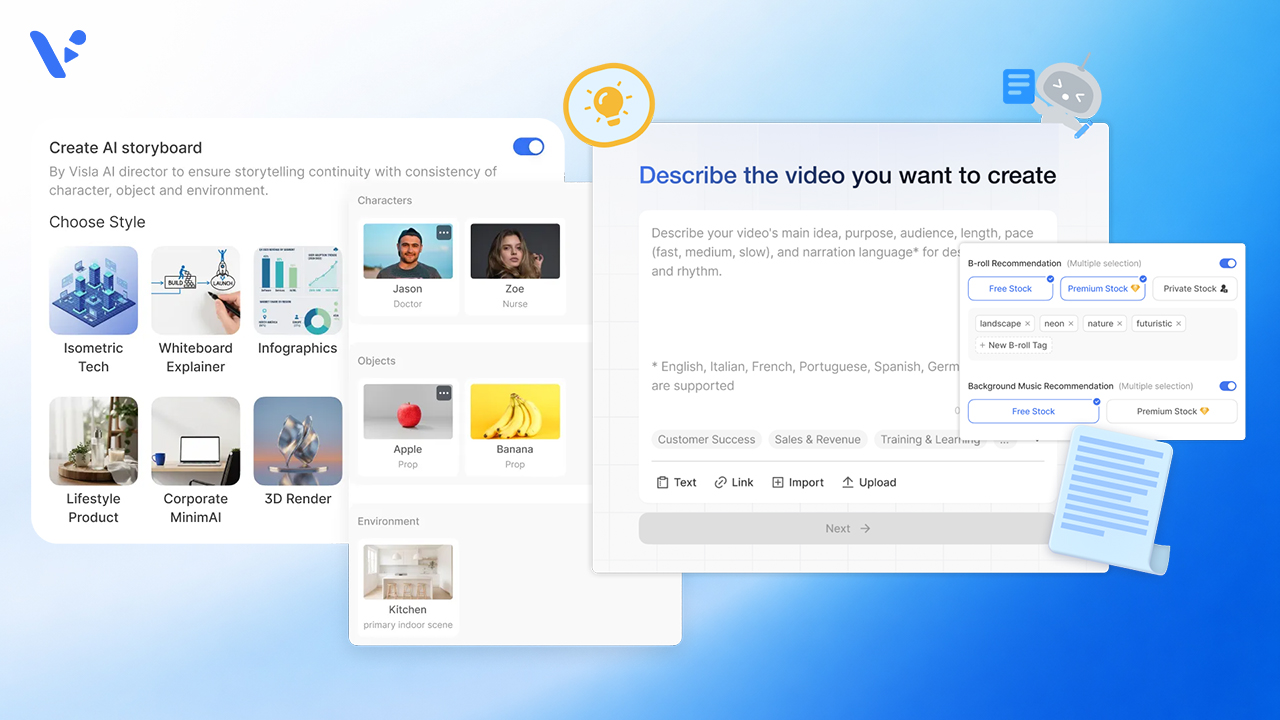
AI Director Mode changes that process by making the storyboard the center of the workflow. Instead of jumping straight to a draft built mostly from existing footage, the AI builds a storyboard which you review, and then you decide which scenes should become full AI-generated video clips. That extra control matters when stock footage is too generic, too inconsistent, or simply cannot show the exact world you need.
How the standard AI Video Agent workflow works without AI Director Mode
The standard AI Video Agent workflow is built for efficiency. You give Visla your source material, and the Agent turns it into a structured video draft with clear scenes, subtitles, voiceover options, and matched visuals. In many business cases, that is exactly what you want. You’re not trying to direct every frame from scratch. You’re trying to go from blank page to usable draft fast.
This workflow is especially strong when your video works well with real-world b-roll. If you need shots of offices, meetings, laptops, teams collaborating, city scenes, classrooms, manufacturing, or other familiar environments, stock footage is often the most practical solution. It’s fast, believable, and good enough for many explainers, updates, overviews, and internal videos.
The standard workflow also makes sense when the visual story does not need deep continuity across scenes. If the goal is to support the message rather than build a tightly controlled visual world, stock and existing footage often do the job very well.
How AI Director Mode changes the workflow
AI Director Mode adds a deliberate planning layer before you commit to creating AI-generated clips. You still begin with an input, but instead of moving straight toward a stock-supported first draft, Visla first creates an AI storyboard that maps out your video scene by scene.
From there, you set direction more precisely. You can define what characters appear on screen, what product or object must show up, and what environment the scene takes place in. Then you review the storyboard before you spend credits on full AI-generated clips.
That changes the whole logic of production. Instead of accepting whatever visual drift comes from clip-by-clip generation, you lock in the plan first. Instead of paying for motion everywhere, you decide which scenes actually need it. Instead of hoping the same character, product, or environment will carry across the story, you design for continuity from the beginning.
If you need a more detailed how-to guide about using AI Director Mode from start to finish, we have one here: How to Use AI Director Mode in Visla.
AI Director Mode vs. standard AI Video Agent: the biggest differences
The fastest way to understand the difference is side by side.
| Category | Standard AI Video Agent workflow | AI Director Mode |
|---|---|---|
| Best for | Fast drafts, broad business videos, and projects that work well with stock or existing footage | Videos that need stronger continuity, more visual control, and more directed storytelling |
| Visual source | Stock footage, your own footage, existing assets, and other ready-made visuals | AI-generated storyboard scenes and selected AI-generated video clips |
| Speed to first draft | Usually faster because Visla can structure the video and match visuals quickly | Usually slower at the start because you review and shape the storyboard first |
| Continuity across scenes | Good for general coverage, but not built around cross-scene AI consistency | Built to keep characters, objects, products, logos, and environments consistent across scenes |
| Level of control before generation | You guide the draft, but the workflow is optimized for speed | You make more decisions up front before generated AI video clips for chosen scenes |
| When stock footage shines | Real-world b-roll like offices, cities, events, teams, classrooms, and everyday work scenes | Less useful when the exact scene, character, or branded setting does not exist in stock |
| When AI clips shine | Useful only when you need something beyond generic coverage | Best when you need a unique shot, a repeatable character, a branded environment, or a more custom visual world |
| Spend strategy | Efficient when existing visuals are enough | Efficient when you want to review the storyboard first and generate motion only where it matters |
| Typical outcome | A strong first cut you can refine quickly | A more directed, cohesive multi-scene video with tighter visual continuity |
The short version is simple. The standard workflow is usually the better fit when you want speed and believable real-world coverage. AI Director Mode is the better fit when you need a video to feel directed, consistent, and specific.
When to use the standard AI Video Agent workflow
Use the standard workflow when speed is the priority and stock footage can do the job.
That includes cases like:
- internal updates that need to ship quickly
- general explainers with familiar business visuals
- quick product overviews supported by screenshots, screen recordings, or simple b-roll
- marketing drafts that need a fast first cut before deeper refinement
- videos where realism matters more than bespoke visual continuity
This is also the better path when you mostly need coverage rather than a visual world. If your script is the main value and the visuals are there to support it, stock-supported scene generation is often the smartest choice.
When to use AI Director Mode
Use AI Director Mode when the visuals are part of the message, not just decoration.
That includes cases like:
- product videos where the same product must stay recognizable across scenes
- brand videos that need a steady look from beginning to end
- explainers that rely on the same character, narrator, or environment throughout
- training videos where familiar characters or settings make the lesson easier to follow
- campaign videos where stock footage feels too generic or cannot reflect the exact brand world you want
- any project where disconnected visuals would weaken trust, clarity, or polish
AI Director Mode is especially valuable when you keep running into the same problem with ordinary AI clip generation or generic stock. The scenes might look individually fine, but together they do not feel like one video. That is exactly the kind of problem storyboard-first planning is meant to solve.
A practical rule of thumb
Here’s the easiest way to decide.
If you want a fast, usable first cut and your visuals can come from stock, existing assets, or ordinary business footage, start with the standard AI Video Agent workflow.
If you need the video to show the same character, the same product, the same environment, or the same branded visual logic across multiple scenes, use AI Director Mode.
If your project falls somewhere in the middle, combine both ideas mentally. Use the fast workflow for the parts that only need coverage. Use AI Director Mode thinking for the scenes where continuity and specificity actually matter.
So, which Visla workflow should you choose?
- If you need a draft fast, choose the standard AI Video Agent workflow.
- If you need believable real-world b-roll, choose the standard workflow.
- If you need the same character, object, product, or environment to stay consistent from scene to scene, choose AI Director Mode.
- If you need one or two standout custom scenes that stock libraries cannot provide, lean toward AI Director Mode for those moments.
- If you want more review before spending credits on motion, choose AI Director Mode.
If you’re still unsure, ask one question: is the main challenge speed, or is it coherence? If the answer is speed, start with the standard workflow. If the answer is coherence, start with AI Director Mode.
FAQ
No, you do not need a finished script to start with AI Director Mode. We built it to work from scripts, webpages, PDFs, slide decks, raw footage, images, audio, and even rough ideas, so teams can begin with the source material they already have. That makes it much easier to turn an existing landing page, product deck, or internal document into a structured video plan without stopping to write a polished script first. For many business teams, that flexibility is one of the biggest reasons AI Director Mode fits into real production workflows instead of forcing a brand-new one.
The best way to budget AI Director Mode is to think in terms of storyboard scenes and generated motion, not just total runtime. In our help center, we note that a one-minute AI Director Mode video with about 10 scenes averages roughly 8,500 credits, with animation charged at 125 credits per second and storyboard image generation listed at 100 credits per scene. In practice, that means the smartest cost-control move is to review the storyboard carefully, animate the scenes that truly need motion, and avoid unnecessary regenerations. Teams that plan this way usually get better creative discipline and better credit efficiency at the same time.
Yes, and that is often one of the most practical ways to use it. We let you start AI Director Mode from raw footage and images, and our Private Stock library stores and AI-tags uploaded clips so they are easier to find and reuse in later projects. That means your team can bring in real product footage, office b-roll, event clips, customer visuals, or training assets instead of relying only on generic stock. For many companies, the strongest workflow is a hybrid one that combines existing footage with storyboard-first planning and adds custom AI scenes only where they create clear value.
No, we do not position AI Director Mode as a marketing-only feature. On our AI Director Mode page, we highlight use cases like product demos, onboarding and training, educational videos, social media videos, and internal communications, and our broader solutions pages show the same cross-functional focus for communication and learning teams. That matters because storyboard-first planning and scene-to-scene consistency are just as useful for training, executive updates, and internal education as they are for campaign content. In other words, AI Director Mode is best understood as a business video workflow that serves multiple departments, not just a tool for marketers.

May Horiuchi
May is a Content Specialist and AI Expert for Visla. She is an in-house expert on anything Visla and loves testing out different AI tools to figure out which ones are actually helpful and useful for content creators, businesses, and organizations.