AI Director Mode: Create consistent AI videos that stay on brand
AI Director Mode creates polished, consistent AI-generated videos, not disconnected AI video clips. You stay in control of the direction, while Visla keeps characters, products, logos, environments, audio, and visual style consistent across scenes. The result is a cohesive, on-brand video that feels intentional from start to finish.

💡 What is AI Director Mode?
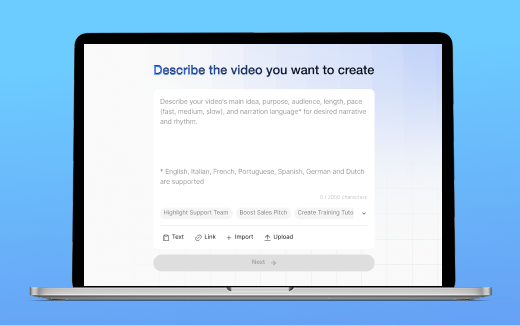
AI Director Mode is our workflow for creating AI-generated videos. It does this by maintaining continuity of characters, products, logos, environments, visual style, and audio across scenes, so your video can deliver a message effectively. Start with an idea, script, webpage, PDF, or other uploaded assets, then control the direction while AI Director Mode handles the difficult, repetitive tasks. It’s a faster, easier way to create on-brand marketing, sales, training, and product videos.


How AI Director Mode works
2. Planning>
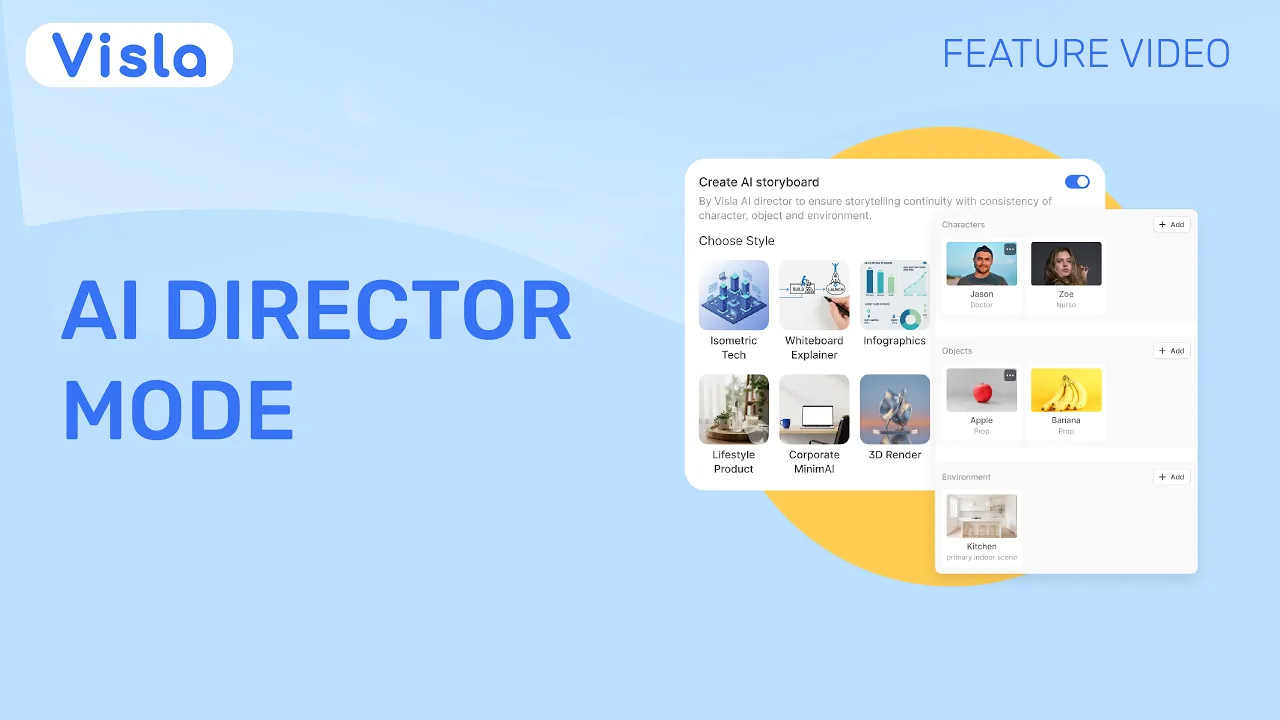
AI Director Mode reviews your input and suggests characters, products, logos, environments, and a visual style for your video. You can edit, remove, or add elements before moving to the next step.
3. Generation>
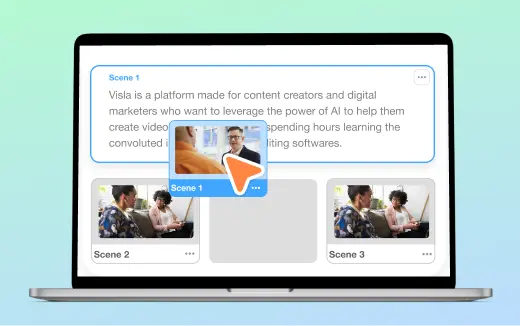
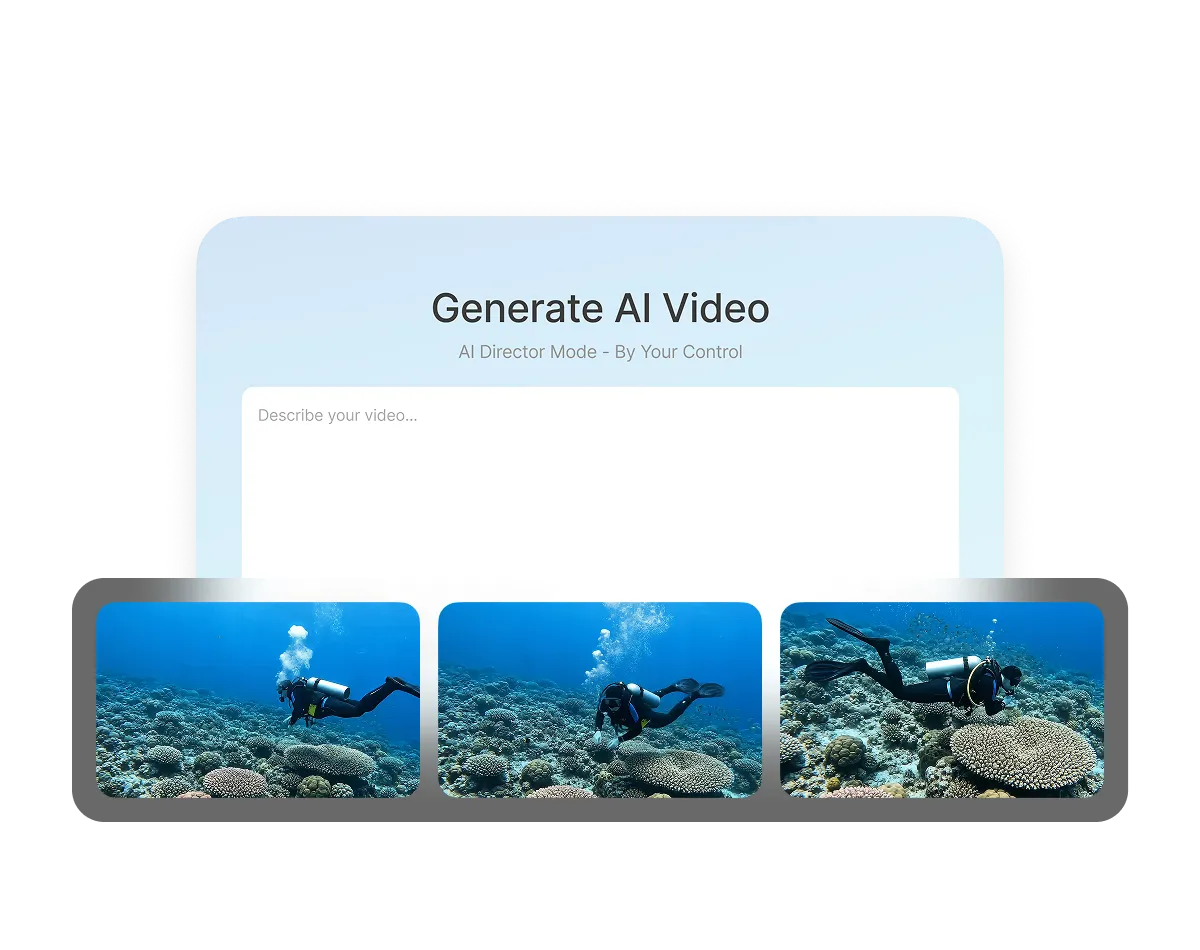
Visla shows an AI-generated image and an editable prompt for each scene. Review each scene and refine the direction before generating any AI video clips.
4. Output>
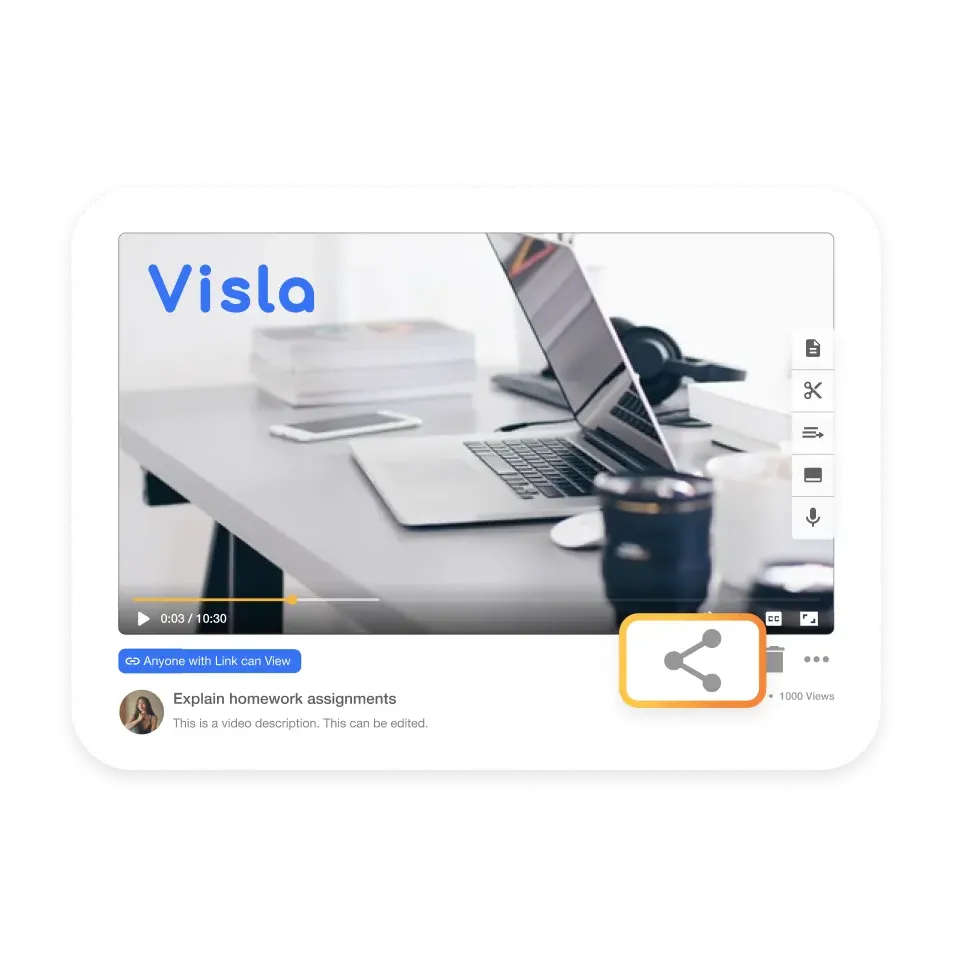
Edit, export, and share the finished video. Use it for marketing campaigns, sales outreach, training, internal comms, and more.
Create business videos faster, with more control
Traditional video production can eat up budget fast and take weeks of planning, filming, editing, and revisions. AI Director Mode helps teams move fast by planning the video with a storyboard first, generating the scenes they approve of, and keeping each scene visually consistent.



Move from concept to video faster
Start with an idea, script, URL, PDF, or uploaded assets, then refine your video's direction and generate approved scenes, rather than waiting through an entire traditional production cycle.
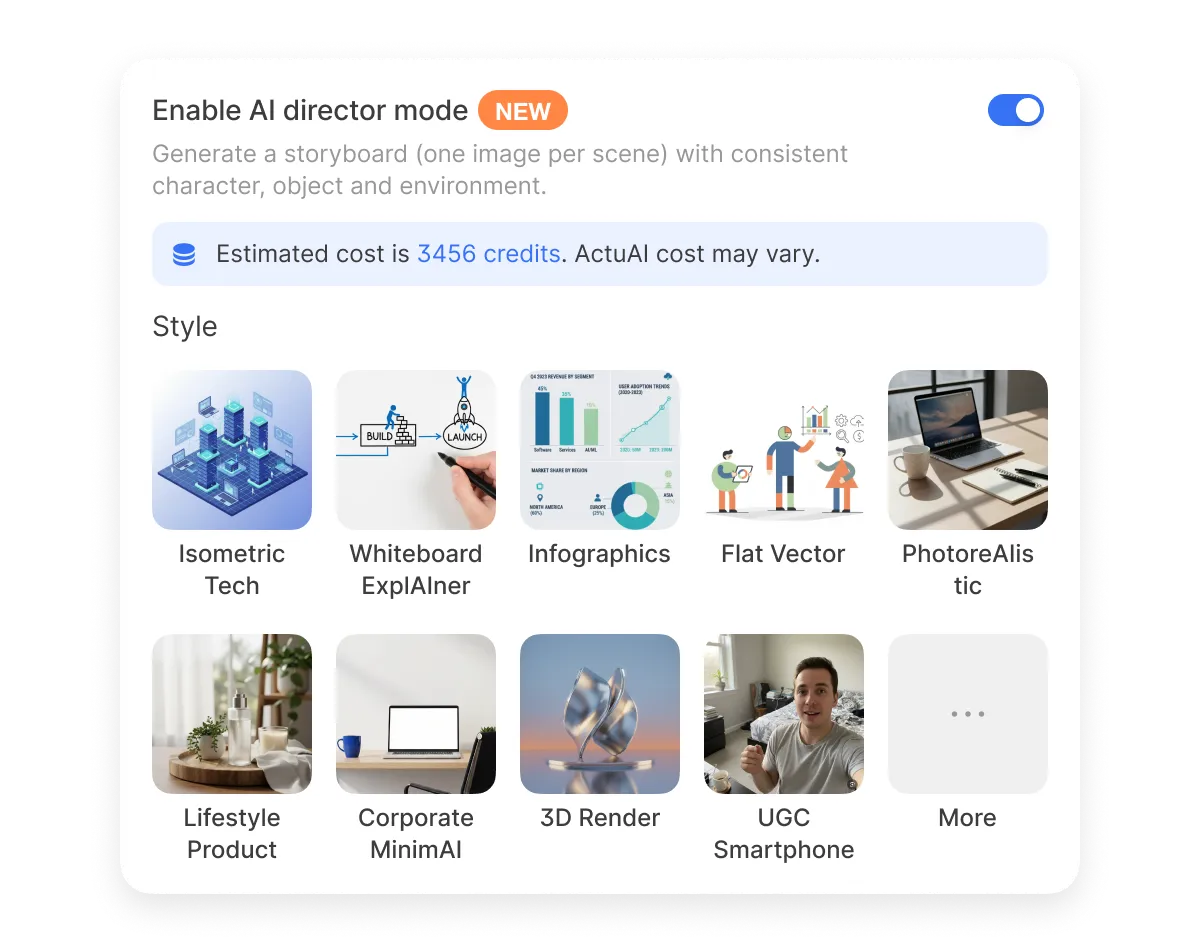
Spend credits where they matter
Approve the direction before generating AI video clips, so you don’t waste budget on clips that miss the mark.
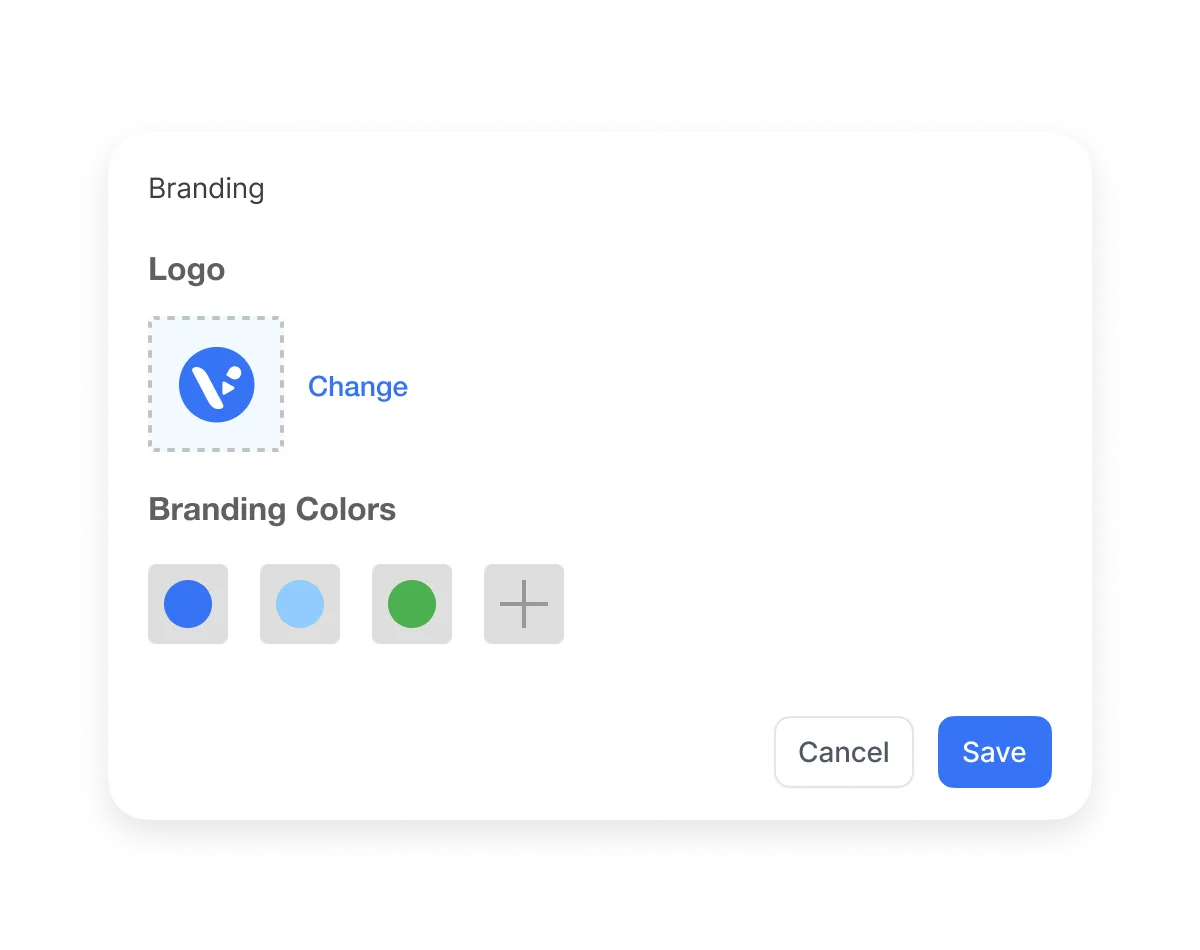
Keep every scene consistent and on brand
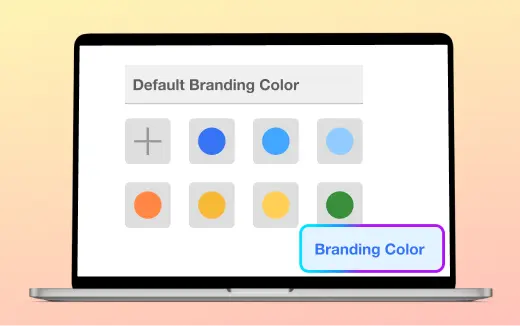
Characters, products, logos, environments, and visual style stay consistent from scene to scene. Apply your brand colors and logos so every video stays aligned with your brand standards.
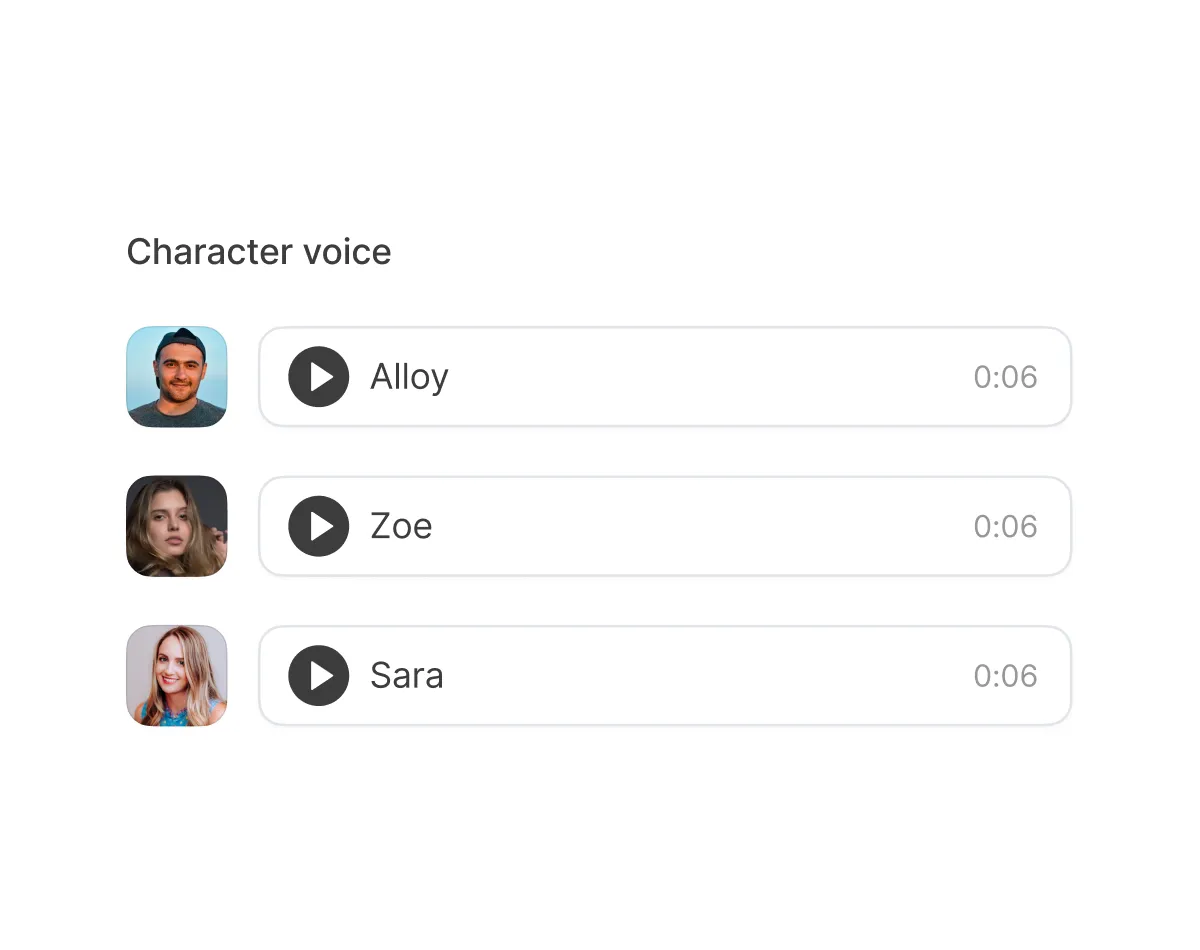
Give your characters consistent voices
You can assign a specific voice to each character. You can have multiple characters in the same video, each with their own assigned voice. AI Director Mode makes sure those characters always speak in their assigned voices while keeping their appearances consistent. Now, you can create fully cohesive, recognizable characters across your video projects.
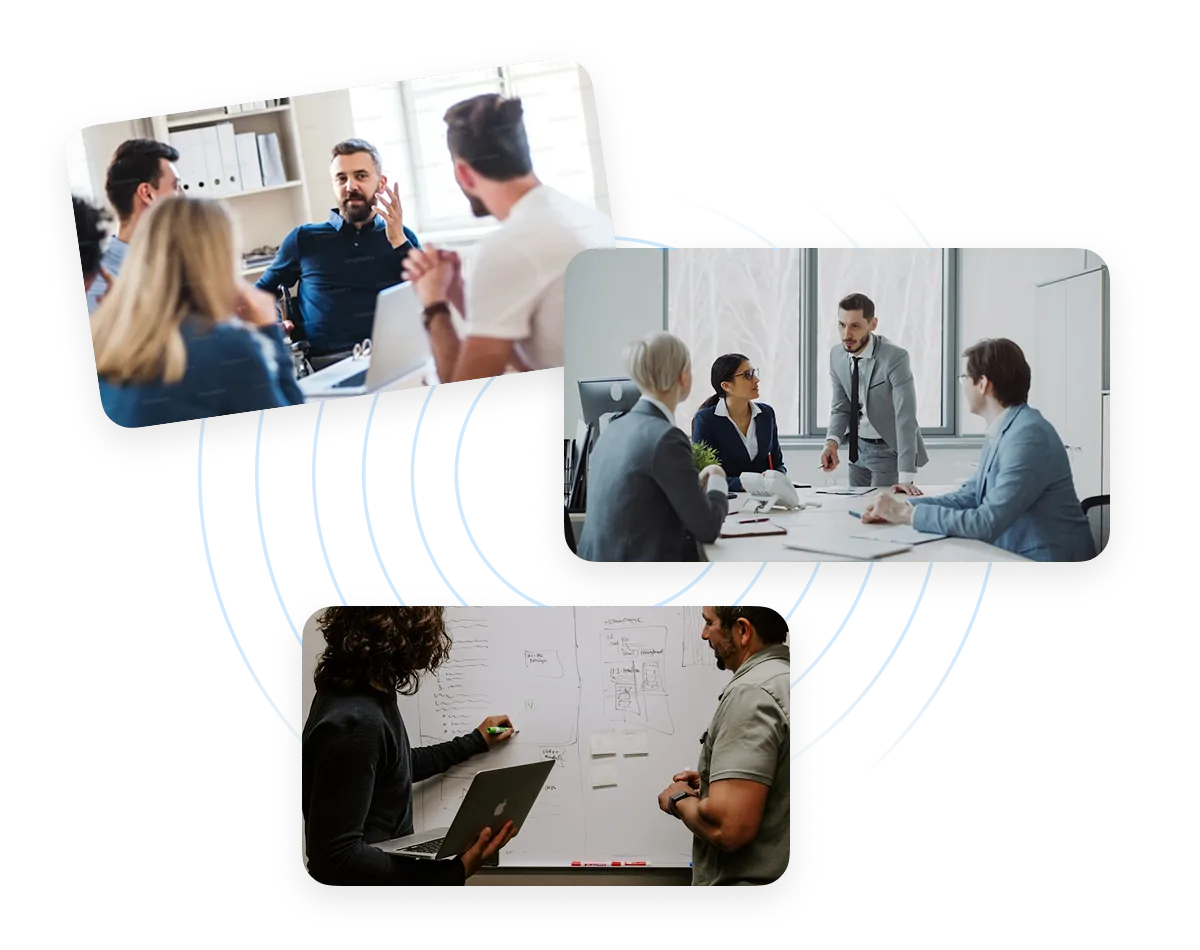
Create more videos without rebuilding the process
Use the same workflow for campaigns, training, sales outreach, product explainers, and internal updates.
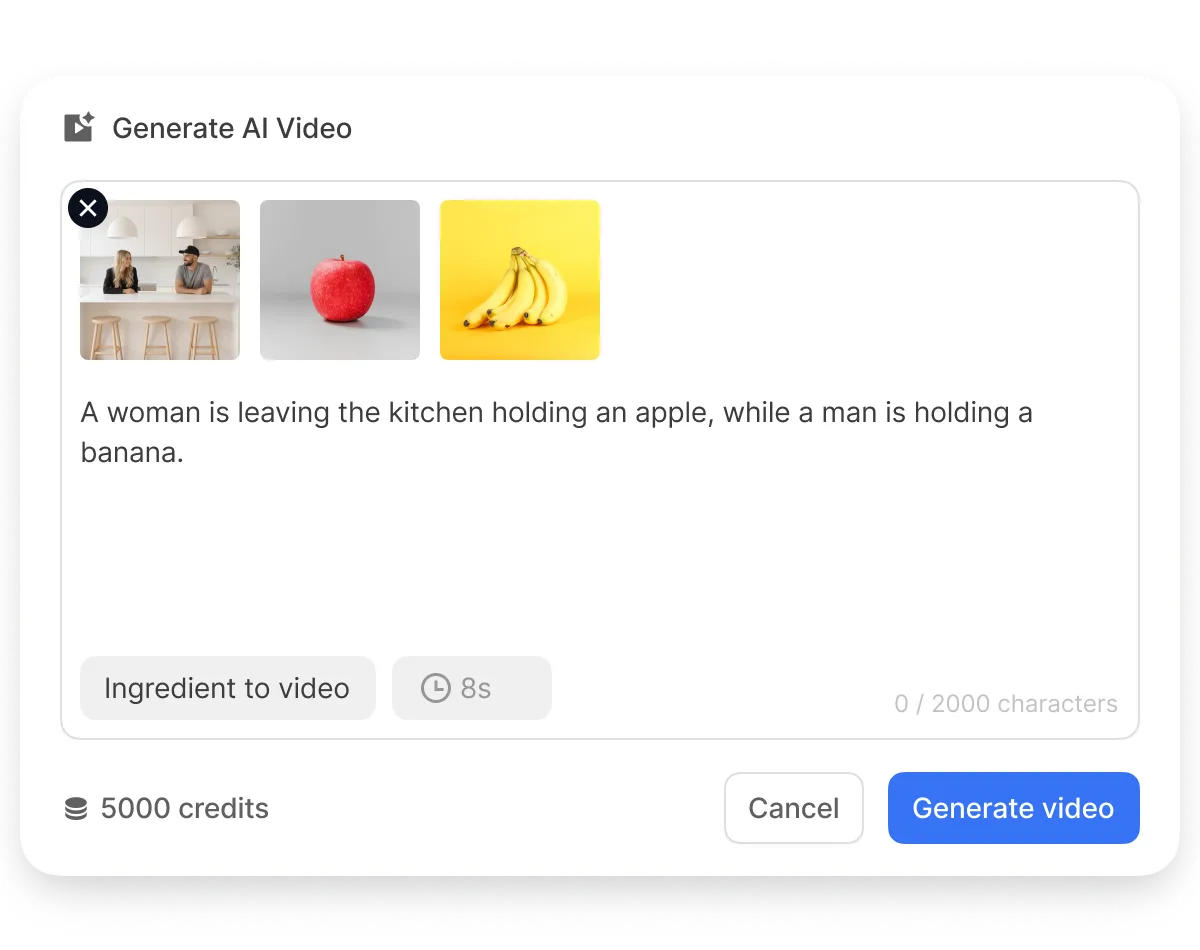
Direct the video before you generate it
Review the direction, refine individual scenes, and choose which scenes become AI-generated video clips.
Why AI Director Mode is different
Most AI video tools create clips. AI Director Mode helps you create a complete video.


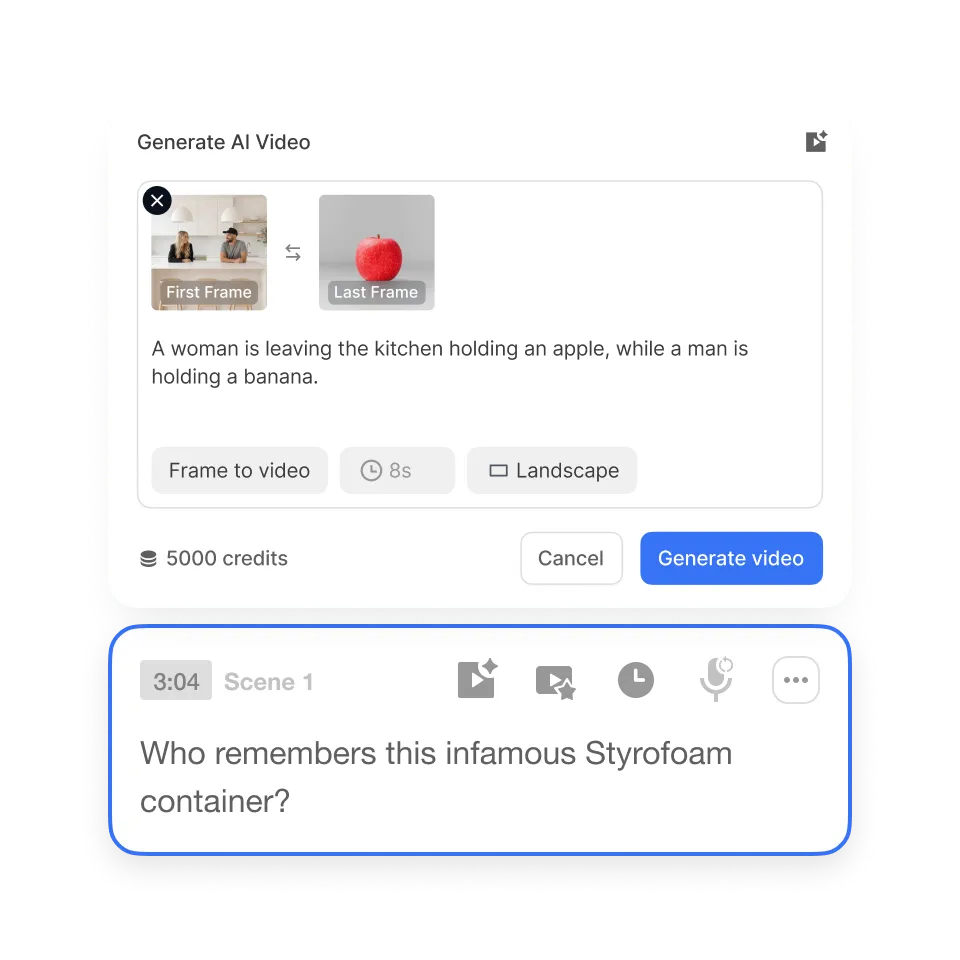
Consistent visuals across scenes>
Keep characters, products, logos, environments, and visual style steady from scene to scene. That makes the final video feel cohesive rather than stitched together.
Reusable brand elements>
Add the people, products, logos, and environments your video needs before generation starts. Visla uses those elements across scenes to keep your brand recognizable throughout the story.
Scene-level control>
Refine individual scenes, choose which scenes become AI-generated video clips, and review the video as a whole. You can adjust the message or visuals without rebuilding the entire project.
Real-life uses cases for AI Director Mode
Marketing teams

Launch campaign videos faster with AI Director Mode. Turn campaign briefs, landing pages, product images, and brand assets into cohesive, on-brand videos for launches, promotions, and demand generation.
Sales Teams

Create outreach videos that feel clear and personal without starting from scratch. Turn a prospect's pain point, a follow-up message, or a campaign idea into a visual story, then add a presenter or custom voiceover when it helps guide the viewer.
L&D Teams

Build training videos that stay consistent across lessons. Turn SOPs, PDFs, and process docs into clear training content with familiar visuals, environments, and optional AI presenters, making the lesson feel more approachable when a human guide is available.
Comms Teams

Make company updates easier to watch and understand. Turn announcements, leadership notes, and internal documents into clear visual updates with consistent branding, optional presenters, and a strong call to action.
Product Teams
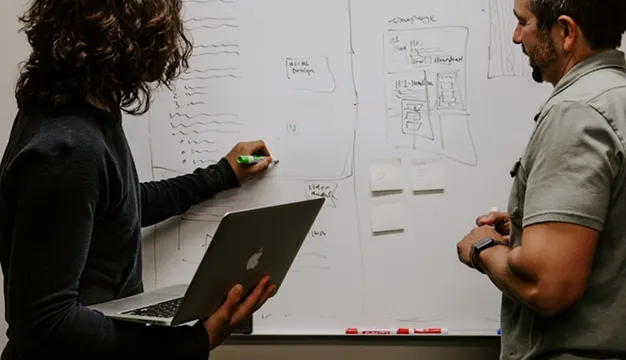
Explain features clearly with AI Director Mode. Turn product notes, help docs, screenshots, and feature descriptions into videos that walk viewers through what changed and why it matters.
Social Media Teams

Make more videos without starting from scratch with AI Director Mode. Create short-form videos from existing content, then adapt scenes, hooks, and visual styles for different channels and audiences.
Frequently Asked Questions
 What is AI Director Mode?
- How is AI Director Mode different from a regular AI video generator?
- What can I use to start an AI Director Mode video?
- Can AI Director Mode keep characters, products, and brand assets consistent?
- How many credits does an AI Director Mode video use?