AI Storyboard Generator: Storyboard First, Then Generate AI Clips

Build and edit your storyboard like a director, then convert the scenes you choose into AI video clips with consistent characters, products, and logos.

Get Started for Free

💡 What is the AI Storyboard Generator?

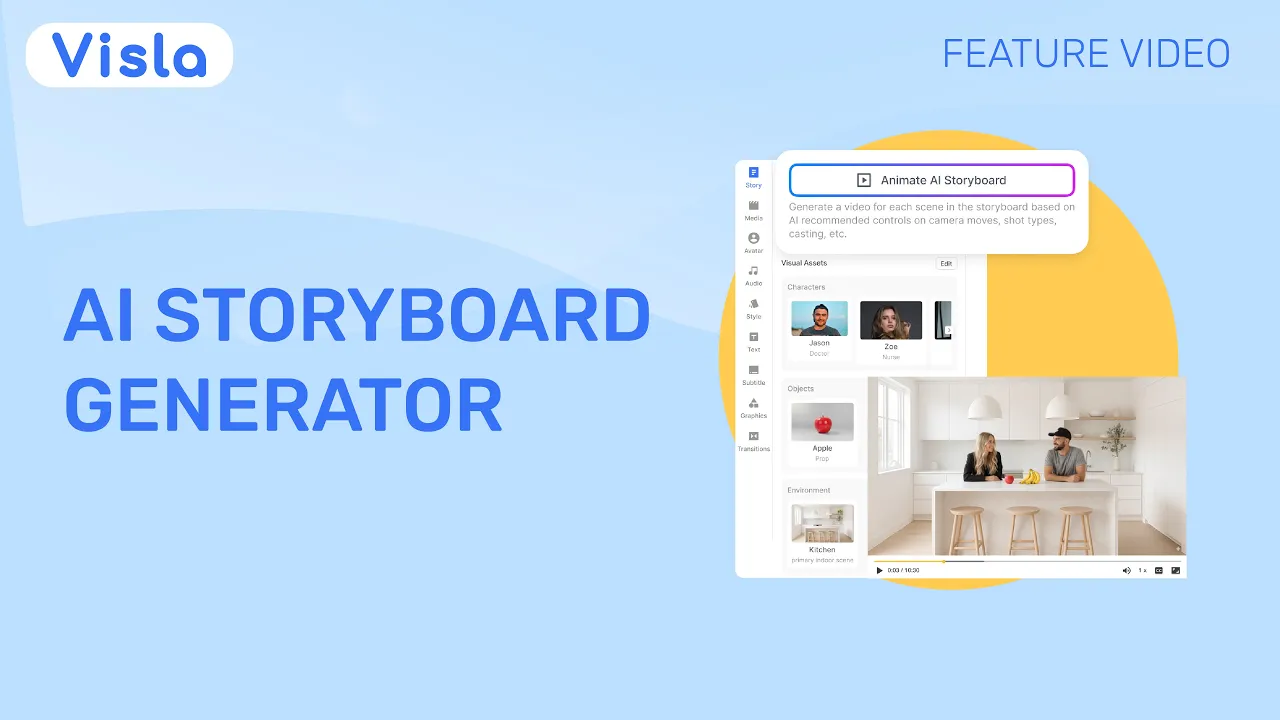
Visla’s AI Storyboard Generator changes the way you make videos. You can start from a script, a PDF, a webpage, a slide deck, or a rough outline, and Visla turns it into storyboard images you can review right away. Next, you can add characters, products, logos, and other brand assets so your scenes stay consistent. Then you choose which storyboard frames stay as images and which ones become full AI video clips.

The benefits of the AI Storyboard Generator

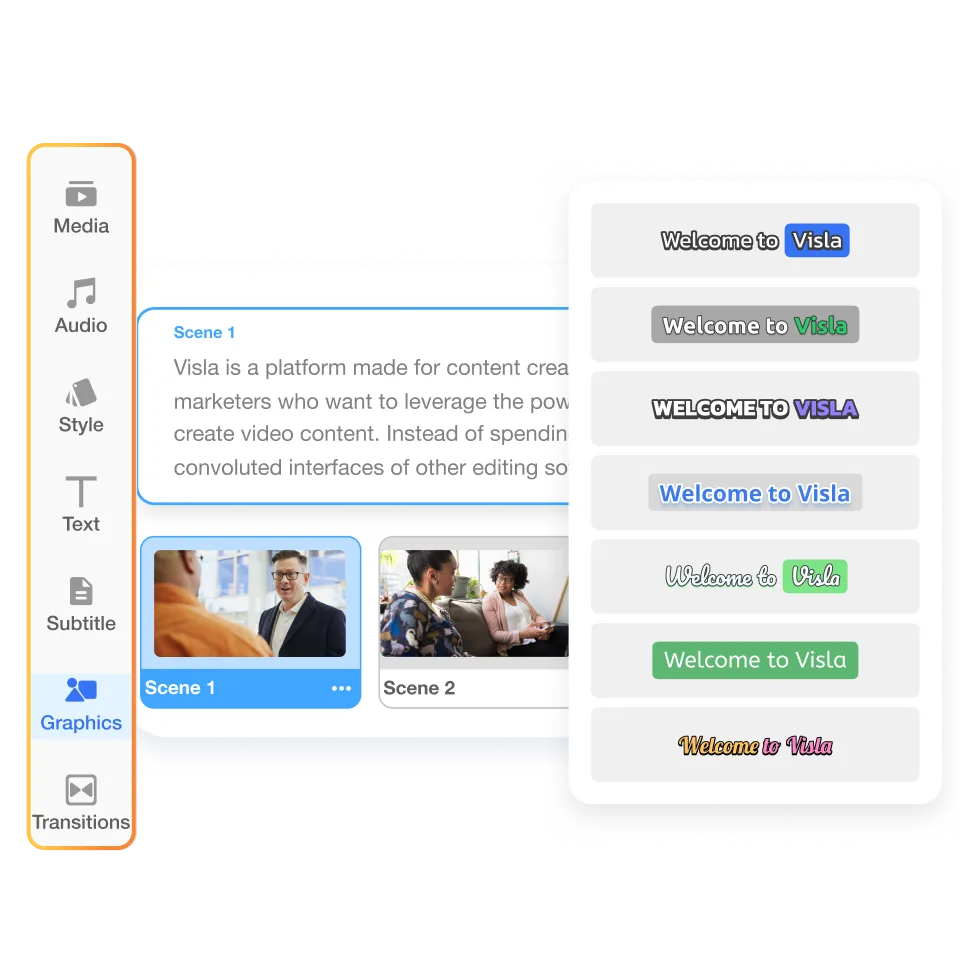
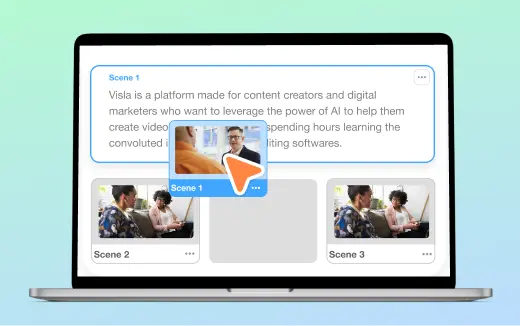
AI Storyboard Generator in Visla for editing a scene-by-scene AI storyboard like an outline before generating AI video clips

Edit your AI storyboard like it’s your outline

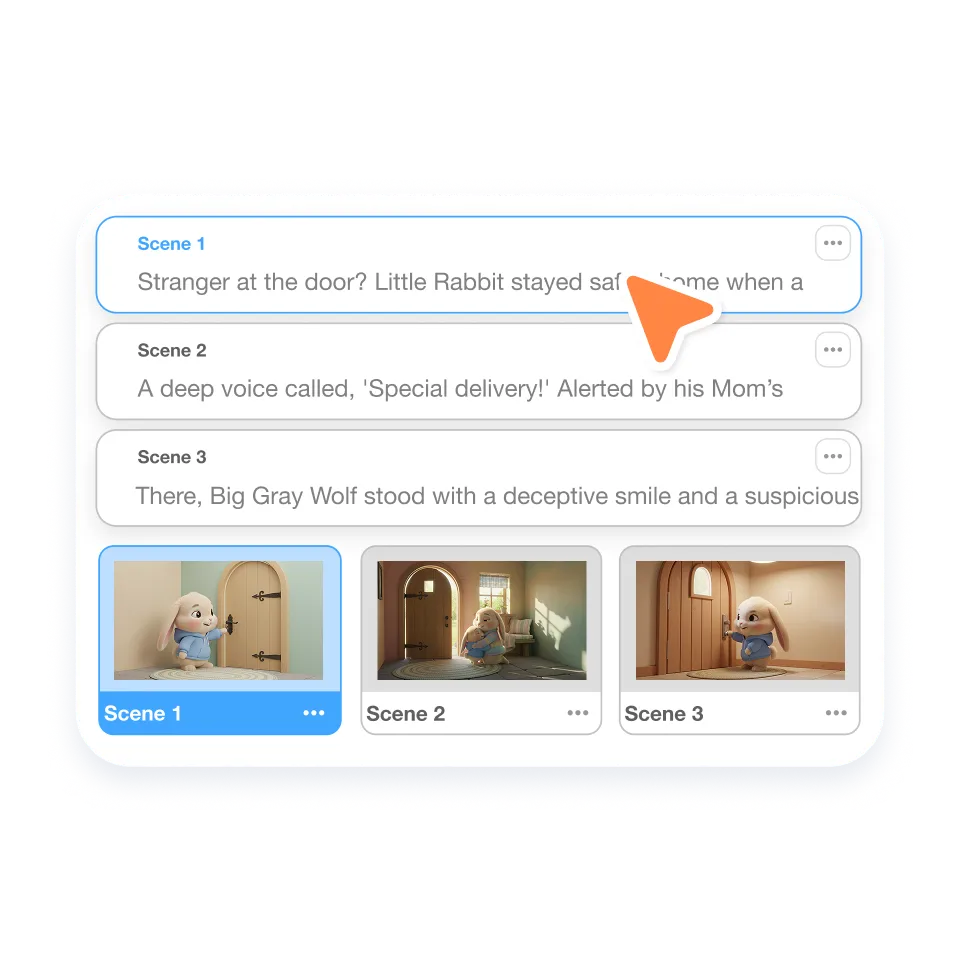
Storyboards work best when you can adjust them quickly. In Visla, you can refine scene text, swap visuals, and tighten the flow before you spend credits on motion. Next, you approve the plan with confidence because you can see the whole story at a glance.

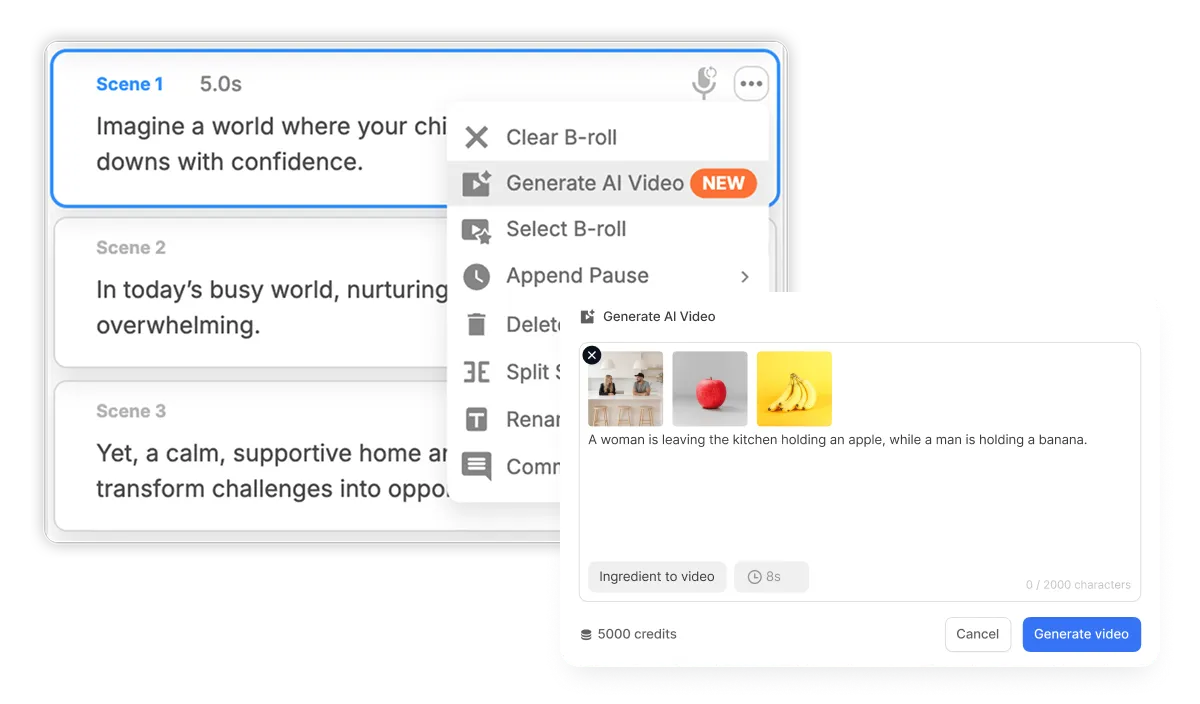
AI Storyboard Generator converting approved storyboard frames into AI-generated video clips

Generate AI video clips from the storyboard you already trust

Once your storyboard looks right, you can turn selected scenes into AI video clips. You control where motion matters, so you don’t generate clips just to “see what happens.” Then your final video keeps its structure because it grows from a storyboard you already shaped.

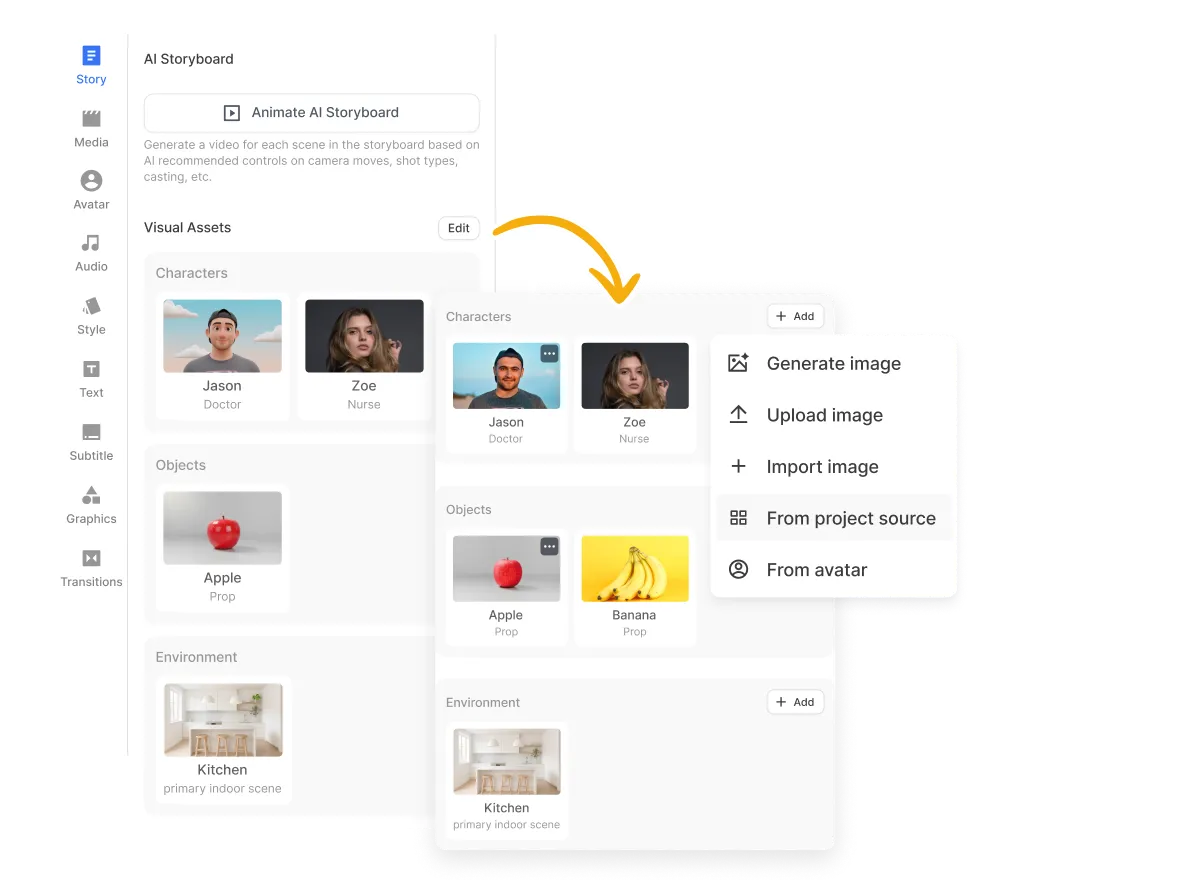
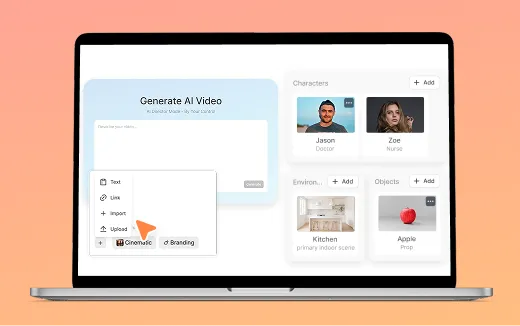
Consistent characters, objects, and environments across scenes created with the AI Storyboard Generator

Keep characters, objects, and environments consistent

A storyboard should feel like one story, not a grab bag of shots. Add characters, products, props, and environments during setup, and Visla carries them across scenes. Next, you can fine-tune one scene without rewriting the whole video.

AI Storyboard Generator placing logos and product images into storyboard scenes for brand-consistent AI videos

Put your brand in the frame, not on the sidelines

Bring in logos, product images, brand mascots, packaging shots, or brand-approved graphics. Visla places them into storyboard scenes in a way that feels natural. Then your video looks branded from the start, not patched together at the end.

Why the AI Storyboard Generator improves AI video results

When you generate AI video clips first, you often fight chaos. Scenes drift, visuals change, and the story loses its thread. Branding also breaks when characters and objects shift from one shot to the next.

The AI Storyboard Generator flips the order. You plan visuals first, you edit the storyboard until it feels right, and you keep control before you commit to motion. Then you generate AI clips from a storyboard that already has structure, continuity, and brand consistency.

How the AI Storyboard Generator works

A step-by-step guide to getting a clean AI storyboard, then generating the video you actually want.

Start a new AI Storyboard Generator project in Visla by clicking Create Video and bringing any input to create a structured storyboard Choose a visual style in the AI Storyboard Generator so storyboard scenes share a consistent look, pacing, and voiceover tone Create or add consistent characters in the AI Storyboard Generator by generating with AI or uploading headshots, mascots, or real photos Generate or add reusable objects in the AI Storyboard Generator including product images, screenshots, icons, and logo assets for scene consistency Choose or generate environments in the AI Storyboard Generator such as offices, classrooms, studios, or branded spaces to keep scenes in one coherent world AI Storyboard Generator creating a scene-by-scene AI storyboard in Visla for fast review and edits before converting frames into AI video clips Edit your project by keeping storyboard images or converting selected scenes into AI video clips, then polishing the final cut with Visla’s editor
  • 1. Start a new video project>

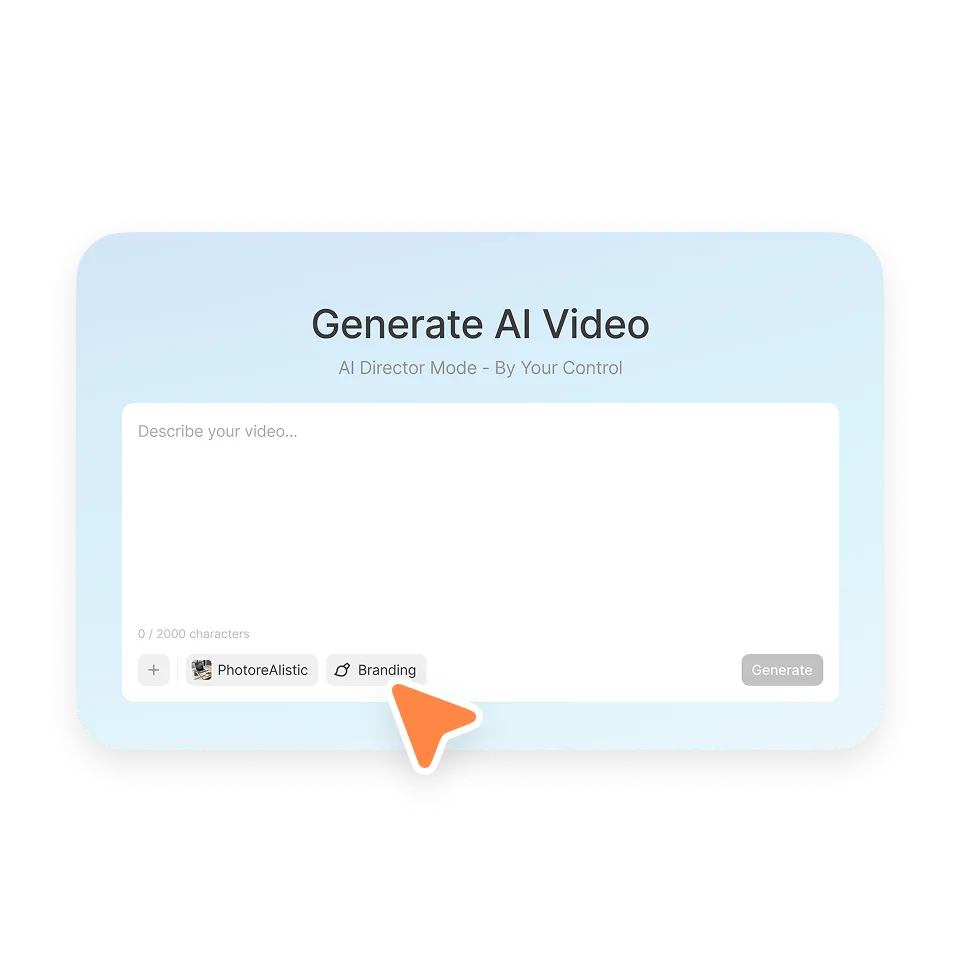
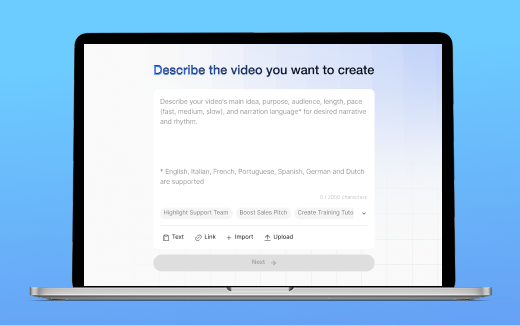
    Click Create Video and bring your starting point. Visla turns your input into a project with clear scenes, so you start with direction instead of a blank canvas.

  • 2. Choose a visual style>

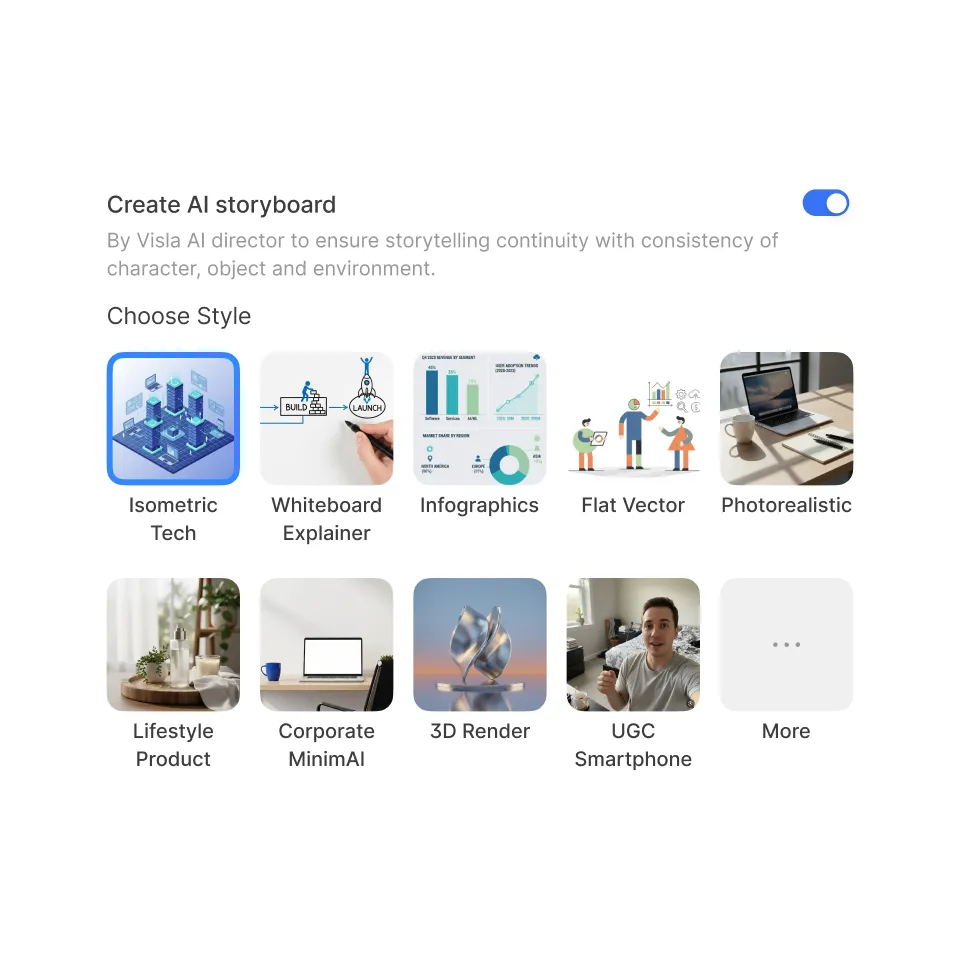
    Choose a visual style, then set the tone. Pick photorealistic, cinematic, 3D render, infographic, flat vector, UGC/social, or another style that fits your audience. Next, choose pacing and voiceover options so your storyboard matches how you want the final video to feel.

  • 3. Create or add characters>

    Bring in the people who appear on screen. Generate characters with AI or upload team headshots, a brand mascot, or real photos. Then Visla keeps those characters consistent across your storyboard scenes.

  • 4. Generate or add objects>

    Objects keep your message grounded. Generate custom objects with AI or upload assets like product photos, packaging, app screenshots, icons, a logo lockup, or a slide of brand-approved graphics. Next, reuse those objects across scenes so your storyboard stays coherent.

  • 5. Choose or generate environments>

    Pick environments that match your message, like offices, classrooms, studios, homes, outdoor scenes, cinematic backdrops, or branded abstract spaces. Then Visla uses those environments across scenes so your storyboard feels like one world.

  • 6. Visla creates your storyboard>

    Now you see the plan. Visla creates storyboard images for each scene and lays them out in order, so you can review the flow in minutes. Next, you edit the storyboard until the story lands.

  • 7. Edit your video>

    This step gives you the leverage. Start with storyboard images for every scene so you can iterate fast and keep costs predictable. Then convert only the scenes you choose into full AI video clips. Next, polish the final cut with Visla’s editing tools.

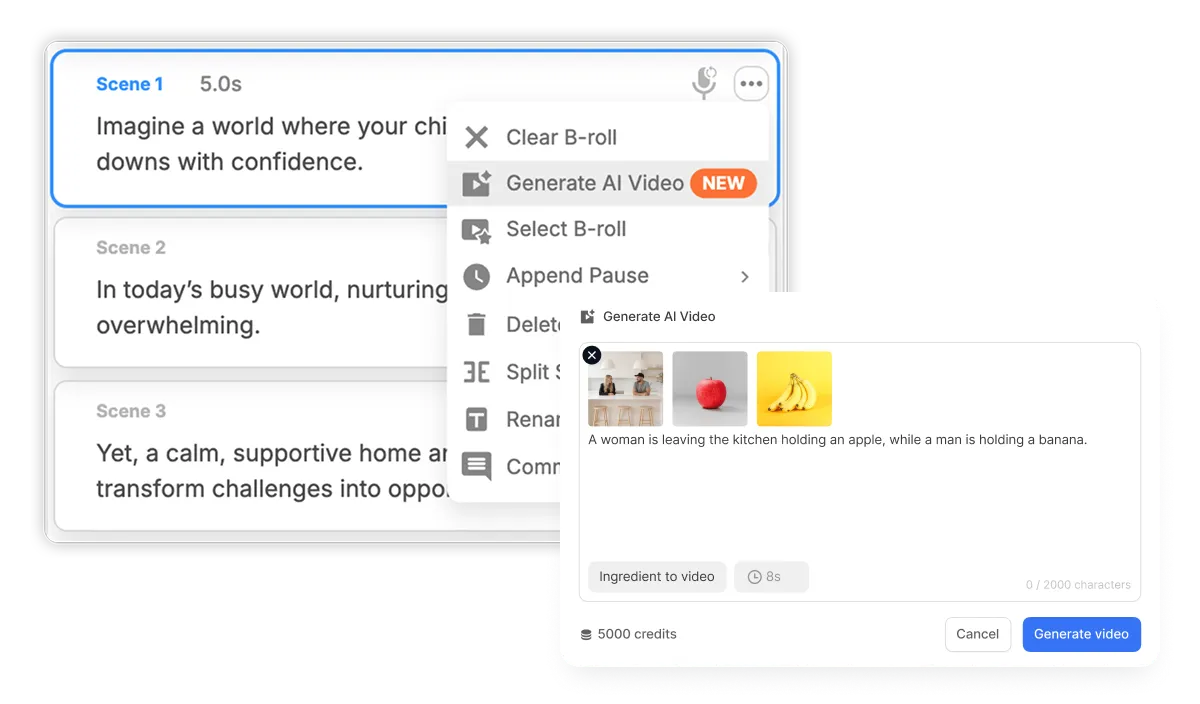
AI Storyboard Generator in Visla converting storyboard scenes into AI video clips while keeping characters, objects, and branding consistent

From AI storyboard generation to AI video clips

When your storyboard feels solid, you can generate AI video clips for any scene. Visla adds motion while keeping your characters, objects, and environments consistent. Next, you can mix scenes that stay as images with scenes that become clips, so you keep momentum without overspending.

Storyboard-based scene-level editing in Visla’s AI Storyboard Generator, allowing individual storyboard scenes to be regenerated, adjusted, or converted into AI video clips without rebuilding the entire video

Storyboard-based, scene-level editing

A good storyboard makes editing easier. Visla lets you work scene by scene, so you can refine one part without breaking everything else.

You can:

  • Regenerate one scene when you want a fresh option

  • Swap characters, objects, or environments for a single scene

  • Adjust pacing and transitions to tighten the story

  • Improve visuals without rebuilding the whole video

Real-life use cases for AI Storyboard Generator

Marketing campaign videos

Marketing campaign videos planned with an AI Storyboard Generator using a storyboard-first AI video workflow

Draft the storyboard in minutes, then tune the hook and pacing before you generate motion. Next, turn your highest-impact scenes into AI clips so your campaign stays consistent across every version.

Product demos and explainer videos

Product demo and explainer videos created with an AI Storyboard Generator using consistent UI screenshots and brand assets

Start from a feature list or help doc and shape it into a clear storyboard with a real flow. Then generate AI clips for the scenes that benefit from motion, while your product visuals and branding stay steady.

Onboarding and training videos

Onboarding and training videos created with an AI Storyboard Generator using consistent characters and environments

Create a storyboard that follows the steps exactly, then refine it until it reads clearly. Next, update a single scene when the process changes instead of rebuilding the entire video.

Educational videos

Educational videos structured with an AI Storyboard Generator using organized scenes and a steady visual style

Turn an outline into a storyboard that stays organized and easy to follow. Then add AI clips where motion helps, like how-to steps, process diagrams, and key concepts.

Social media videos

Social media videos planned with an AI Storyboard Generator using vertical-first pacing and fast scene variations

Build a storyboard that matches a vertical-first rhythm and a tight runtime. Next, test hooks and variations by swapping a scene or regenerating a clip without starting over.

Internal communications videos

Internal communications videos created with an AI Storyboard Generator keeping leaders, logos, and key visuals consistent

Storyboard your update so it stays focused and readable. Then keep leaders, logos, and key visuals consistent, even when you revise the message.

Frequently Asked Questions

Discover More Features

Plan it. Shape it. Then bring it to life.

Get Visla for free