
Quick Answer
AI Director Mode helps you create cohesive AI videos that stay consistent across multiple scenes, not just one short clip. You start with any input, add your characters, objects, environments, then Visla generates an AI storyboard you can edit. Next, you choose which scenes stay as storyboard images and which ones become full AI video clips.
What AI Director Mode solves and why the workflow matters
AI video clips can look impressive, but short clips won’t take you very far when you need a complete business video. A 10 to 15 second clip can show a moment. A real video needs structure, pacing, and continuity across a beginning, middle, and end.
That’s the problem AI Director Mode tackles. It helps you plan a multi-scene narrative, then generate the clips that match that plan. When you build a video this way, you keep the parts that audiences notice most. Your characters stay recognizable across scenes. Your key objects keep showing up when they matter. Your environments stay consistent, so the video feels like one coherent piece.
Where clip-first workflows break down
If you jump straight into clip generation, you usually run into a few predictable issues:
- You get mismatched characters across scenes (same “person,” different face or outfit).
- You lose prop continuity (the logo disappears, the product changes, the laptop swaps brands).
- You fight environment drift (an office becomes a studio, a street turns into a different city).
- You burn time re-rolling clips to fix problems you could’ve prevented.
Why the storyboard-first order matters
AI Director Mode starts with planning, not gambling on outputs. That order keeps you in control and helps you spend your time on decisions instead of retries.
| Clip-first approach | AI Director Mode approach |
|---|---|
| Generate first, then patch the story together | Define the story, then generate only what fits |
| Fix continuity after the fact | Protect continuity up front |
| Spend time on reruns and cleanup | Spend time on review and edits |
| Risk inconsistent tone from scene to scene | Keep tone and intent consistent |
The core workflow
Iterate with purpose, since you already know what “good” looks like.
Define what you want
Pick the characters, objects, and environments you need.
Set the intent for each scene so every clip earns its place.
Review a storyboard
Check flow, coverage, and continuity before you generate anything heavy.
Adjust scenes while edits still feel fast and low-cost.
Generate video clips when the plan looks right
Create only the scenes you want to ship.
The step-by-step AI Director Mode workflow in Visla
This section walks through the full process, from your first project to your final export. You’ll see what each step means for the final video, not just what button to click.
1. Start a new video project
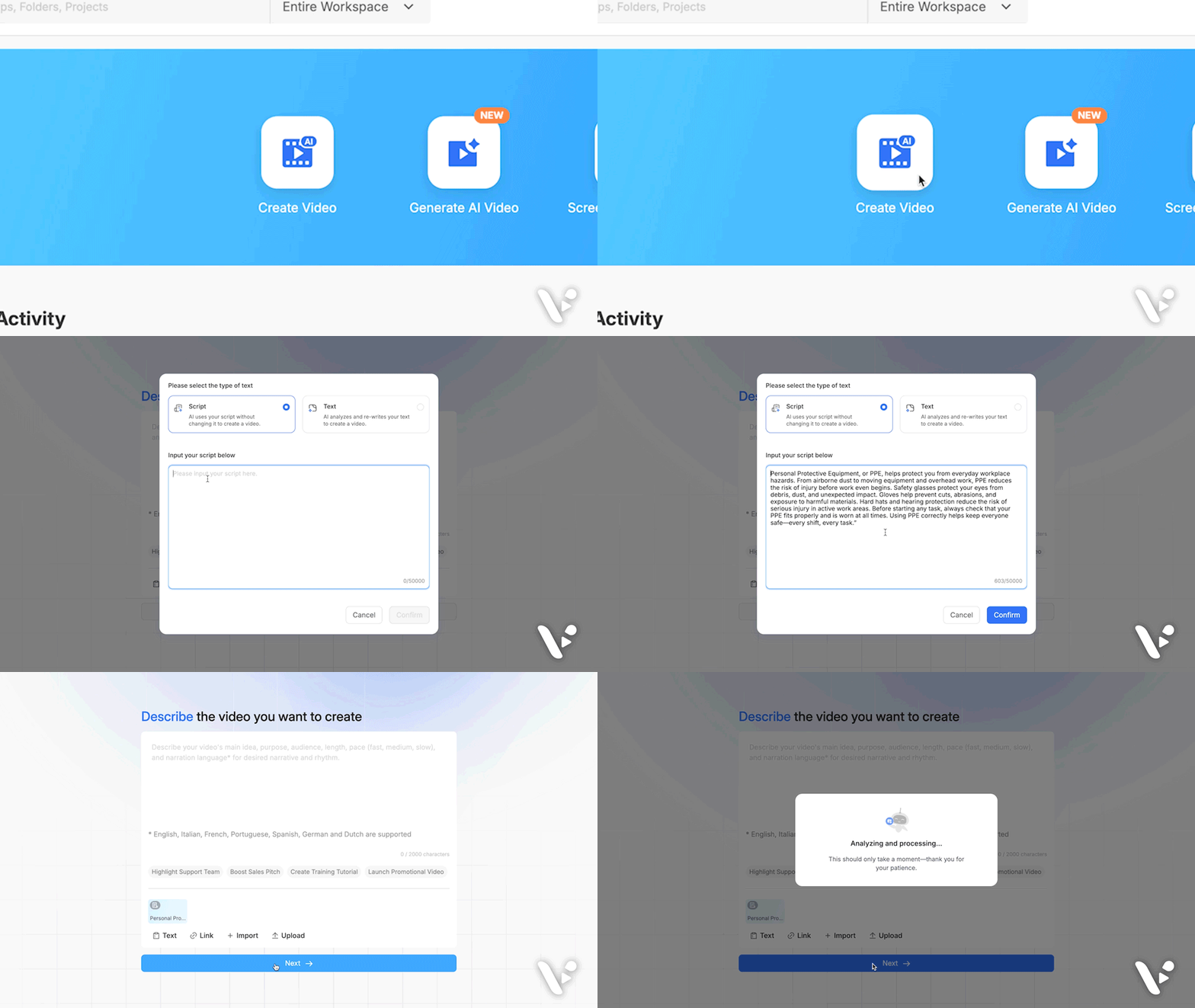
Click Create Video and bring your starting point. You can use an idea, script, a PDF/PPT, a webpage, a deck, raw footage, images, or audio.
This step sets the foundation. It gives the AI something real to structure, so you don’t start from a blank page.
2. Set your video basics
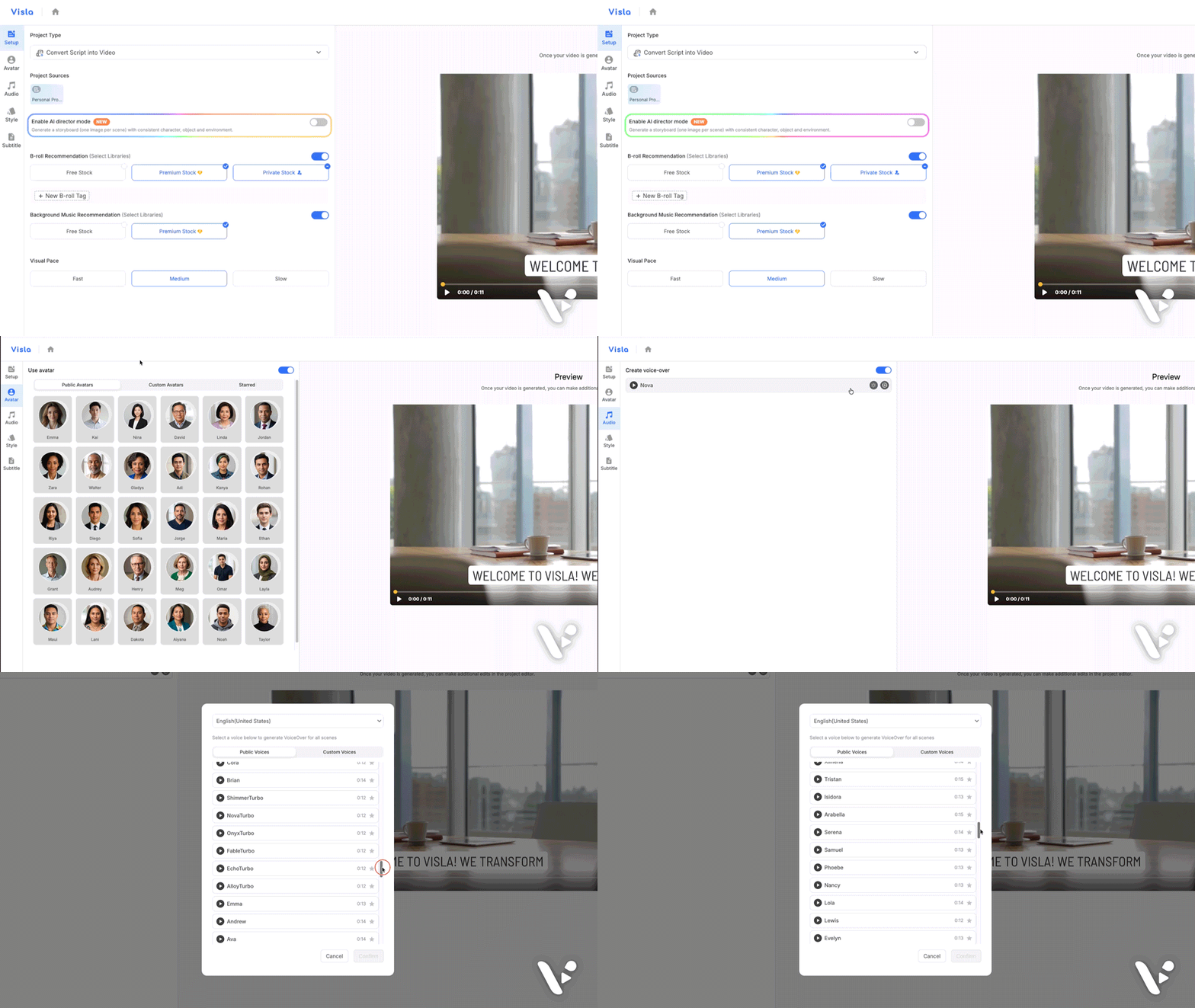
Now you set the constraints that shape everything that comes next.
Common basics include:
- Duration
- Aspect ratio, like landscape, portrait, or square
- Pacing, meaning how fast cuts and scenes move
- Voiceover settings
- Any avatar or on-screen narrator choices
These choices keep the storyboard aligned with where the video will live. A 60 second LinkedIn video needs different pacing than a 6 minute training video.
3. Choose a visual style
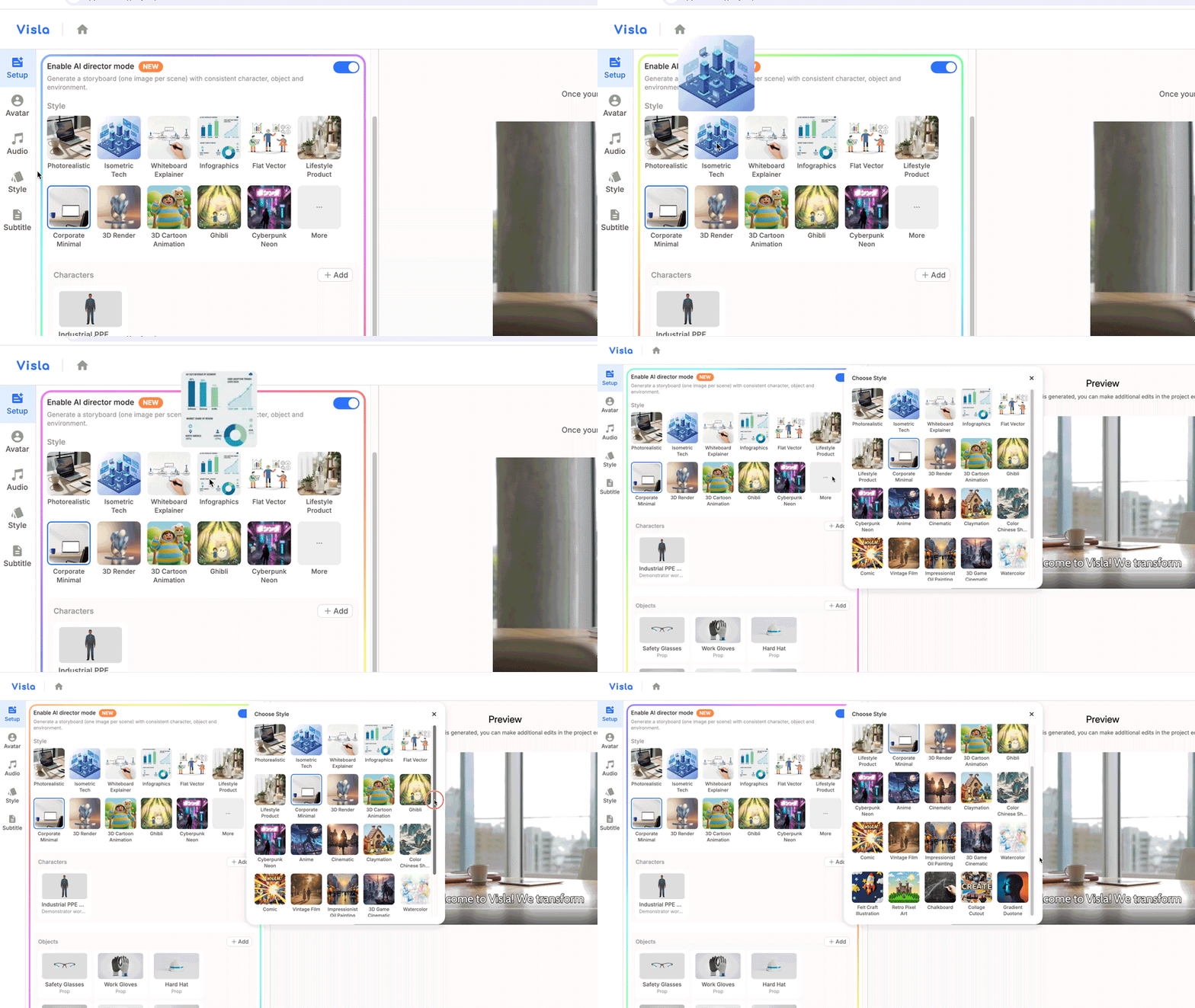
Style sets the rules for your look. It affects composition, lighting, and the overall feel across scenes.
Some of our options include:
- Photorealistic
- Cinematic
- 3D render
- Infographic
- Flat vector
- UGC or social
- Stylized or cartoon
Note: Based on your starting point, Visla may automatically generate characters, objects, and environments for you. These are already set up to be used immediately. However, you don’t have to use them. If they don’t match exactly with your vision, feel free to delete them and generate or upload your own.
4. Add characters

Characters make your video feel deliberate. They also help continuity when the same person shows up across scenes.
You can:
- Generate characters with AI
- Upload real photos, team headshots, or a brand mascot
After you add or generate a character: fill in these details
These aren’t prompts. Think of them as descriptors that help Visla keep everything organized and consistent (and help you remember what each person is doing in the story).
For each Character, add:
- Name
- Character role
- Description (Who is this person, why are they here in this video, etc.)
Example
- Name: “Ava”
- Character role: “Main character”
- Description: “A product manager using the feature and guiding viewers through the workflow.”
How many characters should you use?
Keep it lean. Most short videos only need one main character, plus maybe one supporting role.
Use this as a rule-of-thumb, but not a strict guide:
- Under 60 seconds: 1 to 2 characters
- 60 to 180 seconds: 2 to 4 characters
- Longer videos: add more, but only if they serve the story
5. Add objects
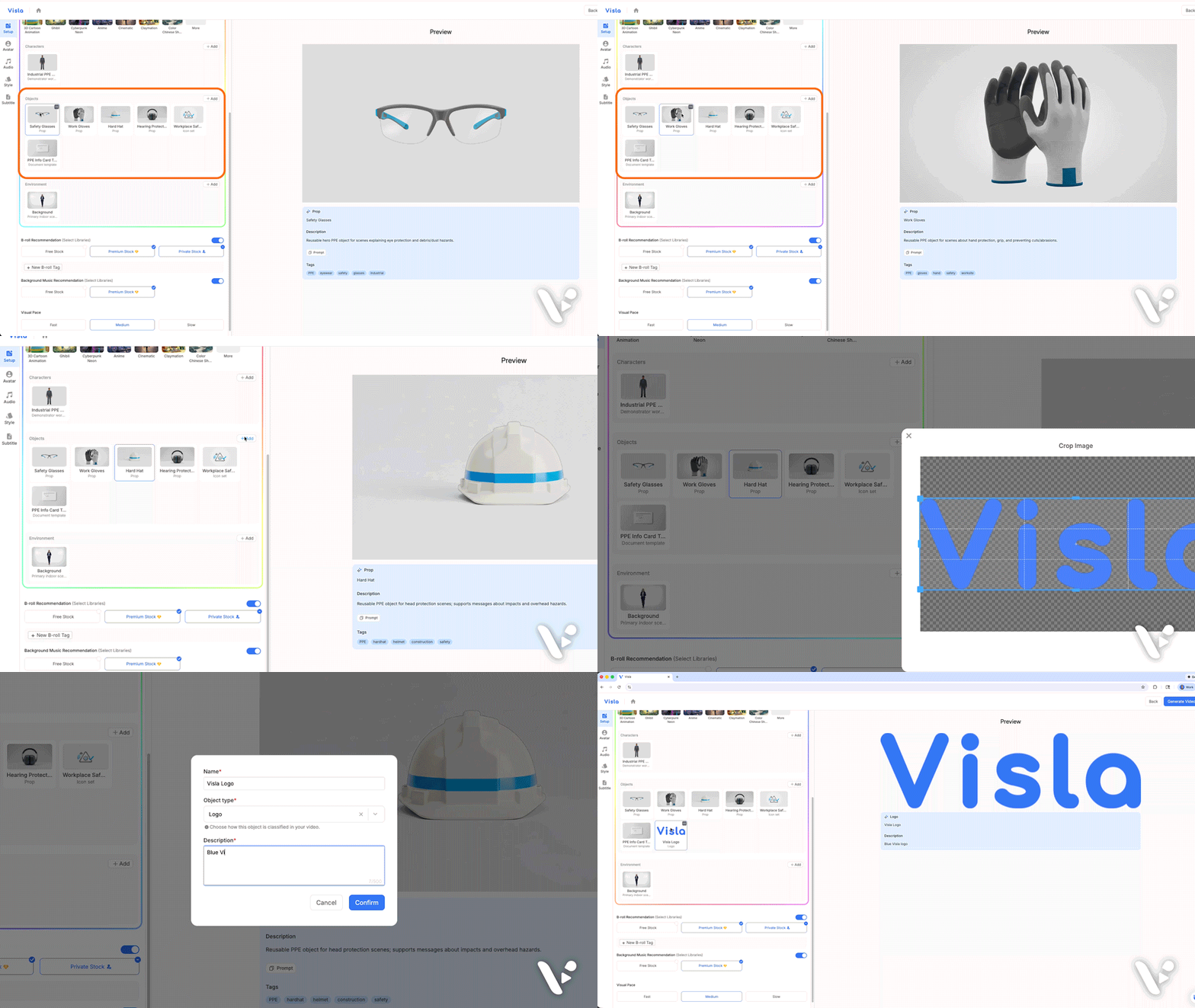
Objects keep your message grounded. They also give the AI something concrete to repeat, which boosts continuity.
You can:
- Generate custom objects with AI
- Upload assets like product photos, packaging shots, app screenshots, icons, a logo lockup, or brand-approved graphics
Then you can reuse objects across scenes.
After you add or generate an object: fill in these details
Again, these aren’t prompts. They’re descriptors that tell Visla what the object is and why it matters, so it shows up where it should.
For each Object, add:
- Name
- Object type (There are existing drop-down options here, like Product, Prop, and Logo, but you can also write your own)
- Description (What is this object, why does it matter, etc.)
Example
- Name: “Visla dashboard screenshot”
- Object type: “Product”
- Description: “The UI screen that proves the demo is real. Should appear during the ‘how it works’ scenes and the product reveal beat.”
6. Choose environments

Environments set context fast. They also prevent the “random location” problem that can show up in clip-first workflows.
Pick environments like:
- Offices, classrooms, studios, homes
- Outdoor scenes and cinematic backdrops
- Branded or abstract environments
Then Visla blends characters and objects into each scene so the video feels like one world.
Tip: Start with one main environment. Then add a second location only if the story needs it.
After you add or generate an environment: fill in these details
Environments work best when you treat them like “sets.” The short label keeps things tidy, and the longer description helps clarify the purpose of that set in the story.
For each Environment, add:
- Name
- Scene description (shorter, like primary indoor scene, secondary outdoor scene, etc.)
- Description (Longer, what is the environment + what is it for?)
Example
- Name: “Modern office set”
- Scene description: “Primary indoor scene”
- Description: “Bright, modern office with clean desks and soft daylight. Used for narration and product explanation scenes to feel credible, calm, and professional.”
7. Generate your storyboard
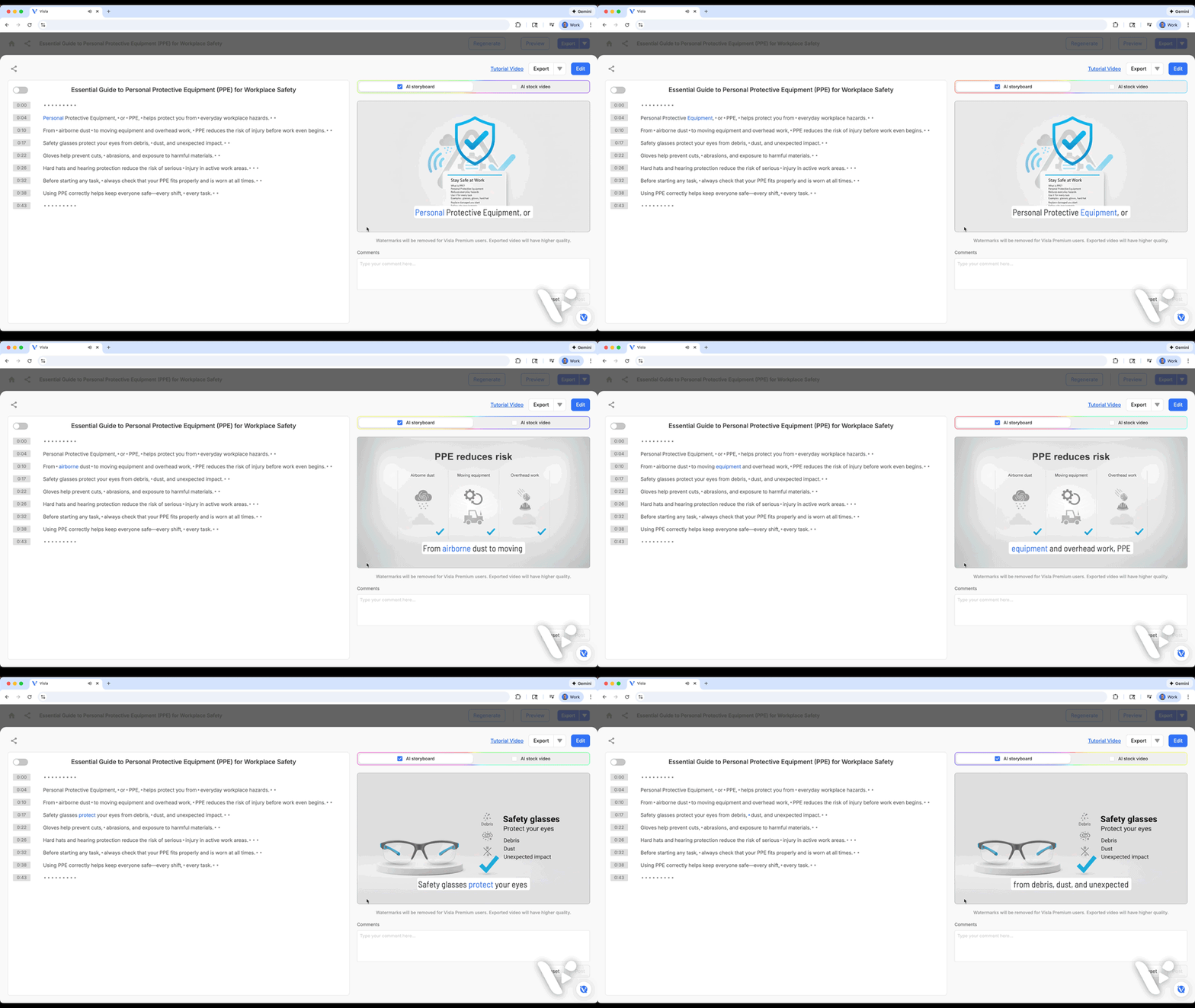
Now you get a real plan. Visla creates a scene-by-scene storyboard with images for each scene.
This step matters because it lets you review structure before motion. You can check pacing, clarity, and continuity without spending credits on clips.
8. Edit the storyboard until it lands
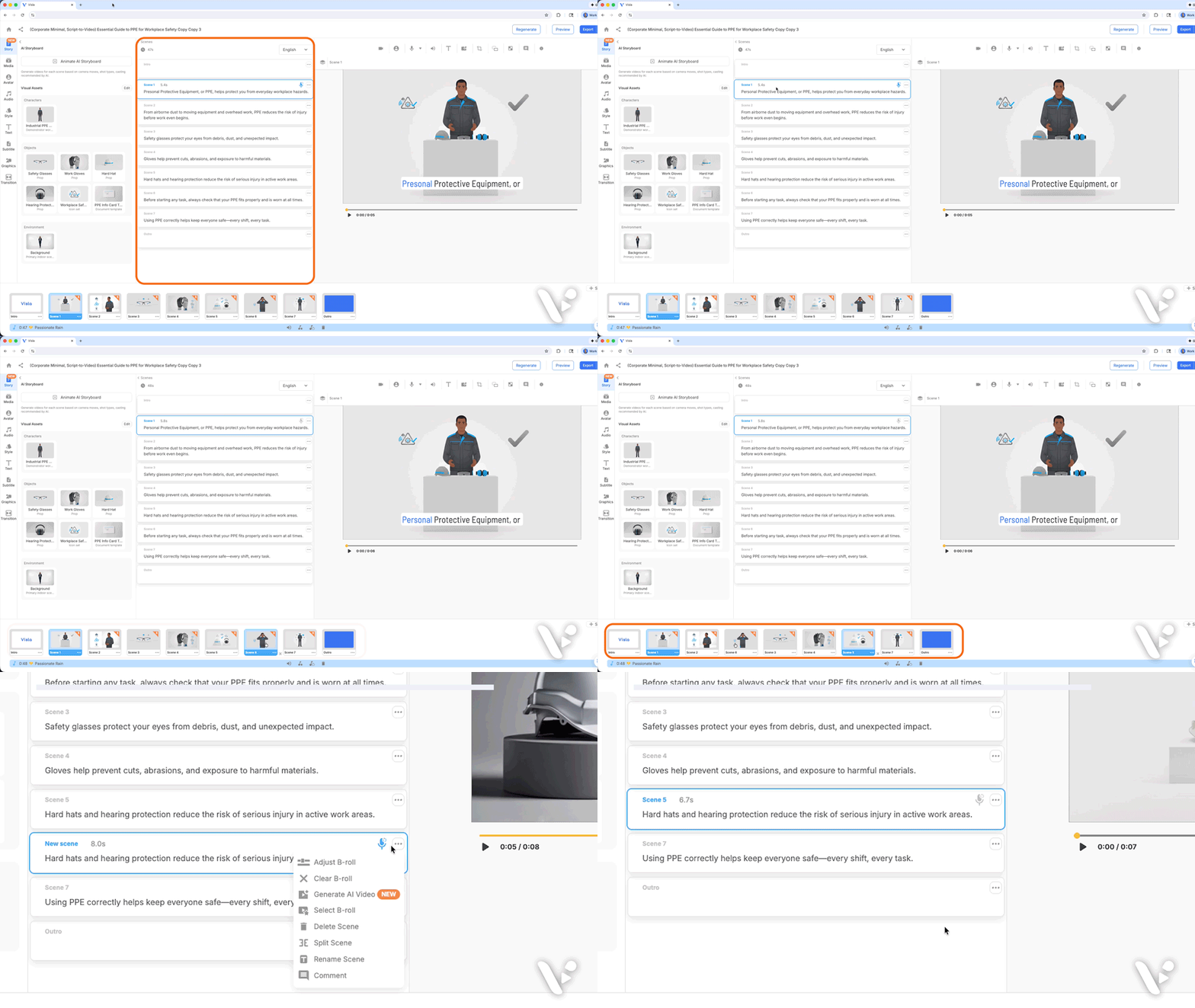
This is where you get the biggest improvement for the least effort.
Use the storyboard as a draft. Tighten it.
You can:
- Rewrite a scene’s text
- Adjust the order of scenes
- Cut scenes that repeat the same idea
A quick storyboard review checklist
Run through this checklist before you generate video clips.
- Does the first scene hook the viewer?
- Does each scene add new information?
- Do characters stay consistent across scenes?
- Do key objects appear where they should?
- Do environments stay stable unless you change them on purpose?
- Does the ending include a clear next step?
If you can answer yes, you’re ready for motion.
9. Turn storyboard scenes into AI video clips
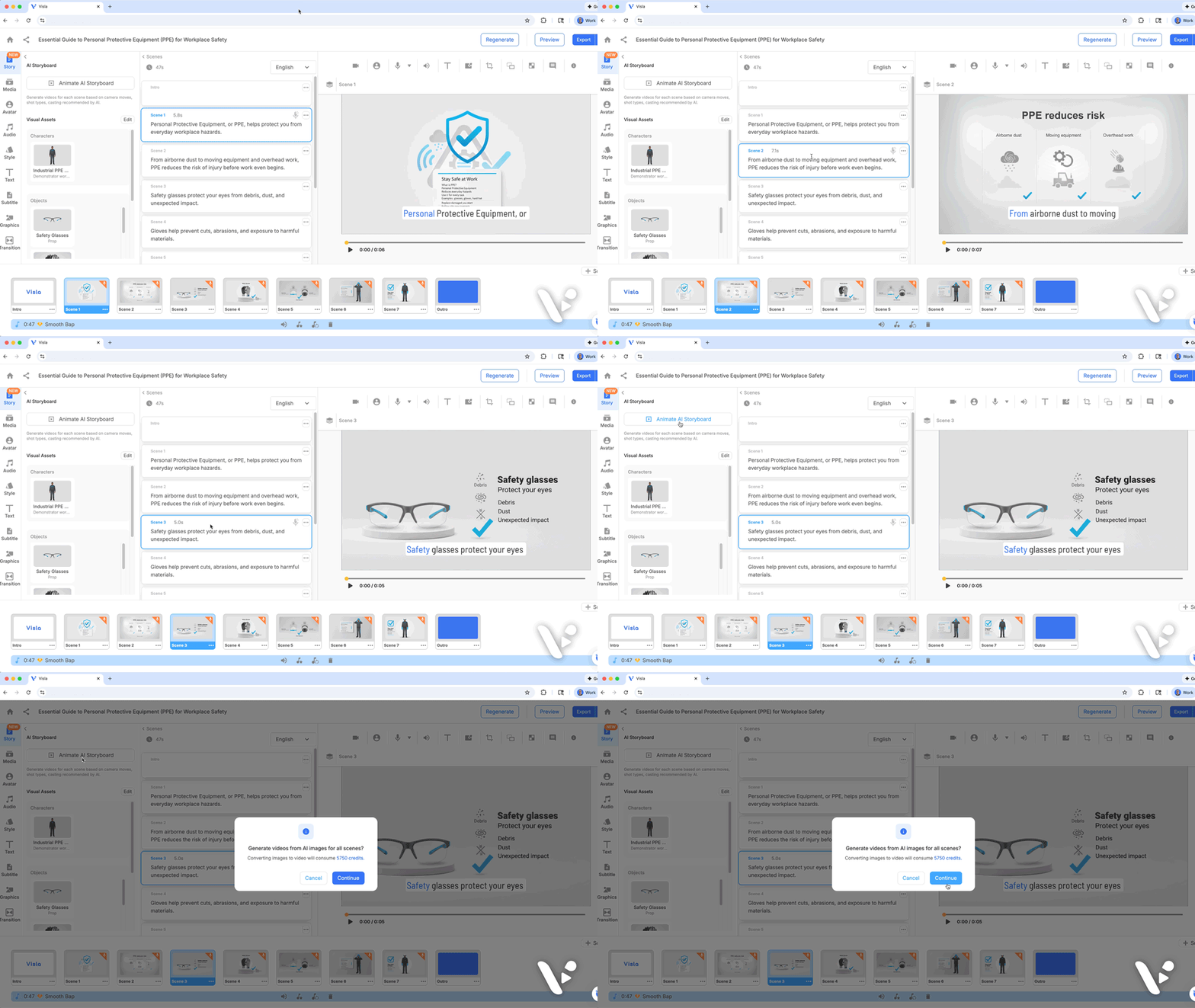
You have two good options here.
Option A: Animate the whole storyboard
Go to Story in the left sidebar, then click Animate AI Storyboard. This approach works well when you feel good about the storyboard and you want a full first pass fast.
Option B: Generate clips scene by scene
This approach gives you more control. It also works well when you want to fine-tune prompts, camera moves, or composition for specific scenes.
Here’s the final product
A recommended workflow for your first project
If you want a safe, repeatable process, follow this.
Phase 1: Build the first storyboard
- Start the project
- Set basics
- Choose style
- Add 1 to 2 characters
- Add 1 to 3 objects
- Choose 1 environment
- Generate the storyboard
Phase 2: Edit for clarity
- Cut scenes that repeat
- Tighten wording
- Fix any continuity issues
- Confirm branding appears where it should
Phase 3: Animate only the scenes that need it
Motion adds value in certain moments. Use it like seasoning, not like a requirement.
Good scenes to animate first:
- The hook
- The product reveal
- A key demonstration moment
- The final CTA
Keep other scenes as images if you want speed.
Phase 4: Refine with scene-level editing
Here you can adjust more “normal” levers. Adjust your subtitles, add graphics to scenes that need them, edit voiceovers, trim scenes, and do anything else you need to polish your video project.
Then export.
What to do next
Start with a small project so you can learn the workflow fast. Then reuse what works, like characters, environments, and scene structures.
AI Director Mode rewards iteration. You can create a storyboard, refine it, and generate clips that match the plan.
If you want to try it now, create a project, set your visual assets, generate your storyboard, and animate the scenes that matter most. Then ship your first cut and improve it with scene-level edits.
FAQ
AI Director Mode gives you a storyboard-first workflow in Visla for multi-scene AI video. You start from an input, set direction like pacing and voiceover style, and choose the characters, objects, and environments you want on screen. Visla then builds a scene-by-scene AI storyboard that you can edit before you spend time generating motion. After you approve the plan, you convert the scenes you choose into full AI video clips and keep the rest as storyboard images.
You can start an AI Director Mode project from a script, a webpage, a PDF, a slide deck, raw footage, images, audio, or even a rough idea. Pick the format that already holds your structure, because you’ll spend less time rearranging scenes later. If you work from a deck or PDF, you can map each slide to a scene and tighten the narrative in the storyboard. If you work from footage, you can still use the storyboard to plan the missing beats like the hook, the explanation, and the call to action.
Characters, objects, and environments act like reusable building blocks that you apply across scenes. When you reuse the same character and environment, you keep faces, wardrobes, lighting, and setting choices from drifting between clips. When you reuse the same object, you keep your logo, product shots, and UI screenshots consistent, which helps viewers trust what they see. Add clear names and descriptions for each asset, and you’ll make continuity easier for both the AI and your team.
Animate the whole storyboard when you want a fast first cut and you already like the scene order and pacing. Generate clips scene by scene when you want tighter control over high-stakes moments like the hook, the product reveal, the main demo beat, and the final CTA. Many teams use a hybrid workflow: they animate everything once, then they re-generate only the scenes that need more polish. That approach keeps momentum while still giving you precision where it matters.
Bring your brand assets into AI Director Mode early, including your logo, product images, and any approved UI screenshots or graphics. Then use those objects across the scenes where the story needs proof, like the feature walkthrough, the demo moment, and the final CTA. Keep one primary environment for most scenes so your visuals feel coherent, and add a second location only when the story truly needs a change. After you generate clips, finish in the editor with subtitles, trims, and on-screen graphics so the final cut matches your brand standards.

May Horiuchi
May is a Content Specialist and AI Expert for Visla. She is an in-house expert on anything Visla and loves testing out different AI tools to figure out which ones are actually helpful and useful for content creators, businesses, and organizations.