
Quick answer: You can make a video from any ChatGPT conversation with the Visla Video Maker plugin. Develop the idea, research, or script in ChatGPT, then call @Visla Video Maker when you’re ready to make the video. Choose AI-generated visuals or stock footage, then open the project in Visla if you want to keep editing.
See how Visla Video Maker works in ChatGPT
Follow a six-question scripted conversation, or reveal the full walkthrough at once. The complete step-by-step article continues below.
This is an authored walkthrough of the Visla Video Maker workflow. Send the suggested question below to begin.
Yes. With the Visla Video Maker plugin, you can start with an idea, research, or a finished script and turn it into a video from the same ChatGPT conversation.
You can choose between AI-generated visuals and stock footage. After Visla creates the first version, you can open the project in Visla for more detailed editing.
Please install the Visla Video Maker plugin for me.
Open Visla Video Maker in ChatGPT directly, or search for it in the ChatGPT Plugin Directory. You can also ask ChatGPT to surface it with the installation prompt above.
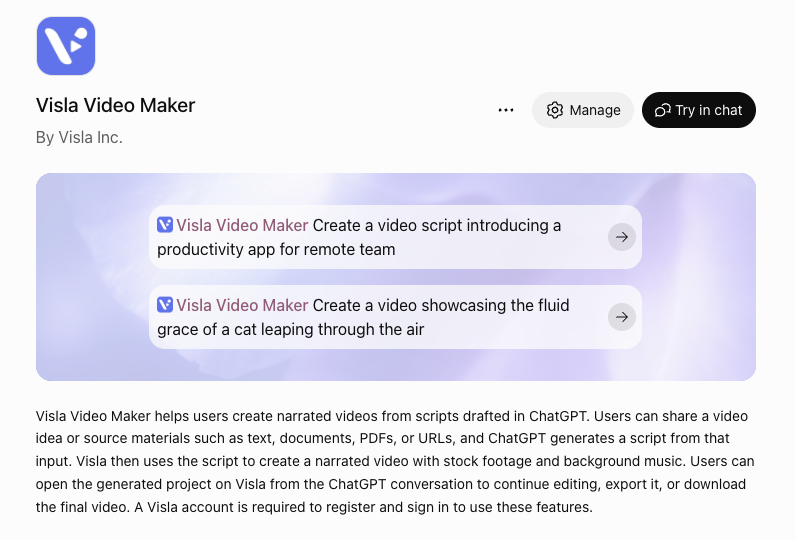
You don't need to bring a finished script. You can develop the idea, research the topic, write the script, and revise it inside ChatGPT. If you already have a script, paste it in and skip straight to video creation.
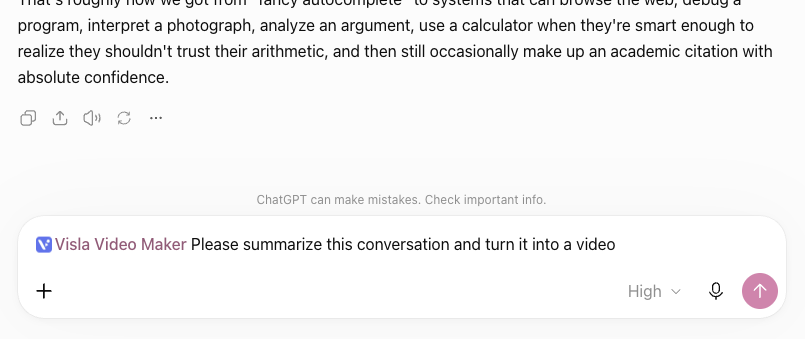
Once the script is ready, call Visla Video Maker and tell it what you want. If the wording shouldn't change, say so explicitly.
@Visla Video Maker Create a video from the script above. Use the script exactly as written.
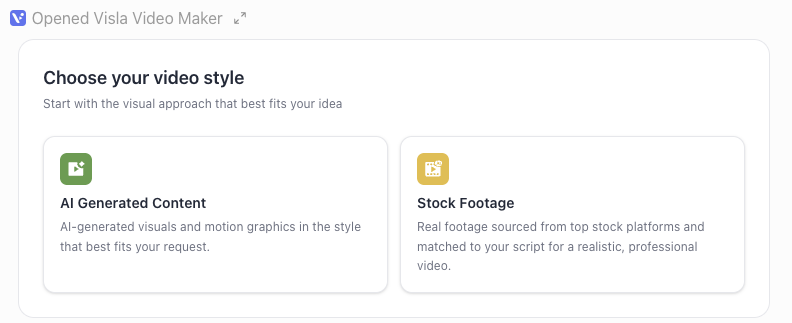
Yes. For a multi-scene AI video, tell Visla to keep the characters, products, environments, and visual style consistent. Then choose AI Generated Content.
@Visla Video Maker Create a polished video from the script above. Keep the visual style, characters, products, and environments consistent across scenes.
For a dialogue-based training scenario, say that you want a scenario, define the characters, and tell Visla to preserve the dialogue and speaker assignments.
@Visla Video Maker Create a scenario-based training video from the script above. Use the dialogue verbatim and keep each character's lines assigned to the correct speaker.
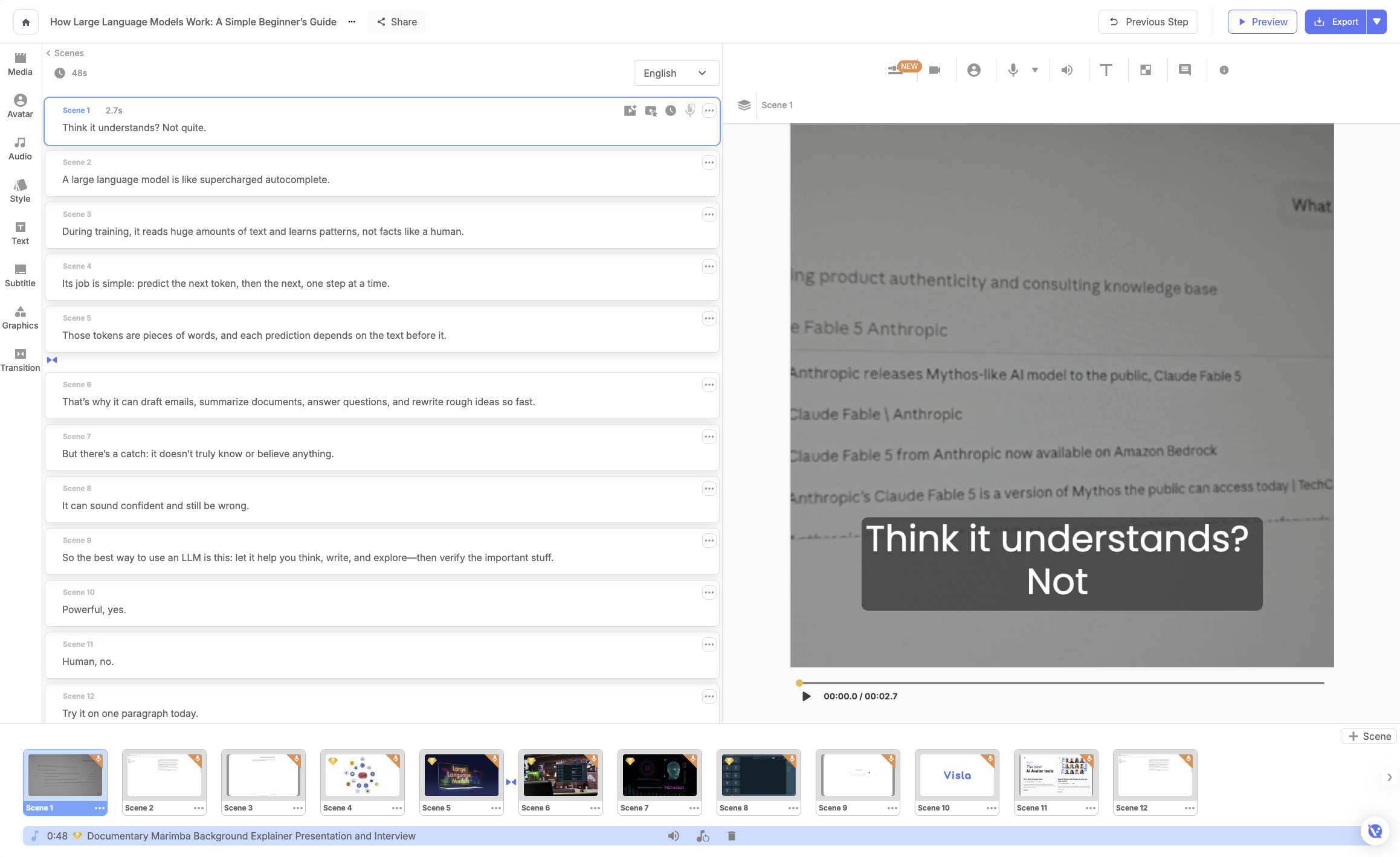
No. Open the generated project in Visla's Scene-Based Editor when you want more control. You can rearrange or edit scenes, replace footage, add text and graphics, and continue refining the video instead of starting over.
Use ChatGPT for research, brainstorming, and scripting
Say you’re making a product explainer for a new software feature. Ask what problem the feature solves, what prospective customers are likely to ask, how competitors explain similar features, and which claims need evidence.
Ask ChatGPT to organize the useful findings into an outline. Once the structure looks right, draft the script and revise the wording before video production starts.
When the script is ready:
@Visla Video Maker Create a video from the script above. Use the script exactly as written.
Include any constraints that matter, such as the audience and target lenght.
Turn an existing ChatGPT conversation into a video
The plugin can use context that's already inside of a conversation with ChatGPT.
Suppose you pasted a batch of support tickets into ChatGPT, compared three onboarding approaches, rejected two because they would require product changes, and concluded that new users keep missing the same setup step. Tell ChatGPT which part of that history should become the video:
Pull out only the conclusions we reached about where new users get stuck during onboarding. Ignore ideas we rejected. Turn those conclusions into a 75-second video script for new customers.
Check the result for context ChatGPT flattened or misunderstood. For a long thread, ask for an outline first; it is easier to catch missing context in a short outline than in a finished script. Once the outline is right, draft the script and call @Visla Video Maker.
Choose AI-generated visuals or stock footage
Stock Footage uses real clips selected to match the script. Use it when the visuals are common enough to exist in a stock library, such as office meetings, city traffic, factory floors, or landscapes.
AI Generated Content creates new video clips and motion graphics. Use it when the script needs a specific scene, recurring characters or environments, or a dialogue-based Scenario-Based Video.
For multi-scene projects that need recognizable people, products, objects, or locations to remain consistent, Visla’s AI Director Mode is built around that kind of continuity.
Put continuity requirements directly in the prompt:
@Visla Video Maker Create a polished video from the script above. Keep the visual style, characters, products, and environments consistent across scenes.
Edit the generated video in Visla
Open the generated project in Visla’s Scene-Based Editor. Rearrange scenes, replace or add footage, revise the script, and change text or graphics.
If one scene is wrong, edit or regenerate that scene instead of rebuilding the entire project. Visla supports scene-level editing and individual clip regeneration. Visla

May Horiuchi
May is a Content Specialist and AI Expert for Visla. She is an in-house expert on anything Visla and loves testing out different AI tools to figure out which ones are actually helpful and useful for content creators, businesses, and organizations.