
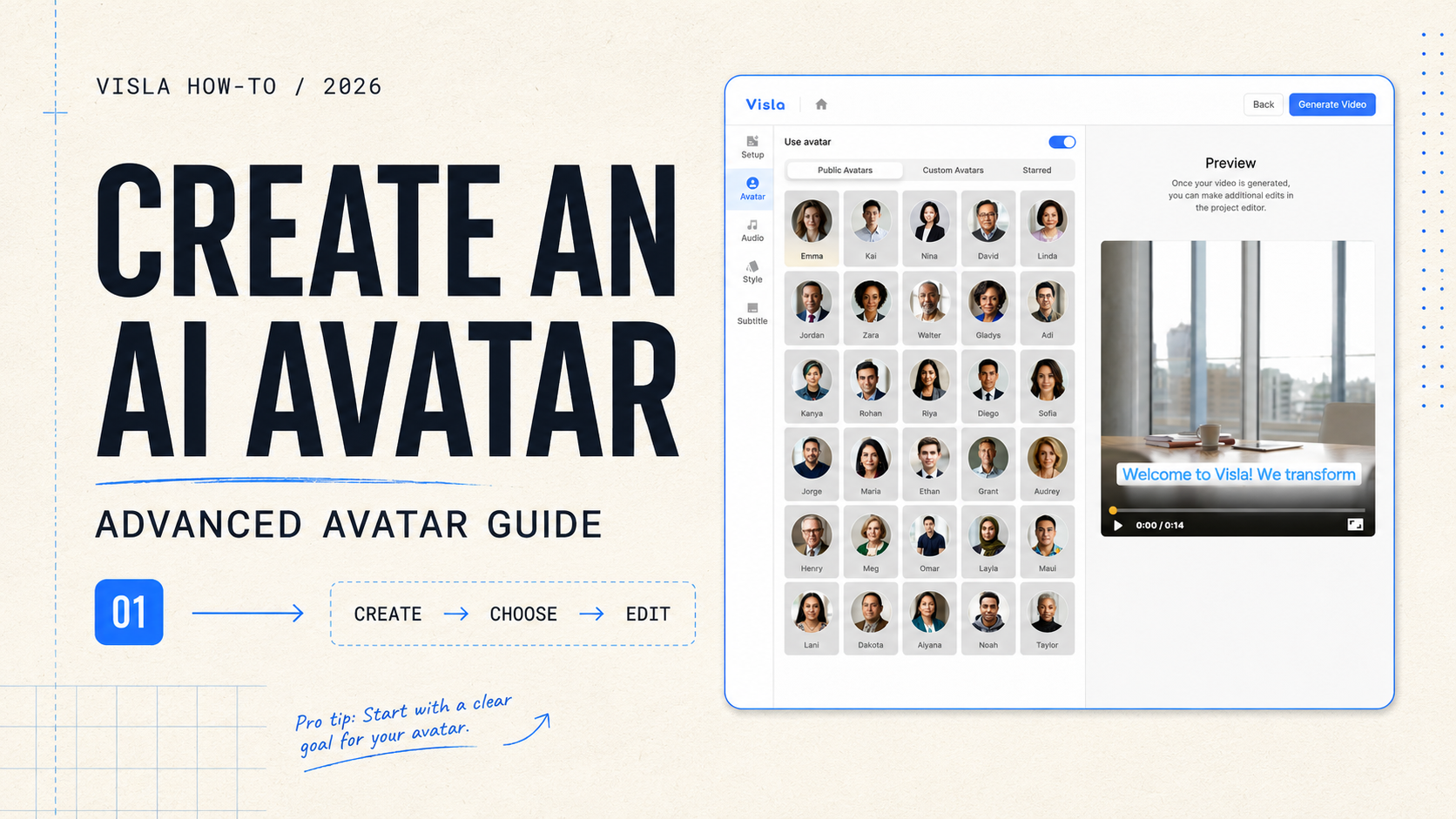
AI avatars give videos a presenter without requiring a new recording session for every script. Visla’s Advanced Avatar model offers more natural lip sync, facial expressions, and gestures than the Basic model, especially when the presenter appears large on screen.
This guide explains how to create an AI avatar in Visla, add it to a video, choose the right layout and model, and refine each scene before export.
Quick answer: How do you create an AI avatar in Visla?
Open Create Avatar and generate a fictional character or start with a photo. Add the finished avatar to a project through the AI Video Agent, then choose its layout and model. After Visla generates the draft, refine the avatar in the Scene-Based Editor and sync any changed scenes before exporting.
Which type of AI avatar should you create?
Start by deciding whether your video needs a recognizable person or a presenter created specifically for the content.
| Avatar type | Best for | Main advantage | Rights and permission considerations |
|---|---|---|---|
| Public avatar | Quick projects, general training, and early drafts | Ready to use immediately | No employee or spokesperson likeness to manage |
| Prompt-generated avatar | Recurring branded content and video series | Creates a reusable fictional presenter | Don’t prompt it to imitate a recognizable person |
| Photo-based avatar | Known leaders, instructors, and subject-matter experts | Preserves a familiar identity | Requires explicit permission and clear usage rules |
Use a public avatar for speed
Public avatars work well when you need a presenter quickly and the video doesn’t depend on a specific identity. They’re a practical choice for general training, customer education, one-off explainers, and early drafts.
Because the presenter isn’t based on your employee, executive, or spokesperson, you don’t have to manage that person’s permission or decide what happens to the avatar if their role changes.
Generate a fictional presenter for a recurring role
A custom avatar generated from a prompt gives your company a reusable presenter without tying the character to a real employee.
The role should guide the design. A product educator might have a friendly voice and business-casual clothing. A compliance presenter may need a more restrained tone and formal appearance.
For example:
A friendly product educator in her early 30s, wearing a navy business-casual blouse, with shoulder-length dark hair and a calm expression.
If the avatar will appear across a series, keep its face, voice, clothing style, and role reasonably stable. A recurring presenter can become a recognizable visual cue for that type of content.
This follows broader guidance on distinctive brand assets. An Ipsos analysis of more than 2,000 pieces of video creative found that brand-owned assets, including characters, were more closely associated with branded attention than assets borrowed from wider culture, such as celebrities or popular music.
That doesn’t mean any avatar will automatically become recognizable. Repeated, consistent use gives viewers a better chance to connect the presenter with a particular series, topic, or company.
Don’t deliberately prompt a fictional avatar to resemble a celebrity, employee, or other recognizable person without permission.
Create an avatar from a real person when identity matters
A photo-based avatar makes more sense when viewers already know the presenter. A founder might use one for routine product updates. An instructor could use one to update course material without recording every revision. A salesperson might use one for repeatable introductions.
Get explicit permission before using someone else’s photo or voice. Permission should cover where the avatar may appear, what kinds of messages it may deliver, and who can approve its scripts.
A person who agrees today may not want their digital likeness used indefinitely or in every campaign. The U.S. Copyright Office’s report on digital replicas details the problems created by unauthorized digital copies of identifiable people.
When a message doesn’t require a particular identity, a public or genuinely fictional avatar generally involves fewer likeness, employment, and long-term consent questions.
How to create a custom AI avatar in Visla
On the Visla home screen, select Create Avatar in the left sidebar.
Choose one of two options:
- Generate AI character to create a fictional presenter
- Select photo to create an avatar from a real person
Public avatars are available to everyone. Pro supports two custom avatars generated from text. Business supports three custom avatars created from text, a photo, or a camera capture. Enterprise supports unlimited custom avatars. Check the current Visla pricing and avatar limits before building a larger presenter library.
Generate an AI character
- Select Generate AI character.
- Choose an age, gender, and ethnicity.
- Describe the avatar’s appearance.
- Select one of the four generated characters, or select Generate again.
- Choose a default language and voice.
- Enter a name. You can also request changes to its clothing, skin, or accessories.
- Select Generate.
Visla will process the avatar and notify you when it’s ready. The finished presenter will appear under Custom Avatars in your Workspace library.
Create an AI avatar from a photo
- Select Select photo.
- Add an image:
- Upload it from your device.
- Import it from your Workspace.
- Capture it with your camera.
- Crop the image to 16:9.
- Confirm that you own the photo or have permission to use it.
- Choose a default language and voice.
- Enter a name. You can also request a different outfit or accessories.
- Select Generate.
You can begin with any image aspect ratio, but Visla will crop it to 16:9.
What makes a good source photo for an AI avatar?
Use a recent, high-quality image that follows these guidelines:
- Include one person only.
- Face the camera directly.
- Keep the face well lit and unobstructed.
- Use a neutral expression with closed lips.
- Avoid broad smiles or open mouths.
- Don’t use filters, effects, sketches, cartoons, or heavily edited images.
- Don’t use group photos or images containing pets.
A clear source image gives Visla better information about the person’s face and appearance.
How to change an avatar’s voice, language, and outfit
Go to Workspace settings, then select Avatar in the left sidebar.
From the avatar library, you can change its:
- Name
- Default language
- Default voice
- Outfit
Library changes apply to future projects. A voice or language change made inside one video applies only to that project.
The same avatar can speak English, Spanish, French, German, Italian, Portuguese, or Dutch. It can use only one voice within a single project. For an avatar based on you or another approved presenter, you can also create an AI voice clone in Visla.
Custom avatars are created at the Workspace level and remain available across its Teamspaces.
Create another outfit
- Open the avatar in the library.
- Select the option to create a new look.
- Describe the outfit in a prompt.
- Generate the variation.
Visla produces one look per prompt. The new outfit stays attached to the original avatar and doesn’t count as another custom avatar. You can choose the variation you want when starting a project.
You can change clothing and accessories, but you can’t replace the avatar’s underlying facial features.
How to add an AI avatar to a video in Visla
1. Start a video
Select Create Video and give the Visla AI Video Agent your starting material.
You can begin with an idea, script, webpage, document, presentation, audio, images, or existing footage. The Agent builds a draft with scenes, voiceover, subtitles, footage, and music.
2. Turn on the avatar
On the video setup screen:
- Select Avatar in the left sidebar.
- Turn on Use avatar.
- Choose a presenter.
You can browse Public Avatars, Custom Avatars, and Starred Avatars. Starred Avatars are saved favorites, not a separate avatar type.
3. Choose an avatar layout
Select one of three options:
AI Dynamic Layout
The Agent decides which scenes use a full-screen avatar, which use an avatar over b-roll, and which don’t need an avatar.
Avatar Full Screen
The presenter becomes the primary visual.
Avatar Over B-Roll
The presenter appears over supporting footage.
AI Dynamic Layout is the best starting point for most training and explainer videos. It lets the presenter introduce or connect ideas while footage, screenshots, and diagrams show the details.
Basic vs. Advanced Avatar: Which model should you use?
You can set a separate model for full-screen scenes and avatar-over-b-roll scenes.
| Scene or goal | Recommended model | Why |
|---|---|---|
| Full-screen presenter | Advanced | Facial movement and gestures are easier to see |
| Small avatar over b-roll | Basic | The supporting footage holds most of the attention |
| Important direct-address scene | Advanced | The presenter’s delivery is central to the scene |
| Early draft | Basic or static preview | Avoids unnecessary rendering while the script changes |
By default, Visla uses Advanced Avatar for full-screen scenes and Basic Avatar over b-roll.
The Agent decides each scene’s layout, but it doesn’t change your model choices. If you select Advanced for full screen, every full-screen avatar scene uses Advanced unless you manually change one later.
Anyone can use Advanced Avatars. Available credits provide the practical limit.
Choose whether to render animated previews
Turn on the animated-preview option to see the avatar’s complete movement and lip sync inside the Scene-Based Editor.
Leave it off while you’re still changing the script, voice, or language. Any of those changes will require another sync.
How do full-screen avatar wallpapers work?
A full-screen avatar can use a default background or an AI-generated wallpaper. You can let Visla generate one automatically or write your own prompt.
This is the least intuitive part of the workflow: Visla renders the full-screen avatar and selected wallpaper together as one piece of footage. The wallpaper isn’t a separate layer that you can replace inside the Scene-Based Editor.
To change the wallpaper, return to the video setup screen and generate a new one. You can place another image or generated wallpaper behind the rendered avatar footage in the editor, but it won’t replace the background already rendered with the avatar.
The wallpaper is generated once and reused where appropriate across the video. It doesn’t automatically use your Workspace brand colors.
How to edit an AI avatar in the Scene-Based Editor
After the Agent generates the draft, use Visla’s Scene-Based Editor to adjust individual avatar scenes.
Select the avatar layer in the video preview. Drag it to move it, or use the handles around its edge to resize it.
A toolbar will appear above the selected avatar. From left to right, its controls let you:
- Apply the current position to matching avatar scenes.
- Switch between a regular shape and a circle.
- Switch between Basic and Advanced.
- Change between full screen and overlay.
- Delete the avatar from the scene.
Position changes apply only to scenes with the same layout. A full-screen adjustment applies to other full-screen avatar scenes. An overlay adjustment applies to other overlays.
Add or replace an avatar
Use the Avatar button above the video preview to add a presenter to the selected scene.
You can alternate between different presenters across a video, but two avatars can’t appear in the same scene.
To replace the presenter throughout the project:
- Select Avatar in the left sidebar.
- Choose the replacement.
A replacement avatar brings its default voice to the scene. Each presenter can use only one voice in the project.
Why is the Visla export button disabled?
Some changes require the avatar to render again. These include:
- Editing the script
- Changing the voice
- Changing the language
- Replacing the avatar
- Switching between Basic and Advanced
Select Sync avatar in every affected scene.
You can’t export a video while an avatar scene remains unsynced. The export button stays disabled until Visla has rendered every affected scene.
Which Visla apps support Advanced Avatars?
The Advanced Avatar workflow is available in the Visla web and mobile apps.
It isn’t available in the desktop apps, which focus mainly on screen and camera recording. Avatars work across Visla project types and supported aspect ratios.
What kinds of videos work best with AI avatars?
Avatars tend to work best when the audience primarily needs clear, repeatable information.
Training and onboarding
A recurring presenter can guide employees through policies, tools, or processes without requiring a trainer to record every update. The avatar can introduce each section while screenshots, diagrams, and b-roll show the information employees need to follow.
Product education and customer support
Use an avatar to frame a tutorial, explain why a feature matters, or connect the steps in a walkthrough. When the viewer needs to study the interface, let the product footage take over rather than keeping the presenter full screen.
Routine updates and recurring series
Avatars can give feature announcements, internal updates, and short educational series a familiar presenter. They’re especially useful when the team expects to revise, localize, or republish the material.
An avatar doesn’t need to stay visible for every sentence. It often works better as a guide who introduces topics and connects sections than as permanent visual wallpaper.
When should you use an AI avatar instead of a real presenter?
Current research doesn’t support a simple claim that audiences learn less from synthetic presenters.
A 2024 study of video lectures with AI-generated instructors found no significant difference in academic performance compared with human instructors. However, engagement was higher with the human instructor, and some students described the synthetic presenter as distracting, uncomfortable, or disconnected.
A 2026 randomized crossover feasibility study found no significant difference in short-term learning gains between an AI avatar and a human presenter. The sample was small, with 13 engineering students, and participants rated the human-presented video more highly across the study’s user-experience measures.
These studies come from educational settings, so they don’t settle how every audience will respond to every business video. They do suggest a useful distinction: an avatar may communicate straightforward information effectively, while a human presenter can still have an advantage when personal connection and viewer comfort matter.
Use a real presenter when the message depends on:
- First-hand experience
- Genuine personal emotion
- Trust in a named individual
- Personal responsibility for a decision
- A real customer’s testimony
- A sensitive or difficult announcement
An Advanced Avatar can deliver approved information. It can’t personally experience an event, endorse a product as a real customer, or accept responsibility for a company decision.
Our guide to AI avatars vs. human presenters examines that decision in more detail.
How to use AI avatars responsibly
Public and fictional AI-generated avatars generally involve fewer likeness and long-term consent questions than digital versions of identifiable people. They still need responsible scripts and honest presentation.
Don’t use an avatar to:
- Impersonate someone without permission
- Invent a customer testimonial
- Suggest a real expert made a statement they didn’t make
- Create an unauthorized celebrity endorsement
- Conceal material information from viewers
The FTC’s guidance on testimonials and AI-generated avatars explains that stock avatars aren’t automatically prohibited, but fake testimonials, false claims, and deceptive endorsements can still violate federal rules.
Visla doesn’t automatically add an AI disclosure to exported videos. Add one when the platform, audience, context, or applicable law requires it.
FAQ
There’s no universal time limit. Keep the avatar visible when it introduces a topic, explains an important point, or guides viewers between sections. Reduce or remove it when the audience needs to study detailed screenshots, charts, text, or product footage. Multimedia-learning research shows that presenter cues can help direct attention, but unnecessary social cues can also increase cognitive load and compete with the material.
Compare the avatar version with a voiceover-only or human-presented version. Look at completion rate, watch time, quiz or task accuracy, calls to action, and direct viewer feedback. Don’t rely on views alone. One study found similar academic performance for human and AI-generated instructors, but viewers reported higher engagement with the human presenter. An avatar may communicate the information successfully while still producing a weaker viewing experience.
The content owner or subject-matter expert should verify the script, claims, pronunciation, visuals, and links. When the avatar represents a real person, that person or an authorized reviewer should also approve the final message. Human review matters most for medical, legal, financial, compliance, and other high-stakes topics. NIST recommends evaluating generative AI outputs against reliable source material with human oversight, while research on AI-generated educational videos has found continuing concerns around accuracy, reliability, and trust.

May Horiuchi
May is a Content Specialist and AI Expert for Visla. She is an in-house expert on anything Visla and loves testing out different AI tools to figure out which ones are actually helpful and useful for content creators, businesses, and organizations.