
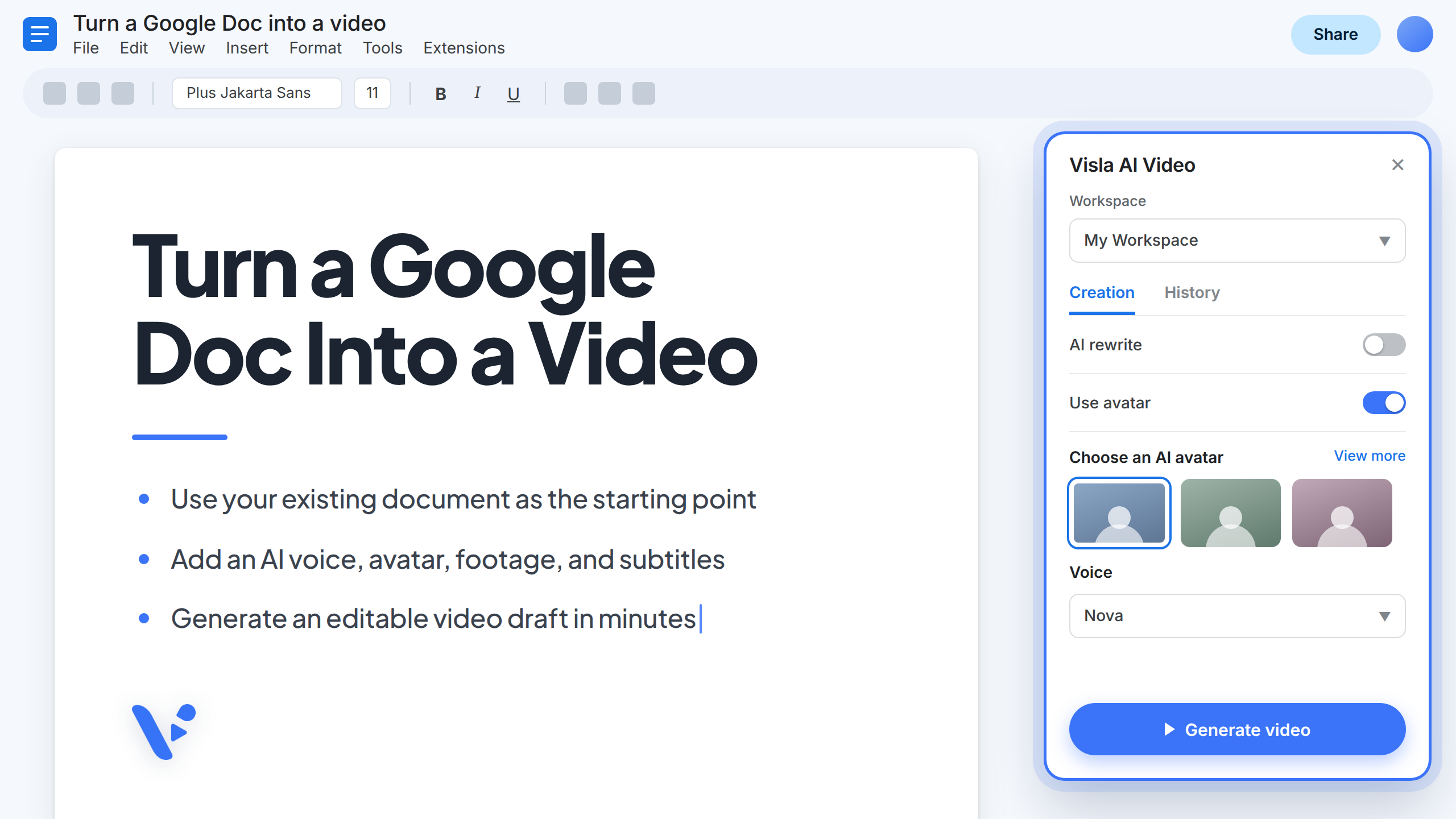
Quick answer: How does Visla work with Google Docs?
Visla AI Video is a Google Docs add-on that turns the document you already have open into an editable video draft. You can use your text exactly as written or ask AI to adapt it into a video script. Once Visla generates the draft, you can refine individual scenes in the scene-based editor.
Learn more about the Visla Google Workspace video add-on.
How to turn a Google Doc into a video with Visla AI Video
To get started, you’ll need a Google Doc and a Visla account. You can create a new Visla account when you open the add-on for the first time.
1. Install the Visla AI Video Google Docs add-on
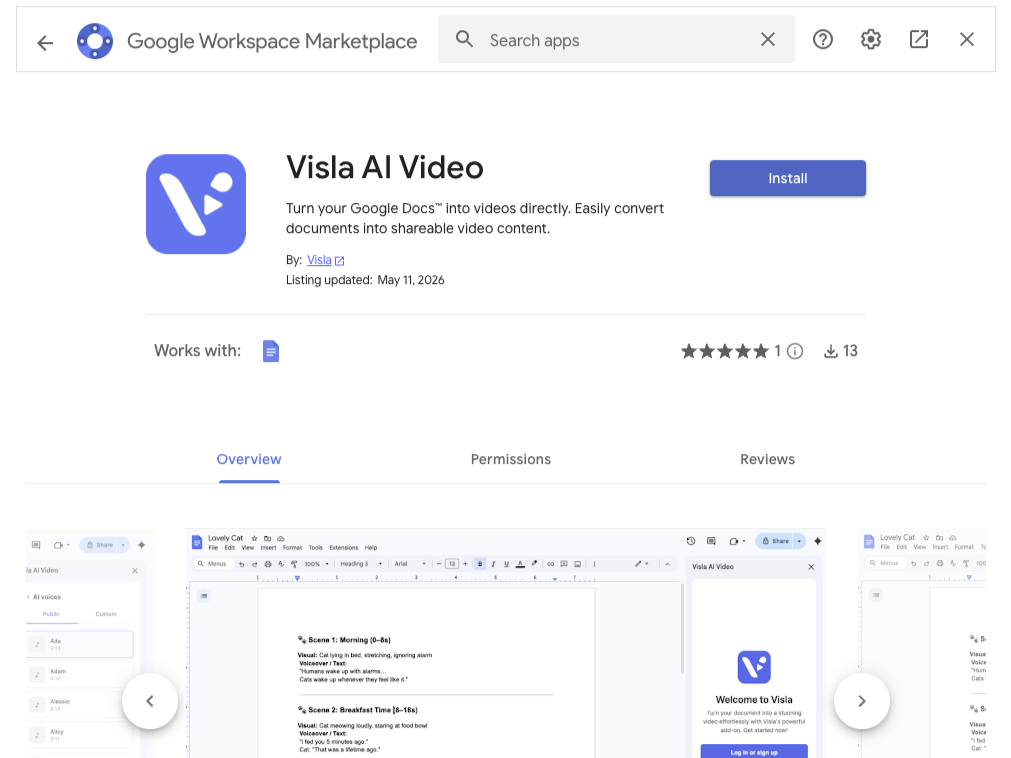
You can install Visla AI Video from any Google Doc. If you already have a document you want to turn into a video, open that one first.
- Click Extensions.
- Hover over Add-ons.
- Click Get add-ons.
- Search for Visla AI Video in the Google Workspace Marketplace.
- Select the official Visla add-on and click Install.
- Review the requested permissions, then click Allow.
You can also access the Visla AI Video installation page directly.
If you’re using a work or school Google account, your administrator may restrict add-on installations. Contact your administrator if Visla AI Video is blocked or unavailable.
2. Open Visla AI Video in your Google Doc
Once you’ve installed the add-on, open the Visla AI Video sidebar.
- Click Extensions.
- Hover over Visla AI Video.
- Click Open.
- Log in to your existing Visla account or sign up for a new one.
The sidebar will appear next to your document. For reference, here’s what the entire sidebar will look like.

Scroll through the Creation panel to see each available option. You can also use the History panel to find videos you previously generated from Google Docs. The Visla AI Video add-on lets you configure your video before generating it from a Google Doc.
3. Choose your Visla Workspace
Select the Visla Workspace where you want to create the video.
A Workspace is where your projects and uploaded assets live. If your organization uses Teamspaces, you can use them to keep videos organized by team, client, or project.
If you’re new to Visla, choose your default Workspace and continue.
4. Decide whether AI should rewrite your Google Doc
Next, choose how Visla should use your text.
If your Google Doc is already written as a video script, you can use it exactly as written. The voiceover will read the text in your document.
If you’re starting with a blog post, outline, policy, or guide, turn on AI rewrite. Visla will adapt the text so it sounds more natural when spoken aloud.
Visla won’t change the original text inside your Google Doc. Any revisions will appear inside your video project.
5. Add an AI Avatar if you want an on-screen presenter
An AI Avatar gives your video an on-screen presenter without requiring someone to record themselves.
Choose your avatar, select its appearance, and pick a layout:
- AI dynamic layout: Visla selects a suitable layout for each scene.
- Full screen: The avatar fills the scene.
- Avatar over b-roll: The avatar appears over supporting footage.
An avatar can help when you’re creating a training video, explainer, or internal update. You can also skip this step and use b-roll, text, and voiceover alone.
For presenter-led videos, Visla’s Advanced Avatar model offers more natural lip sync, facial expressions, and gestures than the Basic model, especially when the avatar appears large on screen.
6. Choose your voiceover and video settings
Select the AI voice that will narrate your video.
Then, adjust the main video settings:
- Aspect ratio: Choose landscape (16:9), square (1:1), or vertical (9:16).
- Pace: Control how quickly your video moves from scene to scene.
- Burn subtitles: Add subtitles directly to the video so they remain visible wherever you share it.
Choose the aspect ratio based on where you plan to publish the video. Landscape usually works well for training, presentations, and YouTube. Vertical videos are better suited for short social posts.
7. Select your footage and background music sources
Choose which footage libraries Visla can use when selecting b-roll:
- Private Stock: Your team’s own uploaded footage
- Free stock: Royalty-free footage available in Visla
- Storyblocks: Premium stock footage
- Getty Images: Premium footage available with eligible plans or add-ons
You can select more than one source. If your team has uploaded branded visuals to Private Stock, Visla can use that footage alongside stock clips.
Next, choose whether Visla should recommend background music from its free or premium libraries. You can replace the track later if the first choice doesn’t fit.
8. Generate your video
Review your settings, then click Generate Video.
Visla will create the first draft and open it in the editor for review.
Refine your video in Visla’s scene-based editor
You don’t need to regenerate the entire video every time you want to make a change.
Visla’s scene-based editor lets you update individual scenes. You can:
- Rewrite the script for a specific scene
- Rearrange, trim, merge, or remove scenes
- Adjust scene length and pacing
- Swap b-roll footage
- Edit subtitles
- Add text, graphics, and branding
- Change the voiceover
- Replace the background music
This is especially useful when you need to update an existing video. If a policy changes or a product gets a new feature, you can revise the relevant scene instead of rebuilding the project.
What can you create from a Google Doc?
The strongest use cases start with documents your team already maintains and updates regularly.
Turn onboarding documents into training videos
New-hire guides and benefits summaries often contain useful information, but they weren’t written to be read aloud.
Use AI rewrite to turn dense reference material into a shorter, more conversational script. Then, add subtitles so employees can follow along at their own pace.
Create videos from SOPs and policy documents
A written SOP works well as a reference document. A short video can make the same process easier to understand on the first pass.
Use the Google Docs add-on when the important information already lives in a written procedure. Use Visla’s Screen Step Recorder when you need to show someone the exact clicks inside a product or website.
Repurpose blog drafts into marketing videos
You don’t need to wait until a blog post is published before you create a companion video.
Open the draft in Google Docs, ask Visla to adapt it into a shorter script, and choose the aspect ratio that fits your channel. The same draft can become the basis for a LinkedIn video, newsletter embed, or short social clip.
Share product updates and release notes
Product teams often write release notes before they create customer-facing announcements.
Turn that source document into a short video for customers, sales teams, or internal stakeholders. If each audience needs a different version, adjust the relevant scenes instead of starting from scratch.
Create internal communications videos
Company announcements and project updates sometimes need a clearer delivery format than a long email.
Turn the original document into a short video, add burned-in subtitles for viewers who watch without sound, and use an AI Avatar when a visible presenter makes the message easier to follow.
Turn your Google Doc into a video
Open your document, install Visla AI Video, and generate an editable first draft.
Frequently asked questions
No. Visla uses your Google Doc as the starting point for your video, but it won’t rewrite or overwrite the original document. If you turn on AI rewrite, the revised script will appear inside your Visla video project.
Yes. Visla opens the draft in its scene-based editor. You can rewrite individual scenes, replace footage, adjust subtitles, change the pacing, update the voiceover, and replace the music without regenerating the entire video.
Visla accesses the document content you provide so it can create the video you request. According to Visla’s privacy policy, Visla processes Google user data only as needed for this function. It doesn’t use that data for advertising or sell it to third parties.
The add-on is free to install from the Google Workspace Marketplace. You’ll need a Visla account to generate videos, and some footage, avatar, branding, and export options depend on your Visla plan and available credits.

May Horiuchi
May is a Content Specialist and AI Expert for Visla. She is an in-house expert on anything Visla and loves testing out different AI tools to figure out which ones are actually helpful and useful for content creators, businesses, and organizations.