
Updated August 27, 2026 · Originally published October 3, 2024.
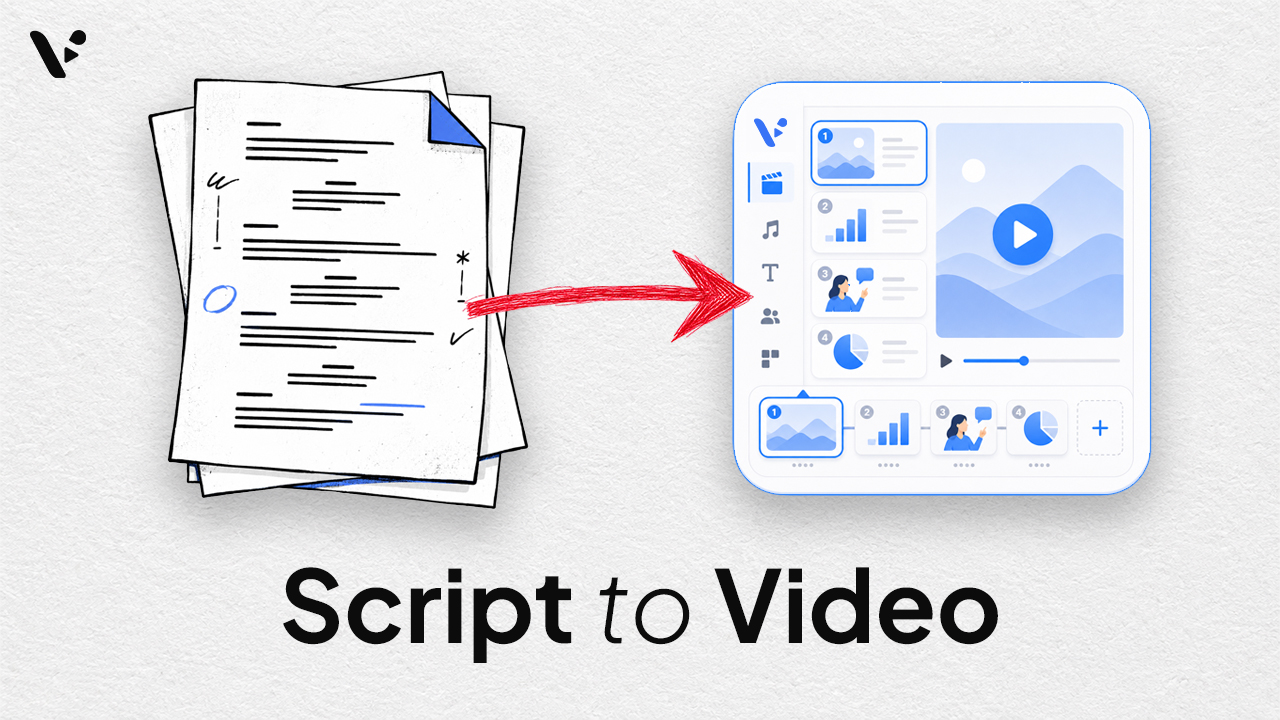
Quick answer: Script to video is an AI workflow that turns a written script into a video with scenes, visuals, voiceover, subtitles, and background music. In Visla, Script to Video keeps your original wording while AI divides it into scenes and builds a video draft around it. You can give the AI a detailed, scene-by-scene script or something much looser, then edit the resulting video until the visuals, pacing, and structure work for you.
What kind of script can you turn into a video?
You don’t need to format your script like a traditional screenplay.
Visla can work with ordinary paragraphs, a blog-style block of prose, a script already divided into scenes, or something in between. The current Script to Video workflow can take material ranging from a storyboard to a copy-pasted document and divide it into scenes without rewriting the words.
You can decide how much structure to provide. Personally, I keep it simple. I write the voiceover and add line breaks where I think new scenes should begin. I don’t add detailed production notes unless I think I’ll need them.
If you want more control, you can explicitly define scenes. Visla supports formal scene markers but can also decide how to split plain text based partly on the pacing you choose.
The wording itself matters more than elaborate formatting. Script to Video preserves what you give it, so read the script aloud before generating anything. A paragraph written for an article can sound much denser once it becomes spoken voiceover.
If you want Visla to rewrite source material instead of preserving it, use our Text to Video workflow. Our guide to Script to Video vs. Text to Video explains the difference in more detail.
How to turn a script into a video with AI
- Paste your script into Visla. Choose Script to Video to keep the wording intact.
- Describe the video. Set the pacing, aspect ratio, voiceover, visuals, layout, and background music you want.
- Generate the video. Visla divides the script into scenes and adds footage, voiceover, subtitles, and background music.
- Edit the draft. Use the Scene-Based Editor to change scenes, timing, visuals, or voiceover as needed.
For current interface instructions and settings, see the Visla Help Center’s Script to Video guide.
How I approach the first edit
I keep the instructions I give Visla fairly simple too. I might specify that I want a fast-paced vertical product video, for example, rather than writing a long prompt that repeats information already in the script.
Once the video is generated, I look at the structure first. If one scene contains two ideas that would work better separately, I split it. If several short scenes make the video feel choppy, I merge them.
Then I focus on the visuals. A finished video doesn’t need to use one type of footage from beginning to end. One project might combine stock footage, product footage, an AI-generated clip, and an avatar.
The question becomes what works best for each scene.
Use stock footage when an existing clip does the job
Visla’s AI Footage Recommendations can pull from free or premium stock libraries and your own Private Stock. For plenty of scenes, the first recommendation works and there’s no reason to complicate things.
I still replace stock footage regularly. Sometimes it’s too generic. Mention artificial intelligence and you may get the familiar glowing digital brain. Sometimes the AI focuses on one word in the script and chooses a technically relevant clip whose tone doesn’t match the rest of the video.
There are less obvious reasons to change a clip too. Older stock footage can have a noticeably different camera look. That might be useful for one project and distracting in another. You may want footage that represents a broader range of people. You might simply prefer another shot.
There isn’t a universal rule for those choices. The more video you make and watch, the easier it becomes to notice when a clip fits the words but doesn’t fit the video.
Use your own footage when the scene needs something specific
Generic stock footage can show someone using a laptop. It can’t show your actual product unless you give Visla that material.
Private Stock stores your organization’s footage and uses AI-generated tags to help Visla find it again. That makes it useful for product shots, offices, events, customer footage, employees, branded assets, and anything else specific to your company.
A product video might use stock footage for a broad opening scene, then switch to your own screen recording or product footage as soon as the script gets specific.
Generate an AI video clip when the shot doesn’t exist
Sometimes stock footage gets close, but not close enough.
Visla lets you generate AI video clips with models including Veo 3.1, then use those clips inside a larger project. I use this when I have a clear visual in mind and searching stock footage is turning into a compromise.
Treat the prompt like a description of one shot. Google’s Veo 3.1 prompting guide recommends defining the cinematography, subject, action, context, and style or ambiance.
You don’t need to replace every stock clip with generated video. One custom shot can solve the one scene stock footage can’t.
Use an avatar when the script needs a presenter
Some information works better when someone appears to deliver it.
Visla AI Avatars can present your script while still leaving room for B-roll. You can use an avatar full screen, place one over supporting footage, or mix presenter scenes with scenes that have no avatar at all.
When the presenter is a major visual focus, Advanced Avatar offers more natural lip sync, expressions, gestures, and body language.
That can make sense for training, explainers, internal communication, or any scene where seeing a speaker helps the message.
Use AI Director Mode when generated scenes need to match
Creating one AI video clip is different from creating several that need the same character, product, environment, or visual style.
AI Director Mode uses a storyboard-first workflow so you can review characters, products, environments, visual style, and individual scene direction before generating the clips.
You can still start with a script. The difference is that you’re planning a connected set of AI-generated visuals instead of solving one scene at a time.
Build the video scene by scene
Script to Video gets your words into an editable video quickly. From there, choose the visual that makes the most sense for each scene.
FAQ
Yes. Visla lets you record your own voiceover or use an AI-cloned version of your voice instead of a standard AI voice. AI Voice Cloning is useful if you regularly create scripted videos and want consistent narration without recording every script from scratch. Voice cloning is currently available on Visla’s Business and Enterprise plans.
Yes. Visla currently supports video creation in English, Italian, French, Portuguese, Spanish, German, and Dutch. You can choose a language when creating the project or change the project language later. When you change languages, Visla can update the translated content, subtitles, and AI voiceover, which makes it easier to create localized versions from the same core script.
Yes. Script to Video supports landscape 16:9, vertical 9:16, and square 1:1 video. That lets you adapt the same core script for different publishing channels instead of starting the production process over each time. You can also change the aspect ratio of an existing Visla project. After switching formats, review the framing and layout since a composition that works in landscape may need adjustments for a vertical screen.

May Horiuchi
May is a Content Specialist and AI Expert for Visla. She is an in-house expert on anything Visla and loves testing out different AI tools to figure out which ones are actually helpful and useful for content creators, businesses, and organizations.