
Quick Answer
Visla works best when you treat it as a full video workflow rather than a single-purpose tool. The strongest use cases span demand generation, social distribution, sales, onboarding, training, education, product walkthroughs, and support because the platform covers AI creation, recording, editing, and collaboration in one place. For AI-led campaigns, AI Director Mode stands out because it gives teams more control over scenes, assets, and visual consistency before they generate AI video clips. For documentation-heavy or product-led teams, Screen Step Recorder, Screen Recording, Video Recording, and PDF to Video make it much easier to turn real business knowledge into videos people will actually watch.
The 10 best Visla use cases
1. Marketing videos with AI Director Mode
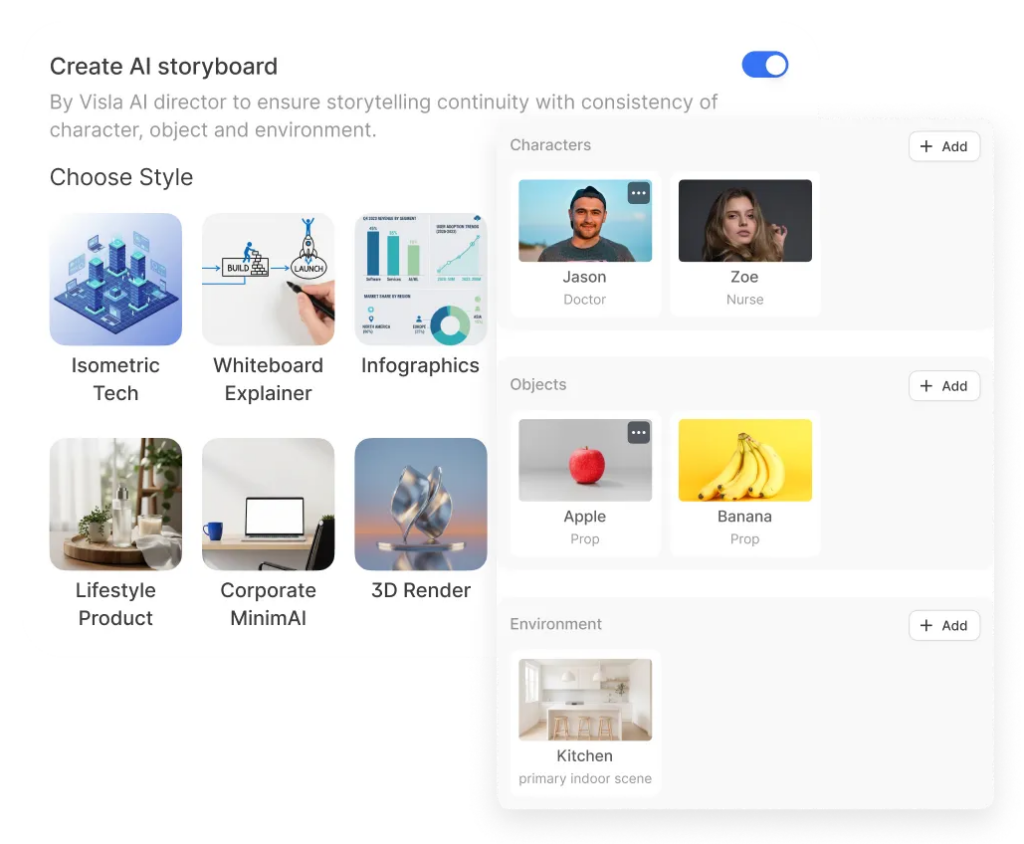
Marketing is one of the strongest Visla use cases because it usually demands speed, consistency, and variety at the same time. Teams need launch videos, campaign assets, short promos, social cutdowns, and product messaging that actually looks intentional. That is where AI Director Mode becomes especially valuable, because it lets you plan the video scene by scene, lock in characters, products, logos, and environments, and then decide which moments should stay as storyboard images and which should become full AI video clips.
This is a better fit for serious marketing work than a purely prompt-and-pray workflow. You get more control over pacing, visual direction, and brand continuity before you spend credits on AI-generated video clips, which helps teams move faster without making the output feel random. If you want one Visla use case that best shows off modern AI video creation for business, this is probably it.
2. Blog-to-video creation from a webpage
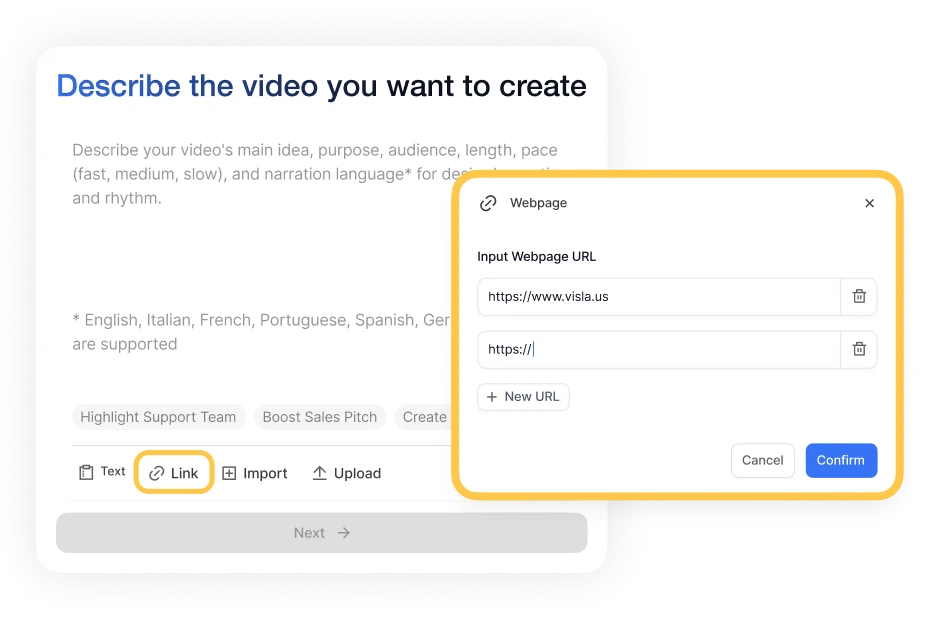
A lot of companies already have strong written content, but they don’t have time to remake every article from scratch as a video. Visla solves that by turning a webpage into a video draft, which makes Webpage to Video creation one of the most practical use cases on the platform. Instead of treating your blog as a dead-end format, you can turn a high-performing article into a shareable video asset with narration, visuals, music, and editable scenes.
This use case is especially useful for content teams that want more mileage from existing work. You can publish the article for search, then turn it into a video for email, landing pages, sales follow-up, or social distribution. It’s one of the cleanest ways to repurpose content without opening a blank timeline and starting over every time.
3. LinkedIn video maker for B2B distribution
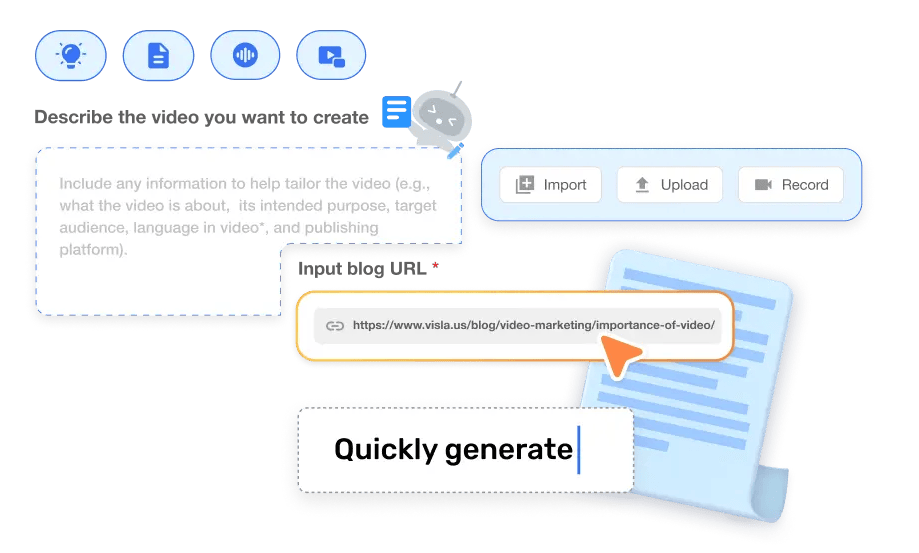
LinkedIn is a strong fit for business video, especially for product marketing, founder-led content, category education, and campaign amplification. Visla works well here because you can use AI Director Mode to build short, visually consistent videos that feel more deliberate than generic AI clips and more scalable than shooting every post manually. That matters on LinkedIn, where clarity, professionalism, and message discipline usually outperform chaos.
This use case also benefits from the fact that you can create variations quickly. You can test different hooks, shorten scenes, change pacing, and keep the same core visual assets across multiple versions for different audiences or campaigns. For B2B teams that want more video on LinkedIn without building a full studio workflow, this is one of the smartest places to start.
4. Tutorial videos with Screen Step Recorder
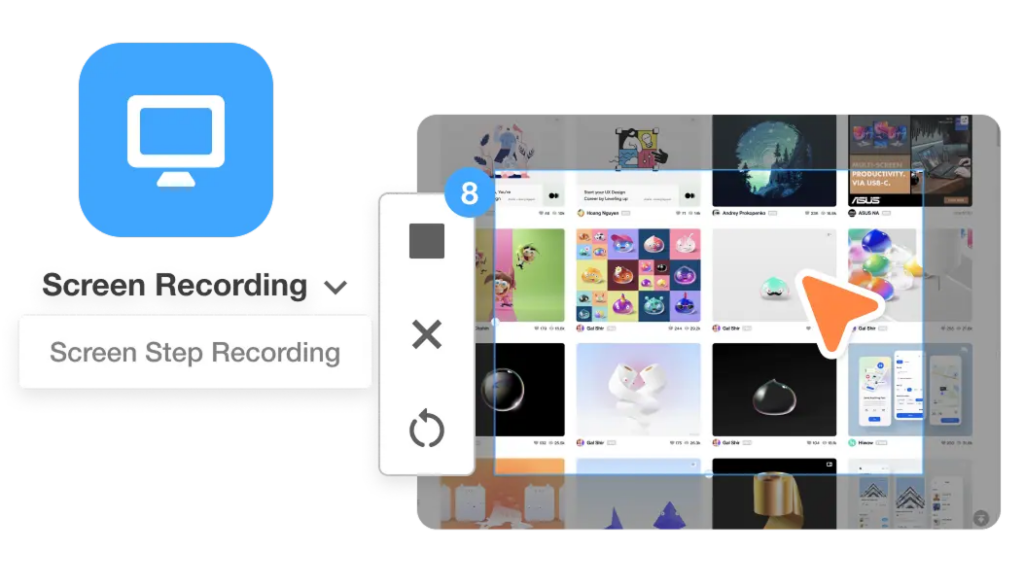
Some tutorials are best made by showing the exact clicks, fields, menus, and sequences someone needs to follow. That is why the Screen Step Recorder is one of the most useful Visla features, and why tutorial video creation belongs near the top of this list. It captures actions on screen and turns them into a structured step-by-step guide, which is much faster than manually taking screenshots, writing instructions, and stitching everything together later.
It’s also flexible in a way that simple documentation tools are not. You are not just getting static steps. You can turn the recording into a polished video, GIF, or PDF guide, then refine the result so it feels clear and professional. If your team makes how-to content regularly, this use case saves time almost immediately.
5. Onboarding videos from PDFs
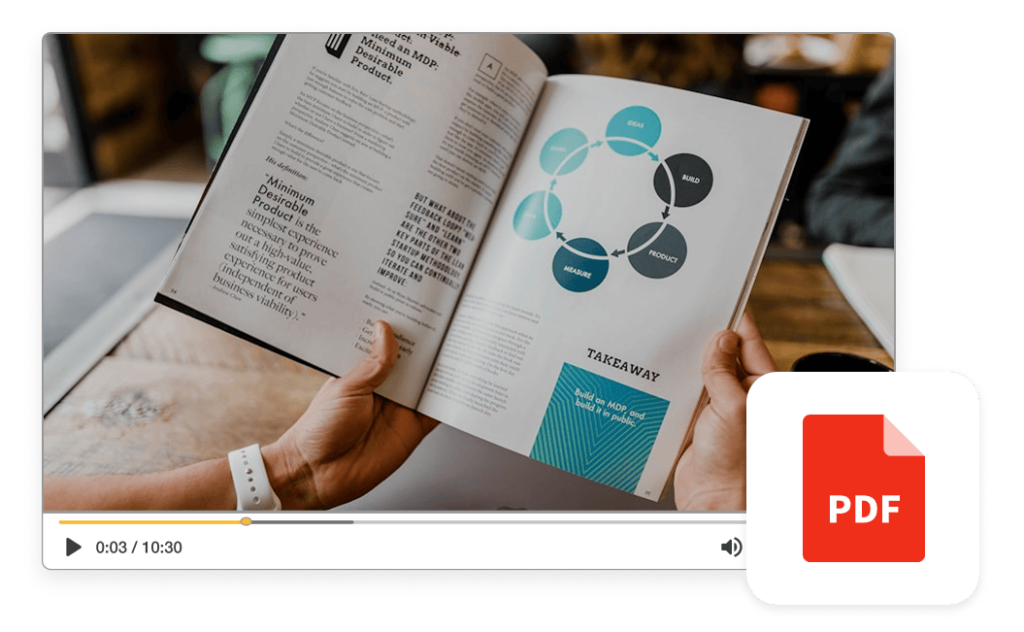
A lot of onboarding content already exists inside documents, decks, and internal PDFs. The problem is that new customers or new users don’t always want to read a long file front to back, especially when They’re just trying to understand the essentials quickly. Visla’s PDF to Video workflow turns static onboarding material into something more watchable and easier to absorb, which makes it a natural use case for customer onboarding.
This is especially valuable when your onboarding process has to scale. Instead of repeating the same explanation live or sending dense documents that may never get opened, you can create a more digestible onboarding video from the materials you already have. Then you can update the source document and generate a fresh video when the process changes.
6. L&D training videos for employees from PDFs and docs
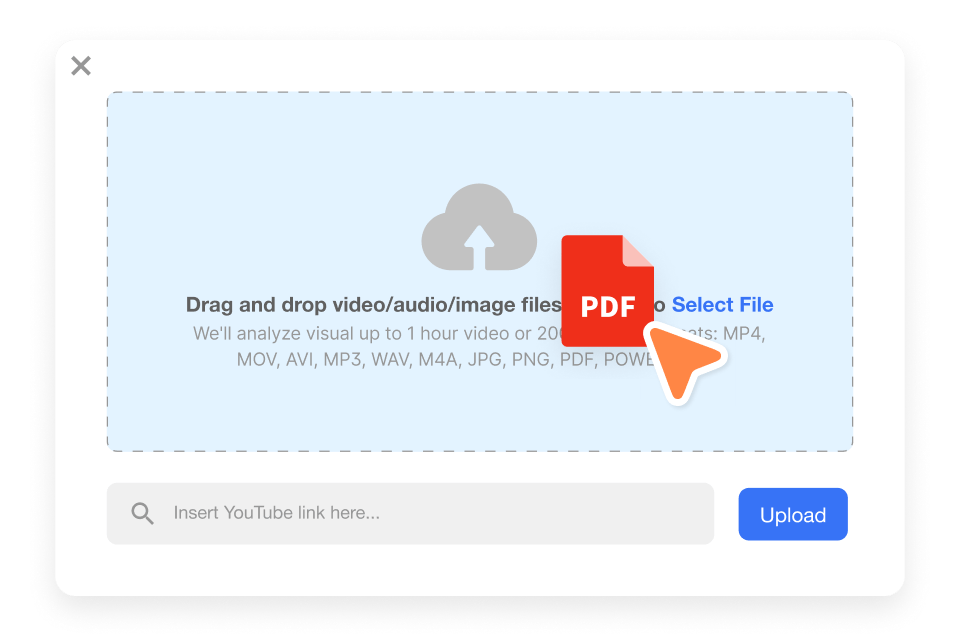
Employee training has many of the same challenges as customer onboarding, but usually at a larger scale and with more repetition. Teams need to explain processes clearly, keep materials up to date, and deliver content in a format people will actually finish. That makes PDF to Video a strong fit for L&D teams that already have training documents, policy summaries, process explainers, or compliance materials sitting in static files.
Visla helps turn those materials into narrated training videos without forcing your team to rebuild every lesson from scratch. That is useful for everything from orientation and compliance to role-specific refreshers and internal SOP training. When training content needs to be updated often, starting from existing documentation is usually much more realistic than re-recording everything manually.
7. Education videos with screen recording and video recording
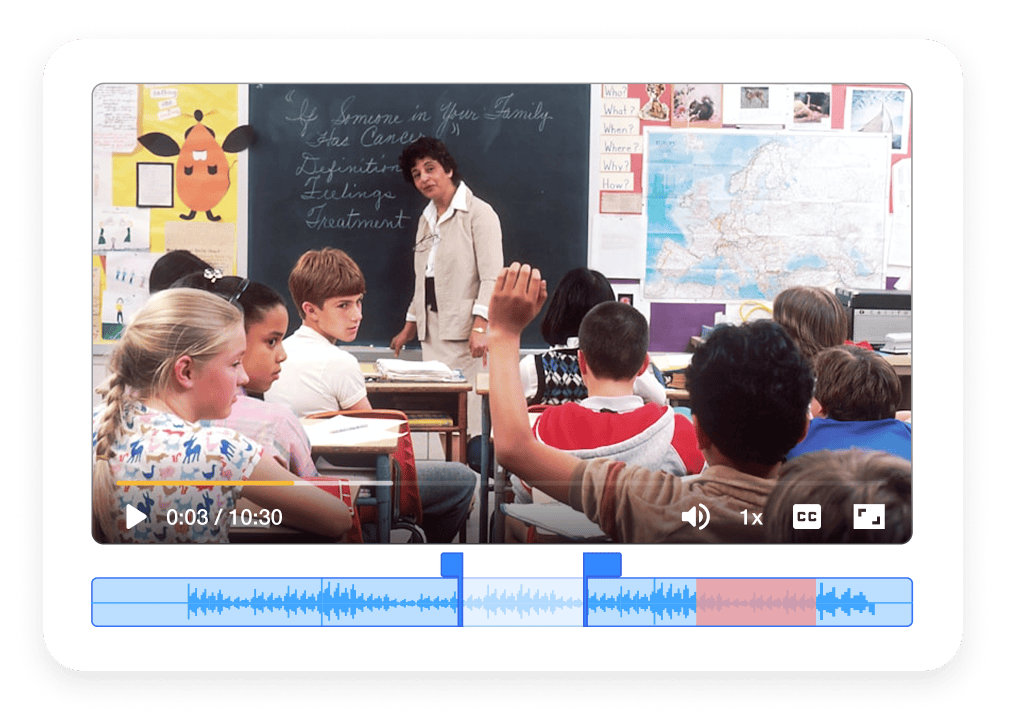
Education video creation often needs two things at once: direct explanation and visual demonstration. Sometimes you need to show your screen, walk through a slide, demo a workflow, or annotate a process. Other times you need a teacher, presenter, or subject-matter expert on camera. Visla works well for education because it supports both screen recording and camera-based video recording in the same broader workflow.
That makes it easier to create lessons, mini lectures, flipped classroom content, project explainers, and internal education materials without bouncing between tools. You can record your screen, record yourself, combine both, and then move into editing and sharing without leaving the platform. For educators and training teams alike, that kind of flexibility matters a lot.
8. Sales enablement videos with teleprompter and multi-camera recording
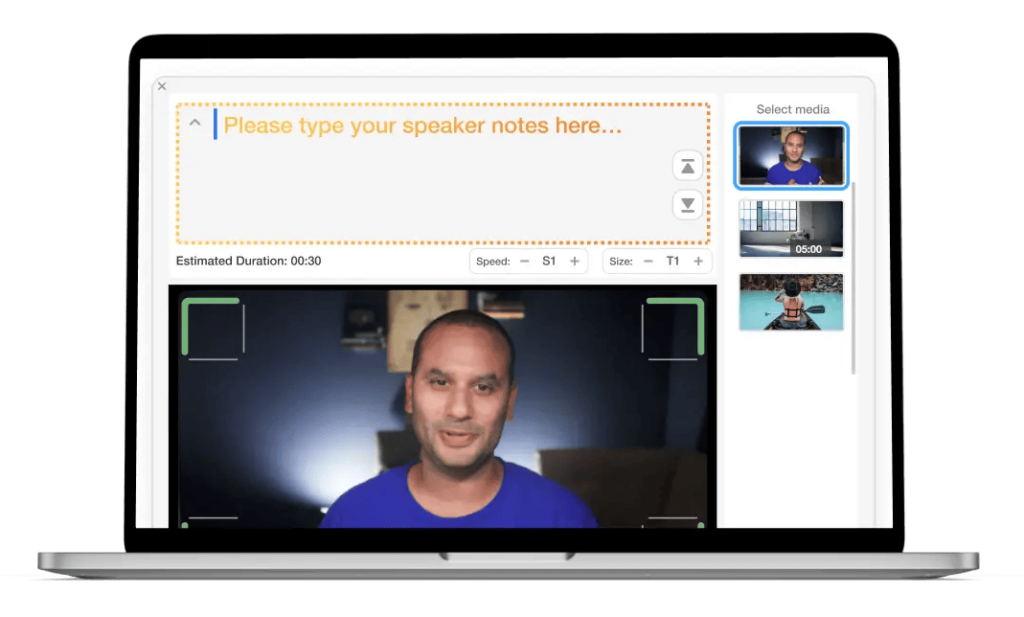
Sales videos need to feel personal, but they also need to be repeatable. Reps and enablement teams often need product overviews, objection-handling explainers, internal playbooks, and prospect-facing videos that sound confident without feeling stiff. Visla’s video recording tools are a strong fit here because they include features like a built-in teleprompter, multi-camera recording, custom layouts, and segmented recording that make it easier to create polished footage without overcomplicating the process.
This use case is broader than cold outreach alone. Sales teams can use it for internal training, demo prep, feature explainers, and reusable enablement assets that help everyone tell the same story more clearly. If your team wants stronger video communication but does not want every rep reinventing the wheel, this is a very practical workflow.
9. Customer support videos with Screen Step Recorder
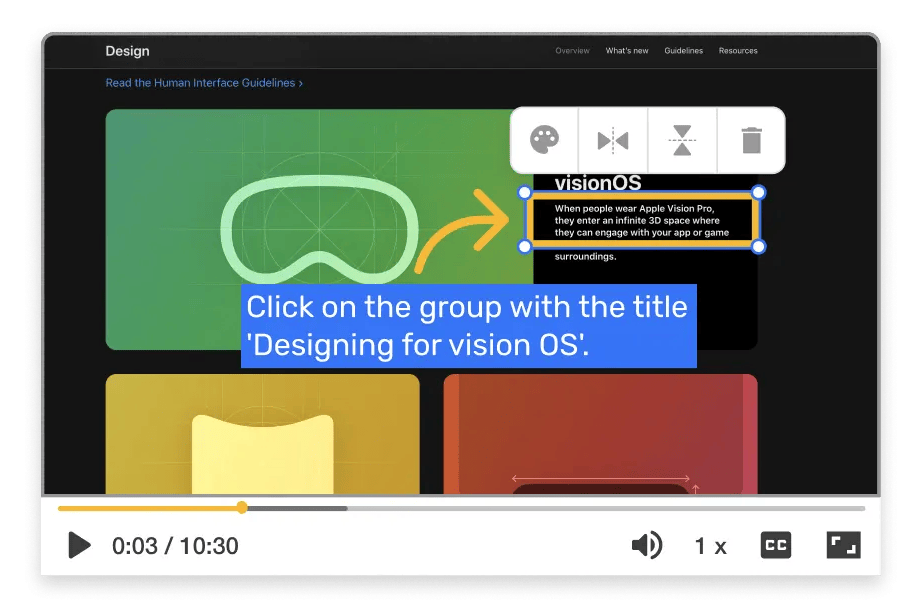
Support teams are constantly answering the same kinds of questions: where to click, how to change a setting, how to fix a common mistake, how to complete a process. That is exactly the kind of work that Screen Step Recorder is built for. Instead of writing a fresh response every time or sending a long article that may be harder to follow, you can capture the process once and turn it into a clear support video, GIF, or PDF guide.
This use case is especially strong when customers need visual clarity. Step-by-step support content can reduce confusion, lower ticket volume, and give your team reusable assets for your help center and one-to-one replies. It also pairs well with the way modern support is becoming more multimodal, with customers expecting richer communication than plain text alone.
10. Feature walkthrough videos with AI screen recording
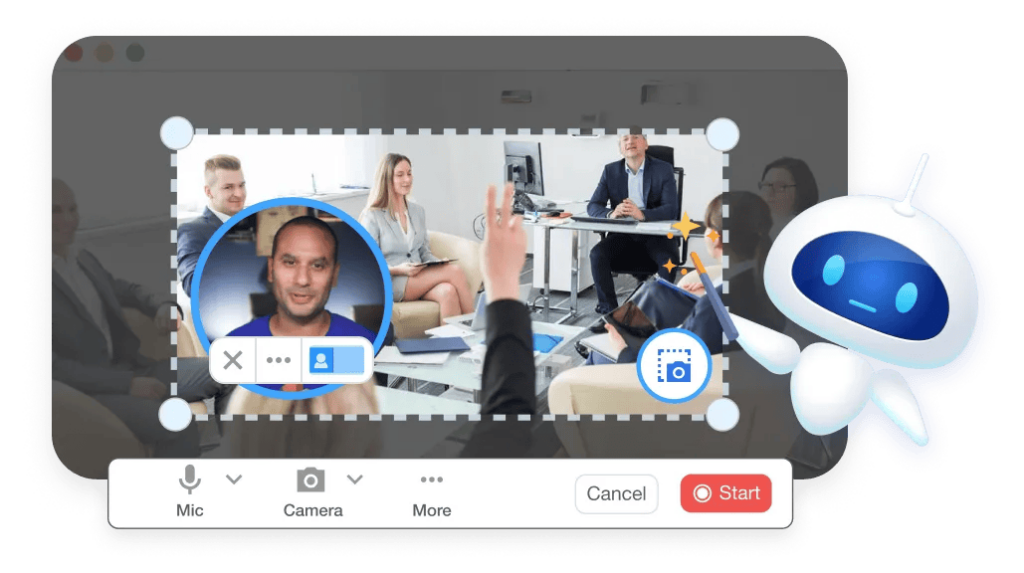
Feature walkthroughs sit somewhere between product marketing, onboarding, and support. They need to be clear enough for new users, focused enough for existing users, and polished enough that they feel like part of the product experience. Visla is a good fit because you can record your screen with the help of AI, capture your webcam if needed, use annotations, and then let AI help clean up the recording with tighter edits, captions, and a more presentation-ready finish.
This is one of the best use cases for teams shipping product updates constantly. You can create walkthroughs for launches, release notes, new workflows, and in-app education without sending every request to a full video editor. For product-led companies, that speed matters because feature education works best when it ships close to the feature itself.
FAQ
If you mainly need solo creation and core recording and editing tools, Free or Pro is usually enough, with Pro starting at $9 per month billed annually. Business starts at $39 per month billed annually and adds features like a full brand kit, larger uploads, usage analysis, 4K export, more premium stock access, three voice clones, and three custom avatars. Enterprise is the better fit when you need unlimited workspaces, SSO, custom billing controls, onboarding support, or unlimited voice clones and avatars. The smartest way to choose is by matching the plan to your workflow complexity, brand control needs, and collaboration requirements, not just your monthly credit total.
Use AI Director Mode when you want to build a scene-by-scene AI video with controlled characters, objects, environments, pacing, and stronger visual consistency. Use Screen Step Recorder when the goal is to capture an exact process and turn clicks, scrolls, and typed actions into a step-by-step guide, GIF, PDF, or video. Standard screen recording is better when you need a live walkthrough, narration, annotations, or a broader recording of your interface rather than an auto-structured guide. In practice, AI Director Mode is best for directed storytelling, while the recording tools are best for documenting what actually happened on a screen.
For many teams, yes, because Visla is built to cover capture, AI video creation, editing, sharing, and team collaboration in one workflow. Its Workspaces and Teamspaces support shared assets, permissions, comments, and review-friendly collaboration, while its recording and editing tools handle the production side. That does not mean every team will use every feature equally, but it does mean marketing, sales, training, and support can often work from the same platform instead of stitching together multiple point solutions. The biggest advantage is usually not just consolidation, but a shorter path from raw source material to a finished video that teammates can actually review and approve.

May Horiuchi
May is a Content Specialist and AI Expert for Visla. She is an in-house expert on anything Visla and loves testing out different AI tools to figure out which ones are actually helpful and useful for content creators, businesses, and organizations.