Change video speed for any scene in Visla
Speed up video, create slow-motion footage, and match each clip to the pace of your project with Visla’s video speed controller.
Get Started for FreeHow can you change video speed in Visla?
Visla’s Change Video Speed feature lets you adjust the footage in any individual scene. Choose any value from 0.1x to 16x with the slider, or enter an exact number in the text field. The change applies to the clip and its attached audio while preserving pitch, but separate voiceover and background music tracks stay unchanged. The selected speed appears in the exported video.


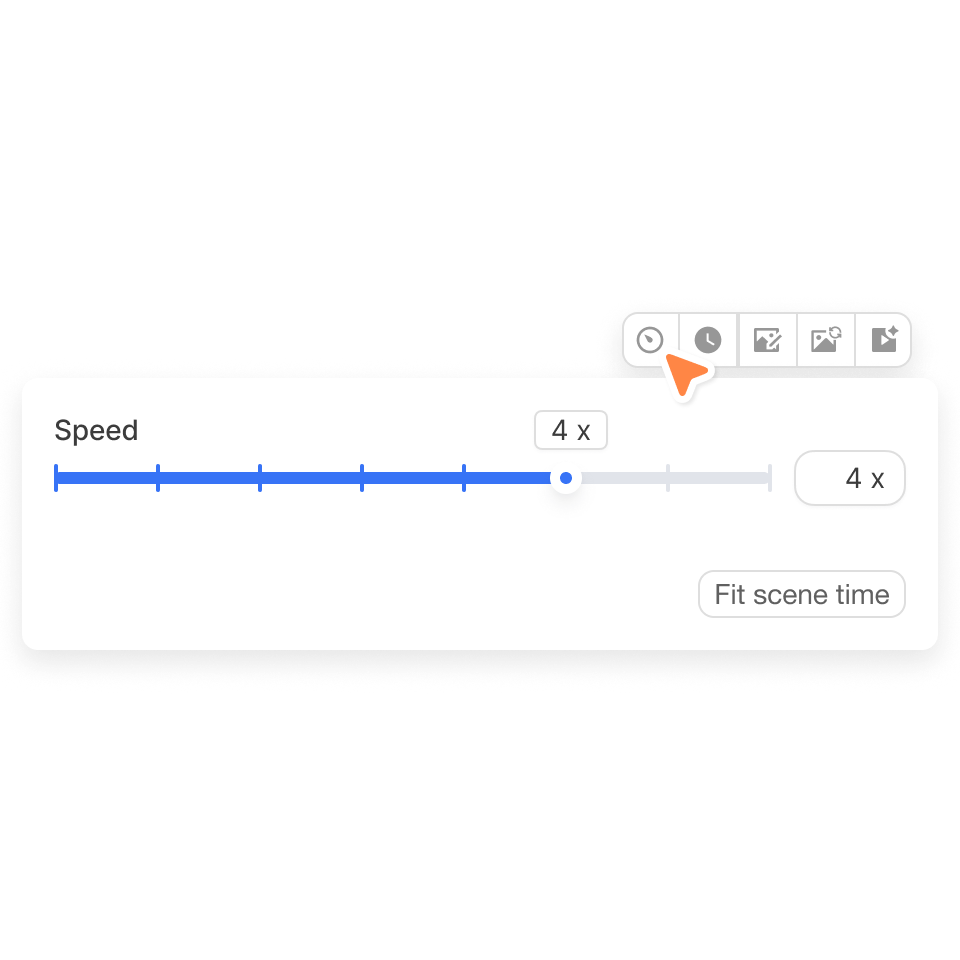
How to change video speed in Visla
2. Open the speed controls>
Click the button on the far right of the toolbar. Its tooltip reads Speed when you move your pointer over it.
3. Adjust and preview the clip>
Move the slider between 0.1x and 16x, or enter a value in the text box. You can also select Fit scene time or reset the clip to its original speed before previewing the scene.
Adjust the speed of any video clip
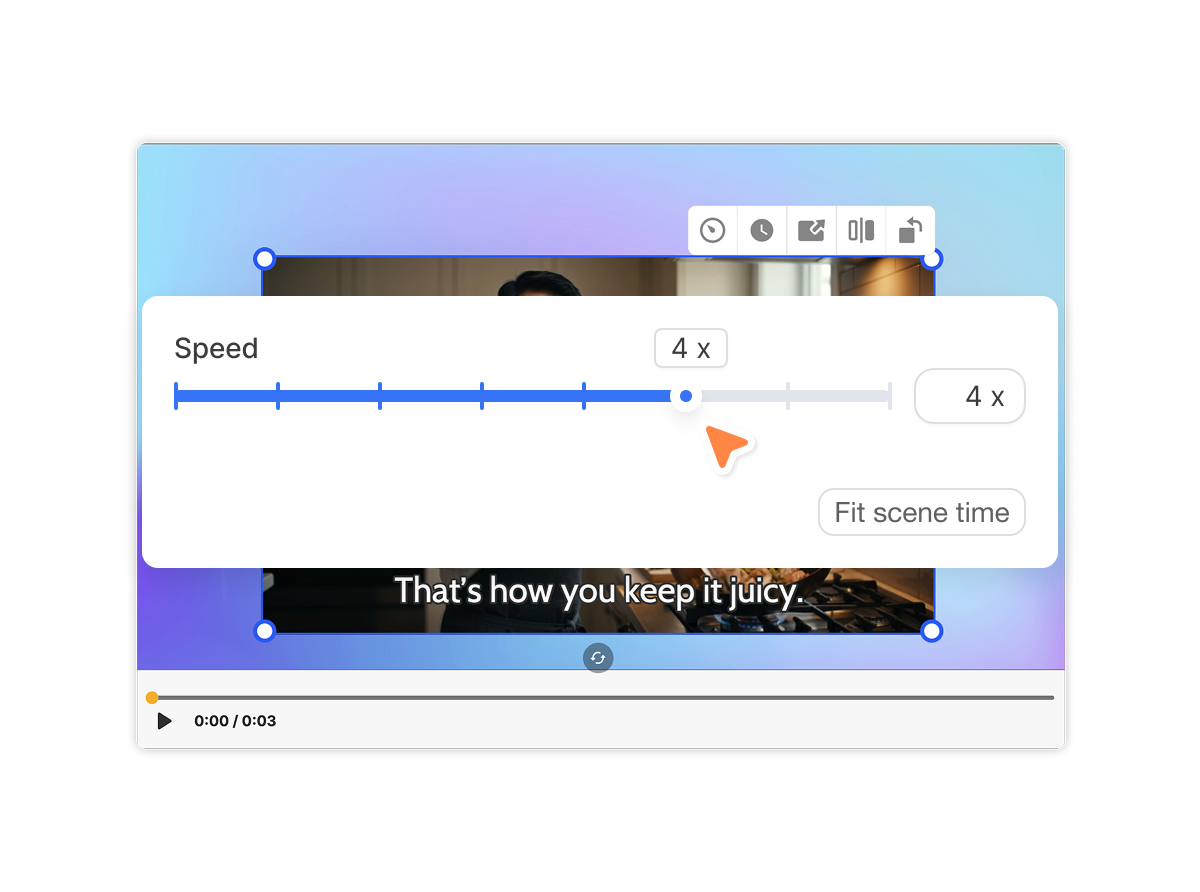
Speed up long footage
Increase the speed to shorten footage that takes too long at its original pace. For example, you can condense a software setup, assembly process, or lengthy establishing shot without making several manual cuts.
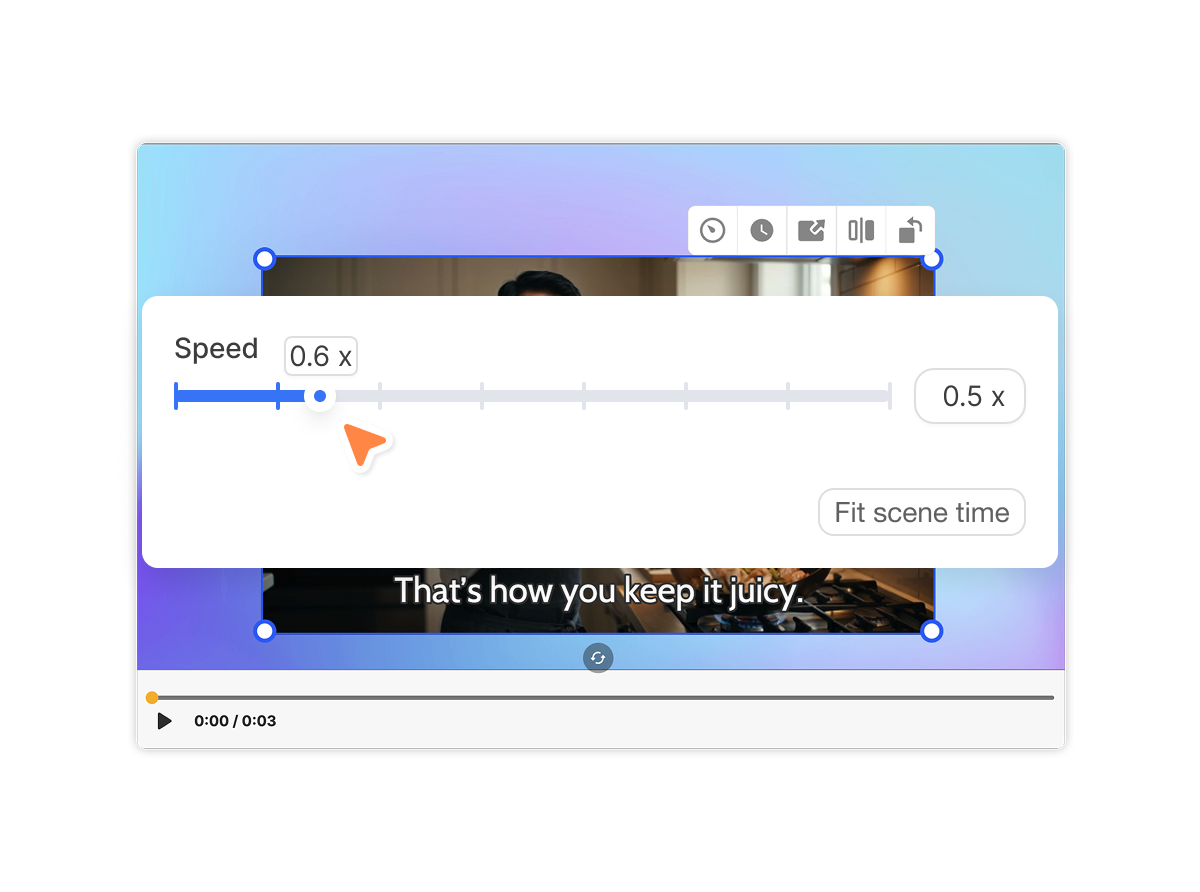
Create slow-motion video
Reduce the speed as low as 0.1x to make a movement, reaction, or product detail easier to see. Visla preserves the pitch of any audio attached directly to the clip.
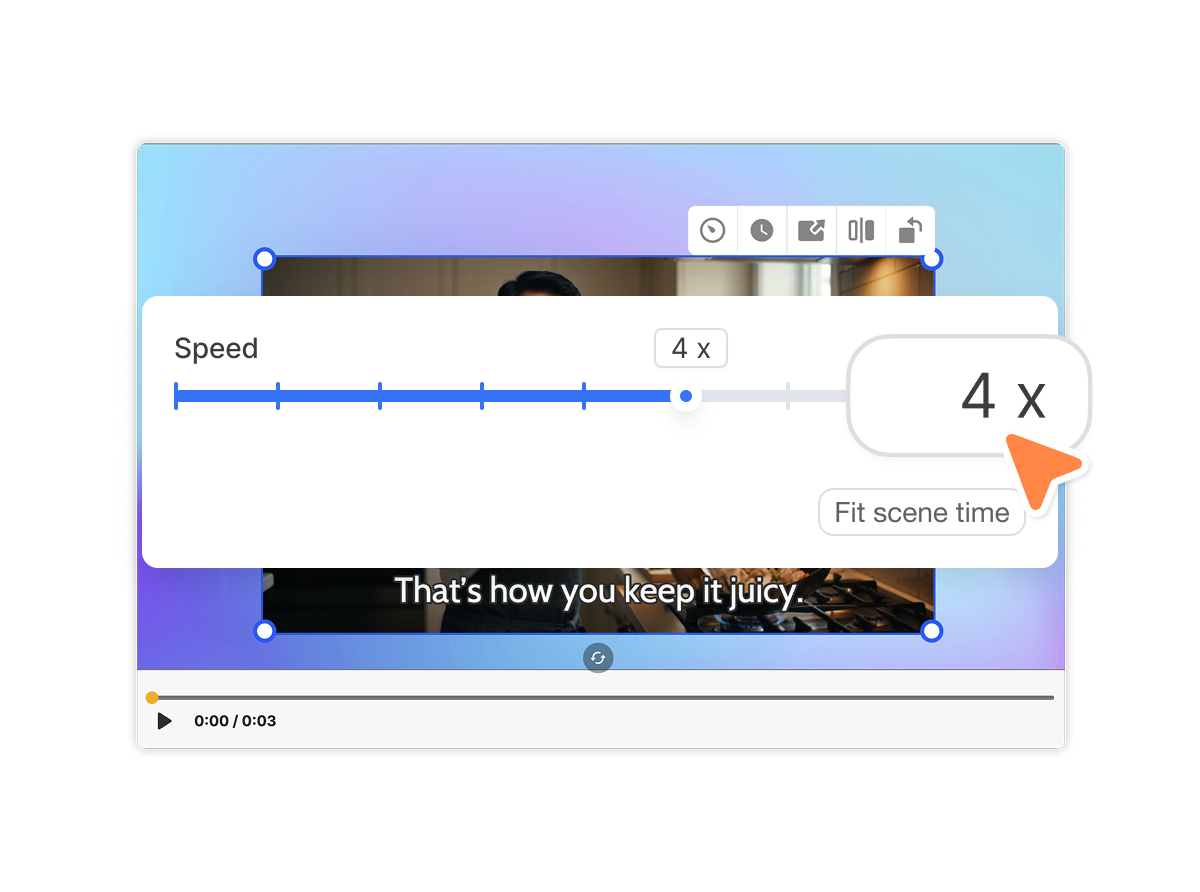
Enter the exact speed you need
Increase the speed to shorten footage that takes too long at its original pace. For example, you can condense a software setup, assembly process, or lengthy establishing shot without making several manual cuts.
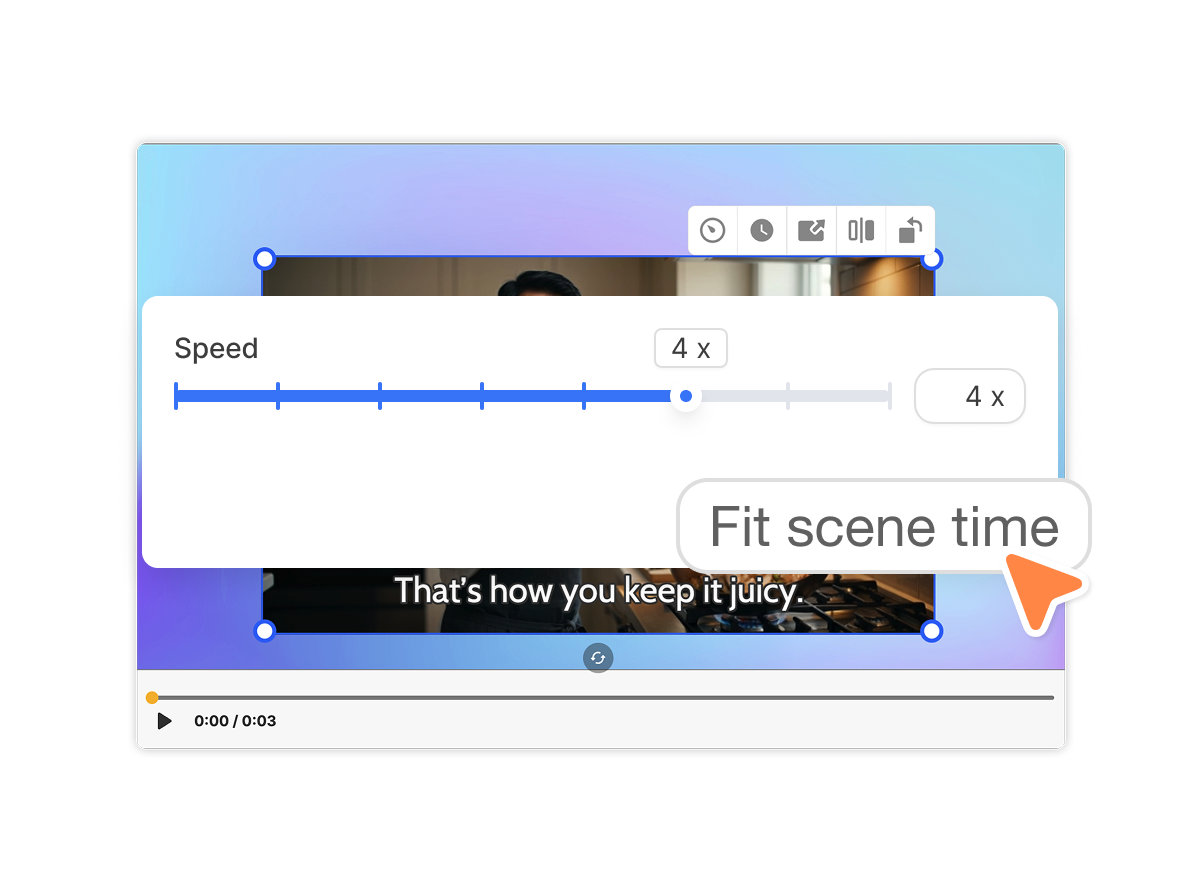
Match footage to the scene lengt
A sped-up clip may finish before the scene ends, while slower footage may run beyond the available time. Select Fit scene time when you want Visla to adjust the clip speed to match the scene.
Where video speed controls help
Product demos and tutorials

Accelerate repetitive setup steps while keeping the instructions that matter at normal speed. Slow down a detailed action when viewers need more time to follow it.
Marketing and social videos

Use faster B-roll to fit more visual information into a short ad or social post. Slow down a product reveal or event moment when the movement itself deserves attention.
Training and explainer videos

Adjust supporting footage without changing the timing of separate narration or background music. This helps the visual track follow the explanation already in place.
Frequently Asked Questions
 What video speeds does Visla support?
- Does changing video speed affect the audio?
- Can I change the speed of uploaded or generated footage?